Problems Tab
The Problems tab is used to display all of a patient's issues/problems. The Problem tab has three sections namely Problems, Problems Imported and Family History. Sections like Problems and Family History have New and Delete buttons. The New button is used to create problems and family history and the later is used to delete the problems and family history. The Problems Imported section has Reconcile button.
Prerequisite: You will need to have a patient (existing or new) in the system to create a problem.
Problems Section:
This section has various columns like Date, Problem Code, Description, Date Modified, Active, Education Resource, and Email.
If you wish to create a problem for an existing and a new patient, Click View patient information  icon. Patient Info screen appears.
Click Problems tab. Problems tab appears as shown below.
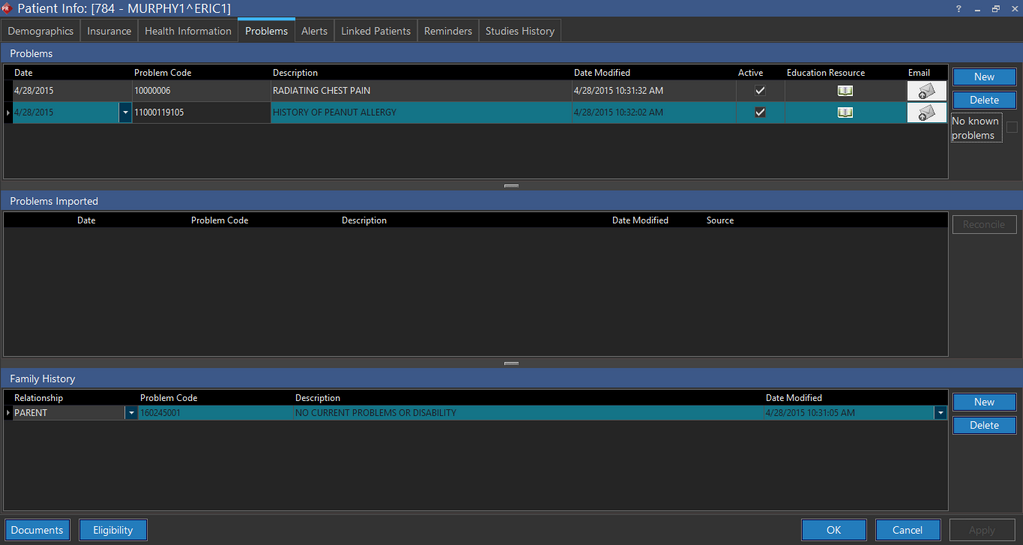
Click New found under Problems tab. Upon click, the application displays current date in the Date field.
Enter a problem code in the Problem Code field. The problem code is numeric. While you type in the problem code, the typed text matches with the database and gets filtered. As a result, you could find a list of problem codes. Select the appropriate problem code from the list. Upon selection, the name of the problem is displayed in the Description text field.
No Known problems: If this check box is checked, it denotes that the physician has explicitly declared that the patient has no existing illness or free from illness. Whereas, if unchecked, it denotes that the physician has not examined the patient for any existing illness.
Problems Imported section
Displays a list of all imported problems.

The Reconcile button is highlighted only upon successful import of one or more problems. If the Reconcile button is clicked, the imported problems whichever is not available under Problems section will be moved to Problems section.
Family History Section:
Displays a list of one or more problems as family history.

Click New under Family History tab. The application displays a new row.
Click the Relationship drop-down and select the relationship with the patient.
Enter a problem code in the Problem Code field. The problem code is numeric. While you type in the problem code, the typed text matches with the database and gets filtered. As a result, you could find a list of problem codes. Select the appropriate problem code from the list. Upon selection, the name of the problem is displayed in the Description text field.
Eligibility
If the Eligibility button is clicked, the application opens Practice Suite. For more information on viewing Eligibility Coverage, please refer to the topic, Checking Eligibility for Insurance Coverage.
Documents
If the Documents button is clicked, the application opens the Document Viewer listing all the documents, prior reports and patient documents. For more information on Document Viewer, please refer to the topic, How Do I Create and View Reports?.