How Do I Manage Conflicts?
When two studies with the same Issuer of Patient ID, the same Patient ID, but a different Last Name arrive at the system, they are considered conflicts. The latter of the two conflicting studies to arrive is placed into the conflicts table. The system also generates a new Patient ID for the study, in order to be able to store it in the RamSoft software database. Once two contradicting studies have been found, you have to manually resolve the conflict. This is done by using the Conflicts dialog. This dialog is accessed from the Settings drop down menu.

The Conflicts option menu leads to the following screen.
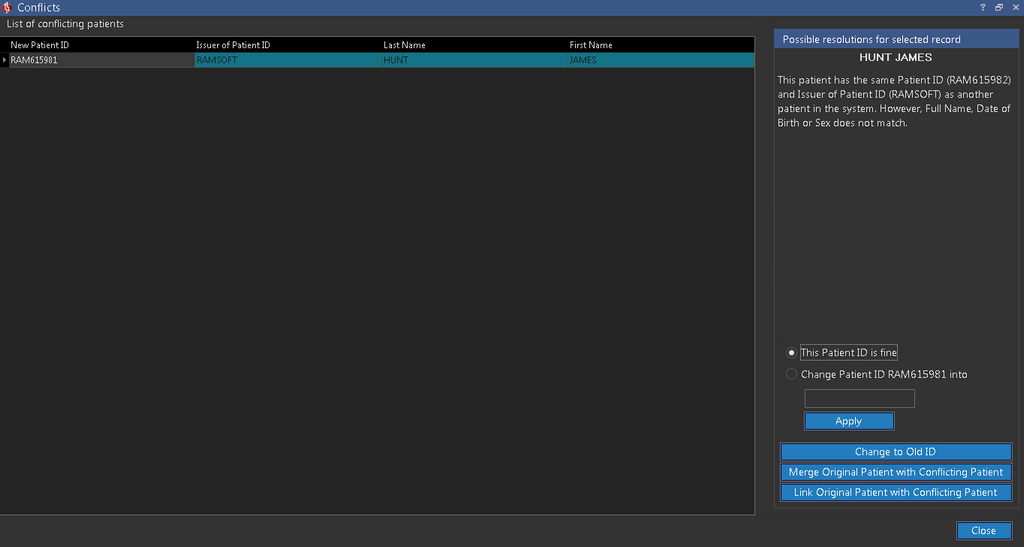
The left side of the dialog contains a list of all of the conflicting studies found within the system. The New Patient ID column shows the PatientID number that has been temporarily assigned by the system. The original PatientID can be seen on the right side just above the Resolve button. The Issuer of Patient ID, Last Name & First Name columns are simply present as a reference to help you identify the patient you are currently resolving.
In order to resolve a conflict, highlight the study you would like to fix. If the two studies that conflicted are not related and the system generated PatientID is fine, choose the This Patient ID is fine option and click the Resolve button.
If you do not like the system generated ID and would like to change the PatientID into something else, choose the Change PatientID ... into option and enter the new ID into the box. Press Resolve to implement the changes.
Finally, if you want to merge this patient with another patient already in the system, choose the Change PatientID ... into option and type in the PatientID of the existing patient. Since the details for the study you are trying to add and the patient already in the system are different, a Merge Confirm dialog will pop up.

Here, the two patients are displayed side by side. When studies stored under two patients are being merged into one, only one set of details can be kept. If you would like to keep the details from Patient A press the Keep Patient A button. To keep Patient B press Keep Patient B.
Rules of conflict resolution
The process of resolving conflicts can be configured with the Automatic Processing Rule setting by administrators in Maintenance. Refer to the Maintenance manual for instructions on how to configure patient conflicts.
Merge or Link
If the Automatic Processing Rule has been set to Merge/Link, the following rules will resolve the conflict when an identical study is received from another system:
a) If a new patient created for a new study is identical to an existing patient in the system, the user will receive a notification that the two patients (new and existing) will be merged together.
b) If a patient of a newly received study from another station is identical to a patient previously registered in the system, the two patients are linked together in the Linked Patients tab of the Patient Info form.
c) The system will automatically link two patients which have the same credentials but different Patient ID and Issuer of Patient ID (also see point j below).
d) The system will automatically merge patients which have the same credentials but different Patient ID (also see point k below).
e) If a patient is received from another system where the Last Name, First Name, Date of Birth, Sex, Social Security Number (SSN), Middle Name, or Suffix is blank, a conflict is NOT created. However, if any of these fields differ from that of an existing patient, a conflict is created (also see point i below).
Mark Conflict
If the Automatic Processing Rule has been set to Mark Conflict, users will be required to manually resolve the conflict. In this case, the following rules will be applied:
f) If two patients have the same Issuer of Patient ID, same Patient ID, same Last Name, same First Name, Sex, Birth Date, and Social Security Number (SSN), they are considered conflicts. In this case a message is displayed stating that "Another patient with the same attributes detected. Do you want to merge them?". The user can opt to merge or to cancel the change.
g) If two patients have the same Issuer of Patient ID, same Patient ID, same Last Name, same First Name, Sex, Birth Date but different Social Security Number (SSN), they are considered conflicts. In this case a "Do you wish to merge?" message is displayed and the user is required to select one of the patients.
h) A conflict is created when a patient with the same Social Security Number (SSN) or Health Card (HC) number is created or received from another system. A specific system configuration entry "Use SSN Field for Patient Conflict Matching" should be toggled on. When this option is set to true, the system will verify that none of the existing patients have the same SSN or HC number.
i) If a new patient is created in the system where everything is identical to an existing patient except the Issuer of Patient ID, the system will notice this as an exception and launch a dialog to deal with that exception. In this dialog, the user has the option to merge the two patients, save and link the two patients together, or to save the current patient as a separate entity.
j) Patients with all the same credentials but different Patient ID and Issuer of Patient ID will be considered as a conflict. In this case, the system will place the second study in the Conflict resolution table.
k) Patients with all the same credentials but different Patient ID will be considered as a conflict. In this case, the system will place the second study in the Conflict resolution table.
l) If two patients (one existing patient and another patient received from another system) have the same Issuer of Patient ID and same Patient ID, a conflict is created. If the study received from the other system has a patient where any of these two fields are blank, a conflict is created. The latter of the two conflicting studies to arrive is placed into the Conflicts table.