How Do I Add a QR Code to a Document?
QR code can be added to a document template, which can be scanned on any mobile device to give the user access to the study and its final report through Rapid Results. This can be achieved by adding the "StudyURLQRCode" as a bookmark to any document or report template. The following is sample document with QR code:
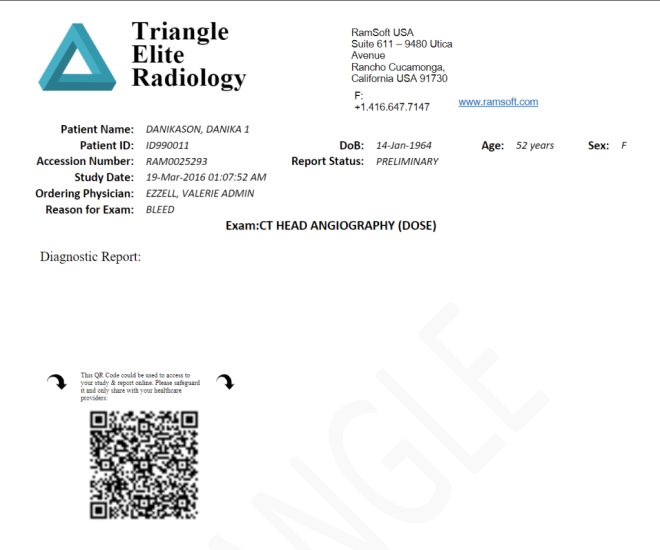
For more information about how to add and update bookmarks in a report template, refer to Creating Bookmarks.
Resizing the QR Code
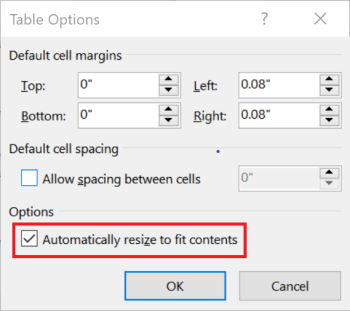
To re size and customize the QR code position, place the QR Code bookmark in a table and follow instructions in Microsoft Word help for resizing the cell.
The following image shows the Table Options dialog in Microsoft Word:
Fixing Blurry QR Code
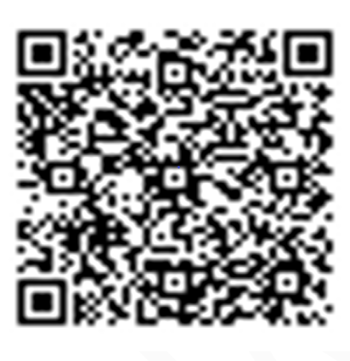
If you use a very large table cell, the QR code could look blurry, as shown in the following image. However, you will still be able to scan and read the QR code. You can test the readability of the QR code by using any smartphone devices before finalizing the document or report template.
Printing Using QR Printers, Non-Standard Paper, or Label Sizes
You can use any paper or label size to print the QR code. However, ensure that the document/report template size is accurate and the printer setting is correct.
To change the document/report template size, open the template in Microsoft Word, and then change the paper size to match the paper/label you want to use. For more information, refer to the Microsoft documentation Change Paper Size.
Changing the Document/Report Template Size
Open the template in Microsoft Word and change the paper size to match the paper/label you want to use.
Print Options
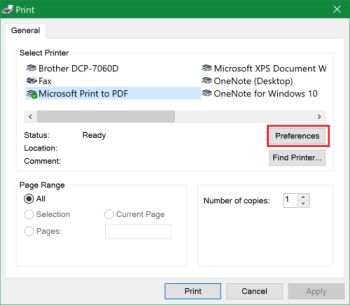
Navigate to your printer's preferences to set up the correct paper size, as shown. Note that this configuration is only required the first time you use a custom template size for a new paper size.
Printing QR Code Without Creating a Document
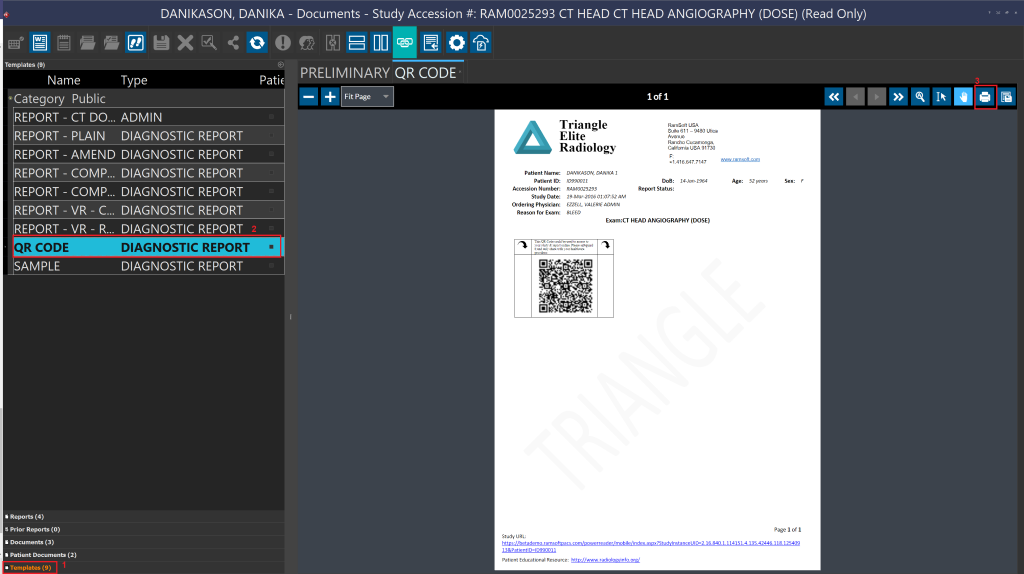
When you create a document as a study document, users in RapidResults can access and print the QR code. However, if you only want to print the document, you can use the template preview feature:
-
Open Document Viewer and select the Templates tab.
-
Select the desired template.
-
Click Print.