New Order
The purpose of New Order is to create one or more studies. Creating one or more studies could be done for any existing patient and for a new patient. The newly created order remains on the top of the worklist whereas the old/existing order is pushed down in the worklist. However, all orders remain in the worklist tab of the homepage.
Prerequisite:
To create a new order for an existing/new patient, a referring facility, study types must exists.
How to Create a New Order for a Existing Patient
- Click Create a New Order icon
 found in the toolbar. New Order screen appears as shown below.
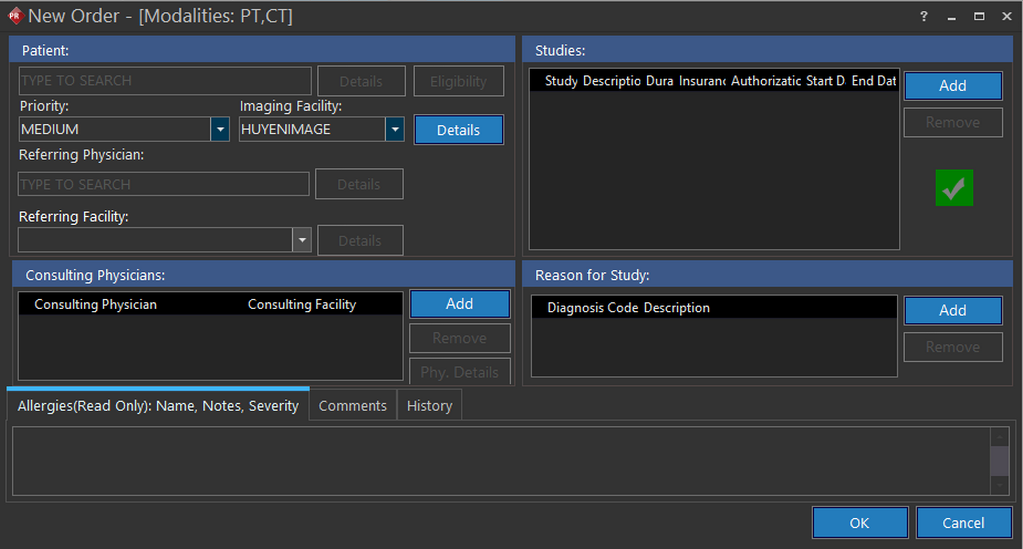
Note: The fields such as Patient, Referring Physician, Referring Facility, and Studies are mandatory. The remaining fields are optional and can be left blank.
Eligibility: Opens Practice Suite web application which is associated with PowerReader. It displays the insurance details such as number of insurances held by patient, insured person name, family relationship, coverage amount, validity period etc.
- Type the existing patient name in the Patient text field. While you type the patient name, the typed text matches with database and gets filtered. As a result, you could find the matched record on top of the grid. Once the patient is found, the application displays the patient's allergic conditions, notes, and their severity. These allergic information will appear in red fonts as read-only.
- Select the patient name from the grid.
- Select the priority and name of the imaging facility from the respective fields. Though, imaging facility field is not mandatory, if you wish to choose an imaging facility for this new order, ensure the imaging facility exists.
- Type in the name of the physician who has referred the patient in the Referring Physician text field. While you type the referring physician's name, the typed text matches with database and gets filtered. As a result, you could find the matched record on top of the grid else, you will need to click New to create/add a new referring physician name in the database.
- Select the referring physician's name from the grid. Upon selection, the Referring Facility field becomes enabled.
- Click the Referring Facility drop-down menu and select the name of the referring facility.
- Click Add under Studies and enter the type of study, a detailed description, and authorization number in the respective fields. You can add any number of study details by clicking Add.
- Click Add under Reason for Study and enter the diagnosis code and a note in the respective fields. If the Procedure Code or Diagnosis Code is critical, an alert message is displayed as shown below. You can add any number of reasons for the study.
- Click OK. The application displays a confirmation screen. Click Yes to save.
How to Create a New Order for a New Patient
- Click New Order icon found in the toolbar. New Order screen appears as shown below.
Note: The fields such as Patient, Referring Facility and Studies are mandatory. The remaining fields are optional and can be left blank.
Eligibility: Opens Practice Suite web application which is associated with PowerReader. It displays the insurance details such as number of insurances held by patient, insured person name, family relationship, coverage amount, validity period etc.
- Enter the new patient name in the Patient text field. While you type the patient name, the typed text matches with patients name in the database. If the typed in patient name doesn't match, the application shows New below the patient name.
- Click New. Upon click, Patient Info screen appears.
- Refer Patient Registration (RIS) for the remaining steps.
The Details button found beside Patient, Imaging Facility, and Referring Facility text fields allows you to view additional information about the patient, imaging facility, and referring facility respectively.
The Add button found in Studies, Consulting Physicians, and Reason for Study text fields allows you to create one more of the same type at each instance they are clicked.
The Remove button found in Studies, Consulting Physicians, and Reason for Study text fields allows you to delete one data set at each instance they are clicked.
The Phy. Details button found in Consulting Physicians allows you to view additional information about that particular consulting physician.
The Fac. Details button found in Consulting Physicians allows you to view additional information about that particular consulting facility.
The Studies field is used to determine the number of new studies to be ordered.