Migrating from Disk Volume to Blob Storage Volume
If Disk volume was previously used on the server, it can be migrated to the Blob Storage volume for PowerServer PRU 9 and higher.
- Before configuring migration of objects to Blob storage, check the Image folder and Blob storage
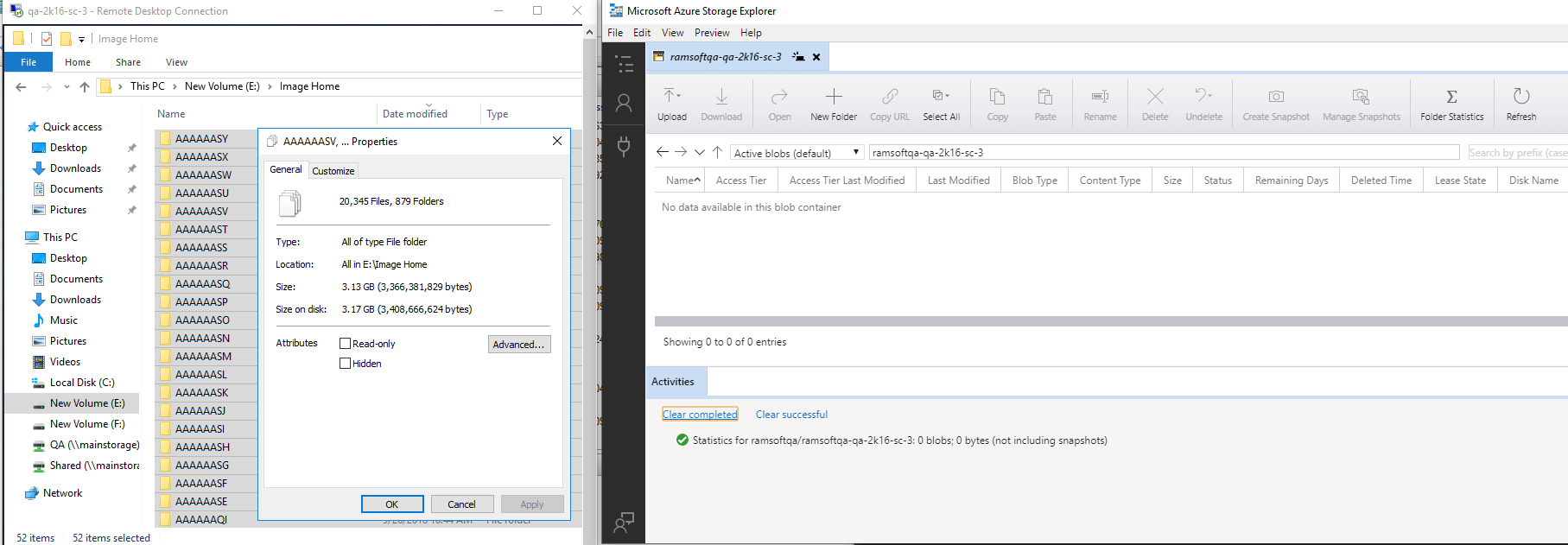
-
The following need to be set in System Configuration on PowerReader:
- 'Object Migration Completed' should be set to 'N' (i.e unchecked)
- 'Object Migration Last SOP Instance UID' should be cleared (string)
- 'Object Migration Volume ID' should be set to the Volume ID (e.g. BLOB) for all objects to be migrated to (string)
- 'Object Migration Number of Workers' to be tuned as required (integer). Default value is 8.
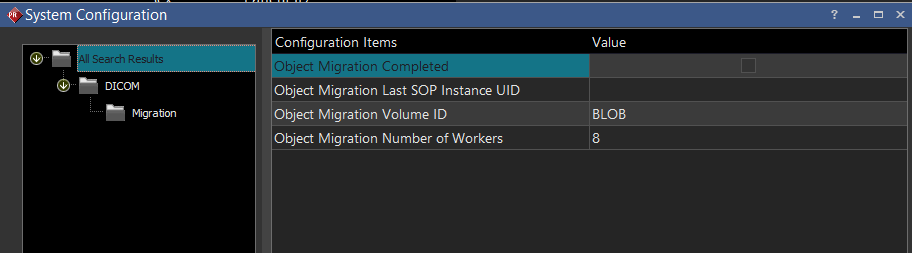
- RamSoft Tasks Service (rsTaskService.exe) need to be restarted for any changes to take effect.
Test if existing object(s) can be migrated to the Blob storage volume
-
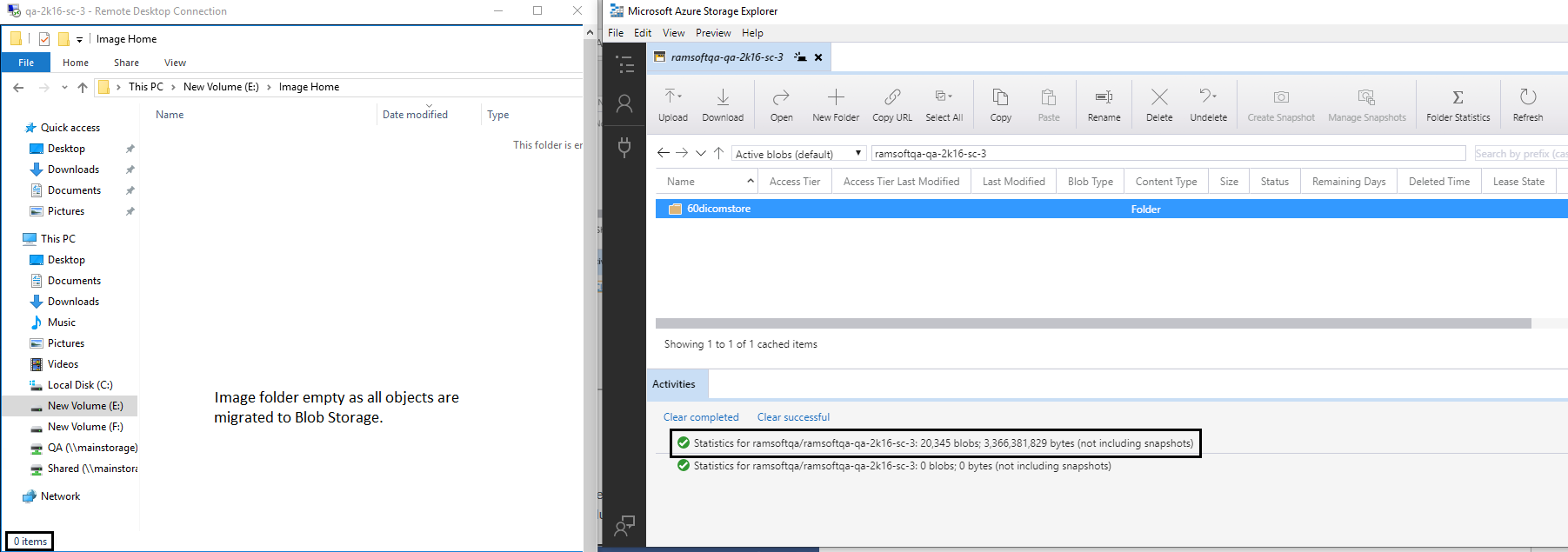
Using Azure Storage Explorer, check that the objects are migrated from the Disk (Image Folder) Volume to the Blob (Storage) Container. See screenshot below.
-
All objects in the Image folder will be removed. This will take some time depending on how large the Image folder is.
-
Total number of files and size in bytes from the Image folder (i.e. before Migration) are equal to the Blob storage (i.e. after Migration).
To monitor the migration process, the following query can be run: SELECT COUNT FROM GET_MIGRATION_OBJECTS(NULL, 500000). The last parameter specified is the max number of objects to query for.