How Do I Set Up Audio Export?
The Audio Export feature is used to send/export RamSoft dictation/voice notes as audio files (.WAV format) to a pre configured folder with a name format that is configurable.
How Audio Export Works
The following steps describes how Auto Export feature works:
-
A user dictates into the RamSoft software.
-
The RamSoft software saves the dictation into it's database.
-
Auto Export probes the database for new dictations.
-
When Audio Export finds new dictations, it processes and outputs them in .WAV format to a specified output directory set in System Configuration or Maintenance.
Audio Export Service Setup
The settings for the Audio Export feature can be found through Services > Audio Export > Setup.

The Audio Export Service Setup window controls various aspects of the audio file export.
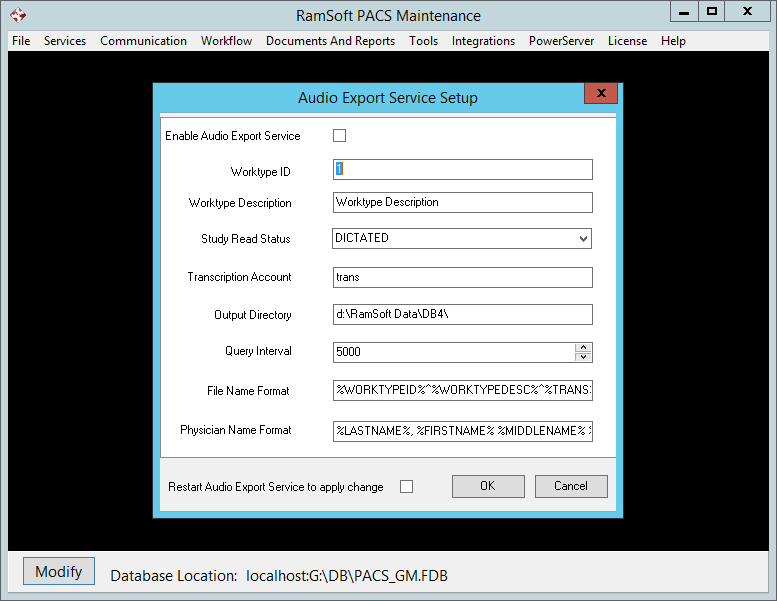
Explanation of various fields
The various fields in this form are:
-
Enable Audio Export Service - When this option is checked, Audio Export feature is turned on. The Audio Export Service software initiates the process of converting audio files into .WAV format.
-
Worktype ID - Sets the %WORKTYPEID% in the File Name Format. Default is 1.
-
Worktype Description - Sets the %WORKTYPEDESC% in the File Name Format. Default is Worktype Description.
-
Study Read Status - Assigns a study status to the study when the dictation/voice note is created. A study of this particular status will be saved in the folder defined in the Output Directory Configuration Entry. Default status is DICTATED.
-
Transcription Account - Sets %TRANS% in the File Name Format. Default is trans.
-
Output Directory - Determines the location where all the .WAV files created will be stored at. By default, this would be the folder where the database is located.
-
File Name Format - Controls the file name of the .WAV file.
Default is: %WORKTYPEID%^%WORKTYPEDESC%^%TRANS%^%READPHYID%^%FILESIZE%^%CURRENTDATETIME%^%PATIENTID%.
Below is the list of available formats that can be used in the File Name Format:
Format Description %WORKTYPEID% Value of 'Worktype ID' config entry %WORKTYPEDESC% Value of 'Worktype Description' config entry %TRANS% Value of 'Transcription Account' %READPHYID% Reading Physician ID's String value from PlayerEntity %READPHYDISPLAYNAME% Reading physician display name, format configurable by 'Physician Name Format' %READPHYDICOMNAME% Reading physician DICOM name %FILESIZE% File Size of the .WAV file %STUDYDATETIME% Study Date time %CURRENTDATETIME% Current Study UTC time %ACCESSION#% Accession number %PATIENTID% Patient ID -
Physician Name Format - Assigns the format of the Reading Physician if %READPHYDISPLAYNAME% is used in File Name Format config entry. Default is %LASTNAME%, %FIRSTNAME% %MIDDLENAME% %SUFFIX% %PREFIX%.
Below is the list of available formats that can be used in the Physician Name Format:
Format Description %LASTNAME% Physician's last name %FIRSTNAME% Physician's first name %MIDDLENAME% Physician's middle name %SUFFIX% Suffix to the Physician's name %PREFIX% Prefix to the Physician's name -
Restart Audio Export Service to apply change - When this option is checked, the RamSoft Audio Export service will restart automatically.
Note that any changes to the system configuration will require a restart of the Report Distribution service.
Audio Export Behavior
With the Audio Export feature enabled, how often and when a new .WAV file is generated depends on the following factors:
-
Modifying the information about the reading physician using the Assigned Personnel tab in the Study Info form generates a new.WAV file if there is an existing dictation/voice note for the study and the study status is equal to or less than the study status set in "Audio Export Study Read Status".
-
Modifying the information about the reading physician using the Providers tab in Users and Facilities form, it will not generate a new.WAV file even if there is a dictation/voice note for any study whose study status is equal to or less than the study status set in "Audio Export Study Read Status".
-
When a study is closed after a dictation/voice note without exiting the dictation module, the dictation/voice note is saved and .WAV file will be exported.
-
When an ongoing dictation/voice note recording is canceled, no .WAV file is exported.
-
When an unsaved dictation/voice note is canceled, no.WAV file is exported as no dictation or voice note has been saved.
-
When a user finishes reviewing a study (by clicking the Finish reviewing the study icon) while a dictation/voice note is being recorded, the dictation is saved and a .WAV file is generated.
-
When the File Name Format field is blank, a .WAV file without a file name is generated.
-
If the File Name Format is set to "^", a ^.WAV file is generated. Note that you can use any characters to name a file that needs to be exported.
-
If only one tag (For example, %LASTNAME%) is used in the Physician Name Format and %READPHYDICOMNAME% is used in the file format, then the .WAV file will be named with the last name, first name, middle name, suffix and prefix of the physician.
-
If only one tag ( For example, %LASTNAME%) is used in the Physician Name Format and %READPHYDISPLAYNAME% is used in the file format, then the .WAV file will be named only with the last name specified in the Physician Name Format field.
-
The Physician Name Format field is a mandatory field and should have at least one tag. If no tag is specified, no .WAV file is generated even if the %READPHYDISPLAY% tag is used in the File Name Format field.
-
The default file name format is %WORKTYPEID%^%WORKTYPEDESC%^%TRANS%^%READPHYID%^%FILESIZE%^%CURRENTDATETIME%^%PATIENTID%. The .WAV file exported will overwrite the existing file if the Audio Export File Name Format does not contain dynamic tags (tags that always change in value). For example, %CURRENTDATETIME% if not included in the file name format, every time a .WAV file is generated, the existing file is overwritten.
-
Using the tag, %READPHYDISPLAYNAME% in the File Name Format field will insert the tags in the Physician Name Format into the exported.WAV file name.