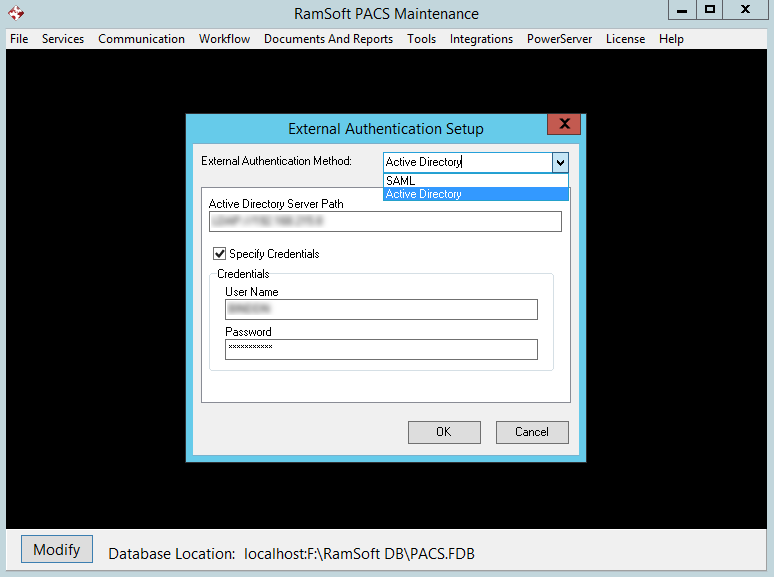
How Do I Configure The Active Directory Setup?
This feature allows using domain user name as the login name to RamSoft PowerServer. The option is available for PowerServer and TeleServer products only.
Preconditions:
Each Active Directory user must be a member of an Active Directory group which matches a group in PowerReader. When an Active Directory user logs in the Login Portal for the first time, a new PowerReader user is automatically created. This user is assigned to the matching PowerReader Group and default Role.
For default roles to work in PowerReader, the "Use Group Default Role" System Configuration must be enabled by navigating to System Configuration in PowerReader and searching for "Use Group Default Role". Enable it and restart PowerReader for the new setting to take effect. In PowerReader, navigate to Users and Facilities > Groups, and set Default Roles for the existing groups if they have not been set.
To configure Active Directory Authentication, go to PowerServer > External Authentication > Setup.
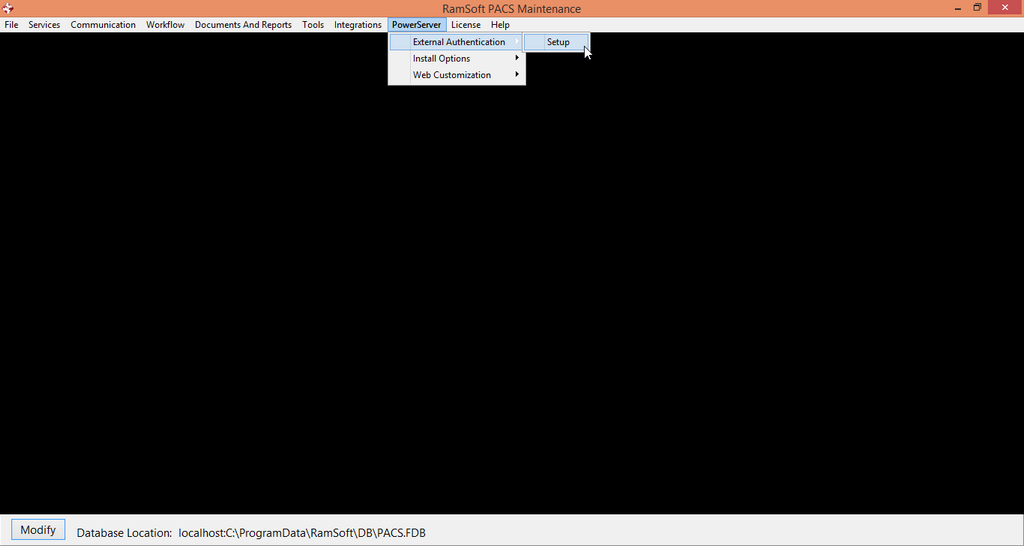
This will open the External Authentication Setup.

-
Select Active Directory from the list
-
Enter the Active Directory Server Path (e.g. LDAP://domain).
-
Specify the credentials (User Name, Password) needed to perform LDAP search in the Active Directory. The most common way is to create a user with limited access who is used only by RamSoft PowerServer and whose password never expires.
-
Restart Web Service, or all RamSoft services to apply the change.
The Active Directory set up is complete. Test by launching the PowerReader webpage and log in using your Windows domain User Name and Password.
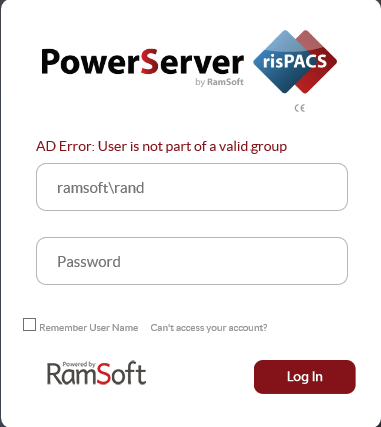
If no group in PowerServer matches the Active Group to which the user belongs to, the following error message is displayed.
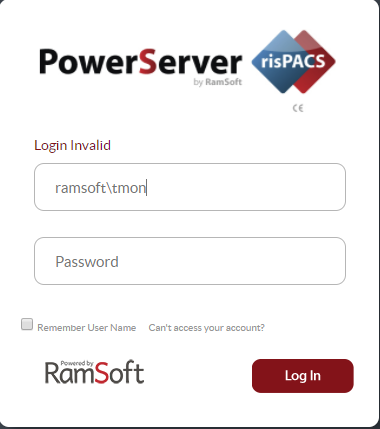
If the Active Directory user is disabled, the following invalid login message is displayed when the user attempts to log in to the Login Portal.
To change the External Authentication Method to SAML, select "SAML" form the External Authentication Method drop-down and click OK.