How Do I Regenerate a Database?
The Regenerate process analyzes the DICOM files found in the Image folder. It inspects the DICOM header of each file and extracts all the DICOM information. This information is then placed into the database. Since the process comprises scanning the DICOM header of each file, the regeneration process can take a long time. Hence only users with the appropriate password are allowed to regenerate the database.
It is recommended to use the Backup database for regeneration:
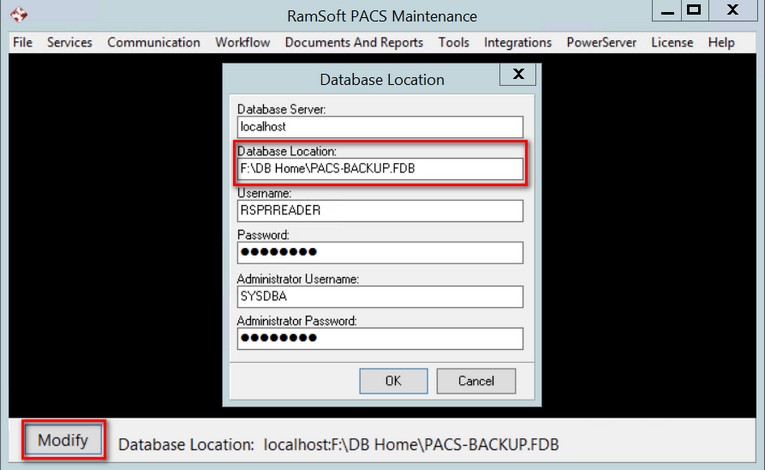
Note that if the Backup Database is not up to date, some data may be lost.
- To Regenerate a Database, select the Tools > Regenerate menu option.
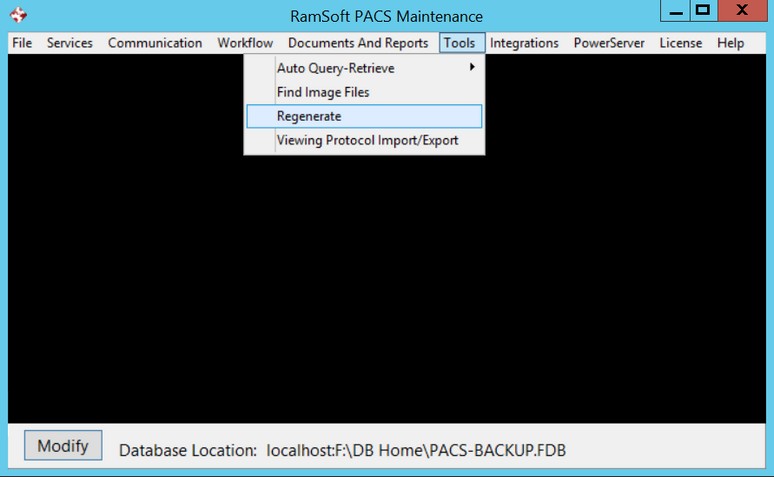
- This will open a password confirmation dialog box.
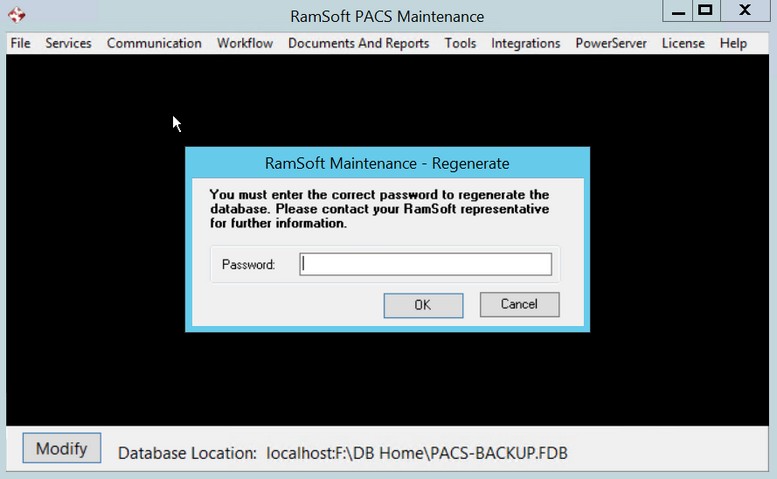
- Enter the appropriate password. (After Three failed attempts, the form will close). After the password has been entered, a confirmation window will open.
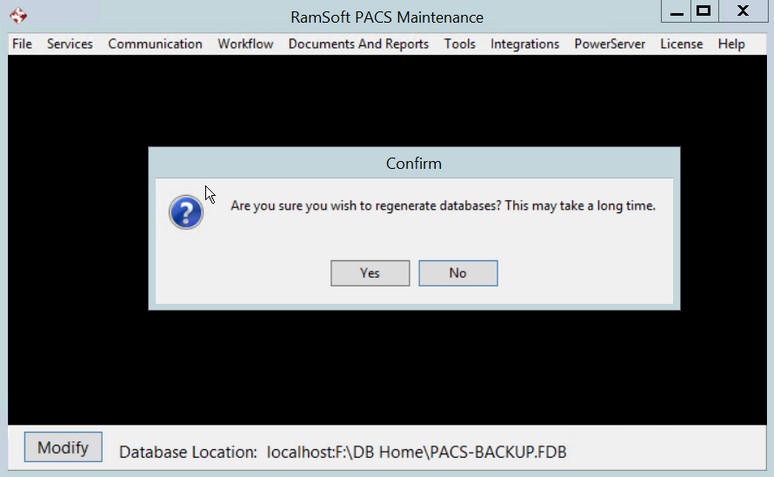
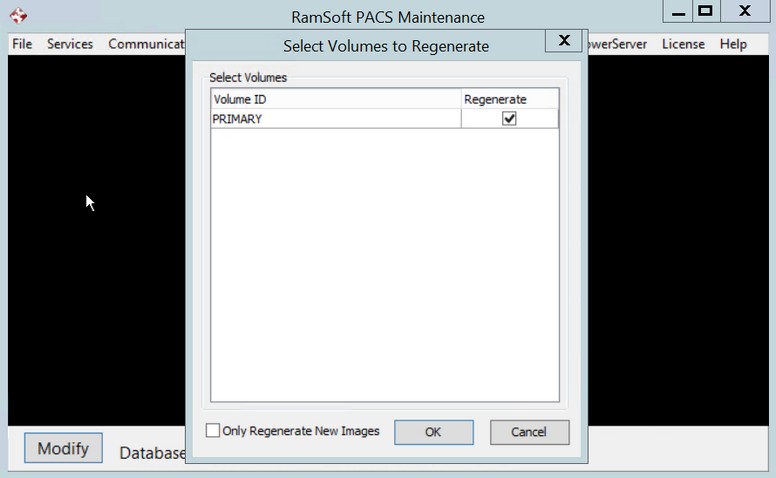
- Click Yes. A Select Volumes To Regenerate window will open.
-
Ensure that the Regenerate option is checked only for volumes that you want regenerated.
-
Select the Only Regenerate New Images option if you only want to regenerate studies that have been placed into the image folder since the database was restored. This option should only be used after the database has been restored.
-
If the Only Regenerate New Images option is not selected, all studies in the image folder will be analyzed. The system will check each file in the database to confirm if it has been regenerated or not. If a file has already been regenerated, it will be skipped. If the file has not been regenerated, then the regeneration of the DICOM file will take place. This process can be run numerous times without danger to objects already in the database. However, this process can take a long time when regenerating large databases. After it has been run once, the subsequent regenerations will be much faster, as most files will be skipped on second and subsequent operations.
-
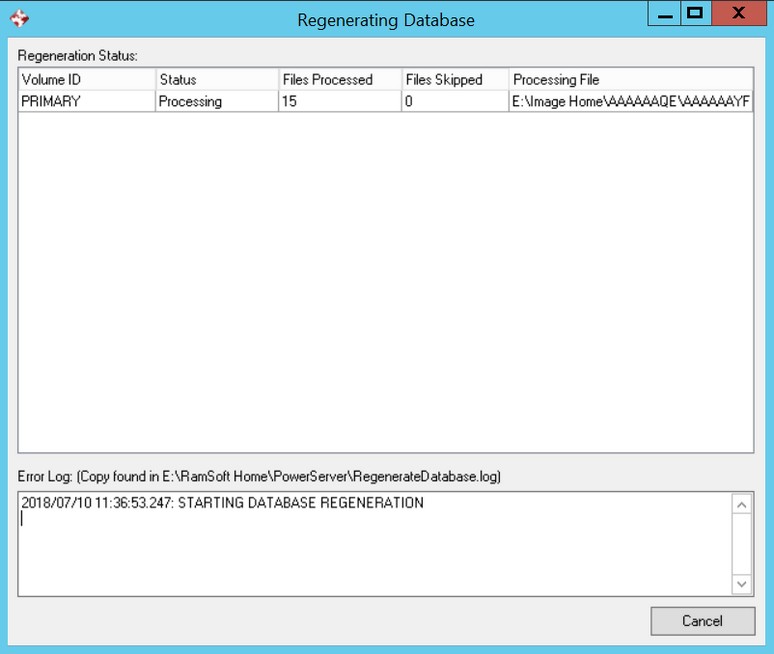
Click OK. This will open a Regenerating Database window. The upper portion of the window shows the Regeneration Status, i.e. the number of files processed, the number of files skipped etc. The lower half of the window shows the Error Log. A copy of this log can be found in C:\Program Files\Ramsoft\Gateway4\RegenerateDatabase.log
-
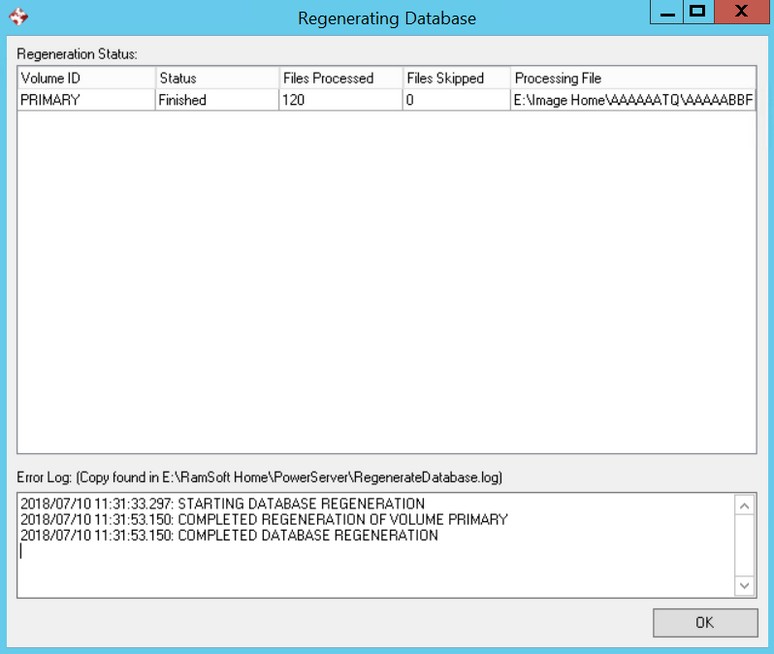
Once the process is completed, a message will be displayed. Click the OK button.
- Restart local services through Services > Local Services > Restart.
The new database is ready for use.