How Do I Import/Export Viewing Protocols?
While exporting or importing viewing protocols from one Database to another can be a very involved process, in PowerServer, this process has been simplified through the inclusion of a simple tool. The tool exports viewing protocols as XML files from one RamSoft PACS system to another. To open the tool, go to Tools option and choose Viewing Protocol Import/ Export from the drop down menu.

Clicking the option will open the following screen.

The Viewing Protocol Export and Import tool has two tabs. One is the Import Viewing Protocols tab and the other is the Export Viewing Protocols tab.

The viewing protocols can be exported or imported between any two machines which have the maintenance module installed in them. The protocols are exported/ imported as XML files.
Exporting the viewing protocols
To export viewing protocols from one database, select the location where the destination XML file will be stored.
- Click the browse button and enter the destination file name. This will populate the form below with various different types of protocols.
-
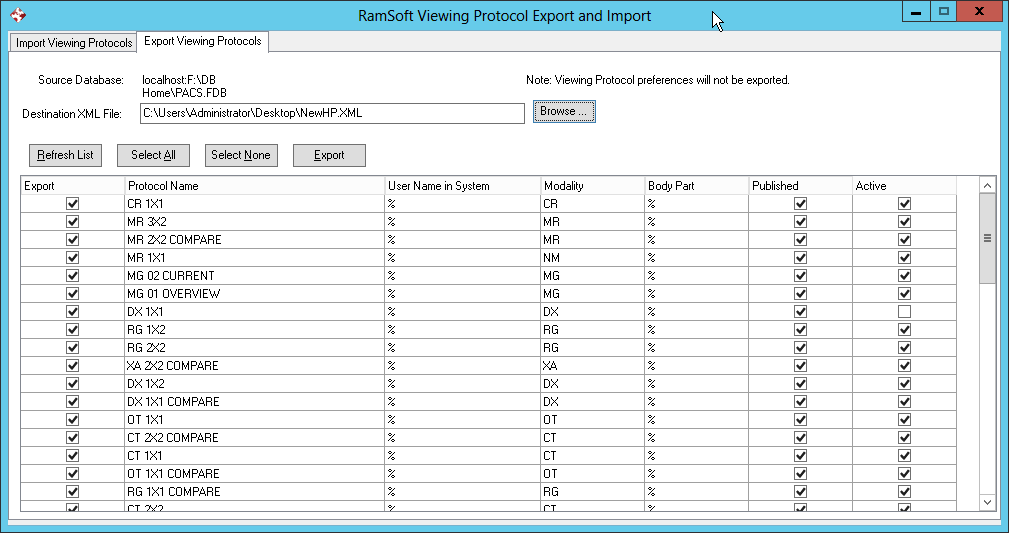
The various columns describe the various aspects of the protocol. The Export checklist allows users to choose the protocols they want to export. If desired, all protocols can be selected by clicking on the Select All button. The users can also deselect all the protocols by clicking the Select None button.
-
In addition to the Protocol Name option, the User Name in System column displays the various names of the users. If the protocol belongs to a particular user (My Protocol), the user name will be displayed in this column. If the protocol is not owned by one user but shared by all (e.g. default protocol) the wild card % will be displayed.
-
The other fields such as Modality, Body Part etc display the various aspects of the protocol i.e. modality and body part. If the field has been left black, it will display the wildcard %. The Published column display protocols which are published. The Active column will display protocols which are active, as well as inactive.
-
It must be noticed that excluding Export field, all these fields are read only and cannot be edited. However, users can filter the list according to these column. For example, it is possible to filter all the active protocols by clicking on the Active drop down menu and choosing True.
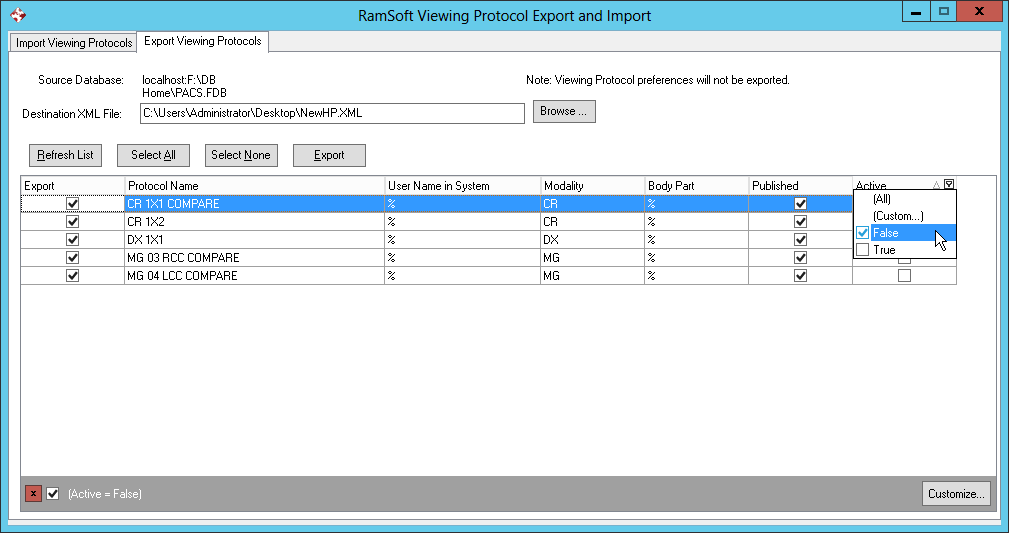
In the example above, False value has been set as inactive and True value has been set as active. You can also create custom filters by choosing the Custom option and then creating a custom filter. Similarly it is possible to sort the list according to one particular column by clicking on the column name.
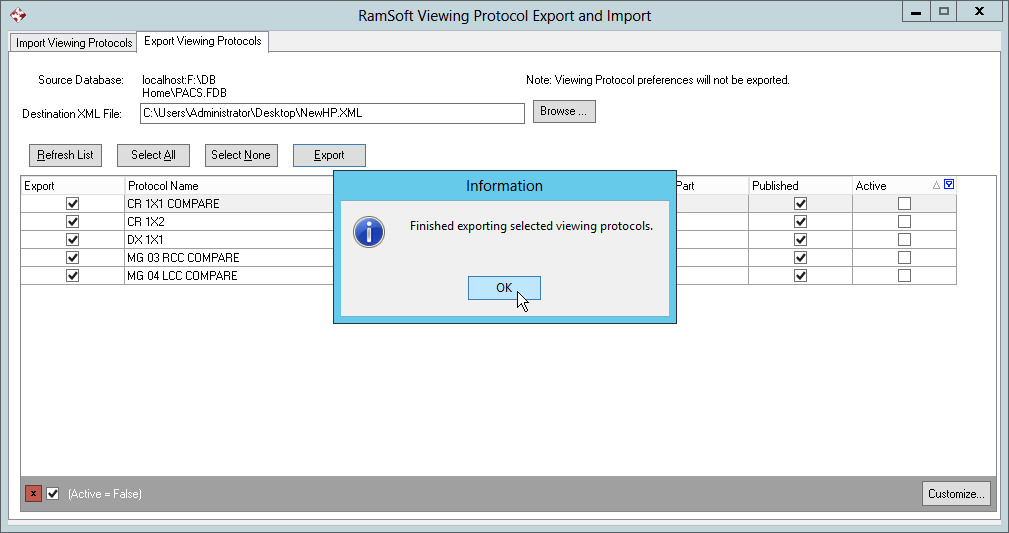
- Once you have selected the protocols you want to export, click on the Export button. Once the protocols have been exported to the destination XML file, a message will be displayed.
Importing the viewing protocols
Importing of protocols is a process similar to exporting of the protocols. The import/ export tool imports protocols which have been exported in XML file format. Certain things should be kept in mind while importing viewing protocols from an XML file.
- Users may select individual protocols to import.
- XML files exported from a lower level build can be imported to a higher build but not vise versa.
- User's preferences are not exported or imported with the XML file.
- If an imported protocol already exists in the current database, a conflict resolution function is prompted. This conflict resolution process is explained in detail.
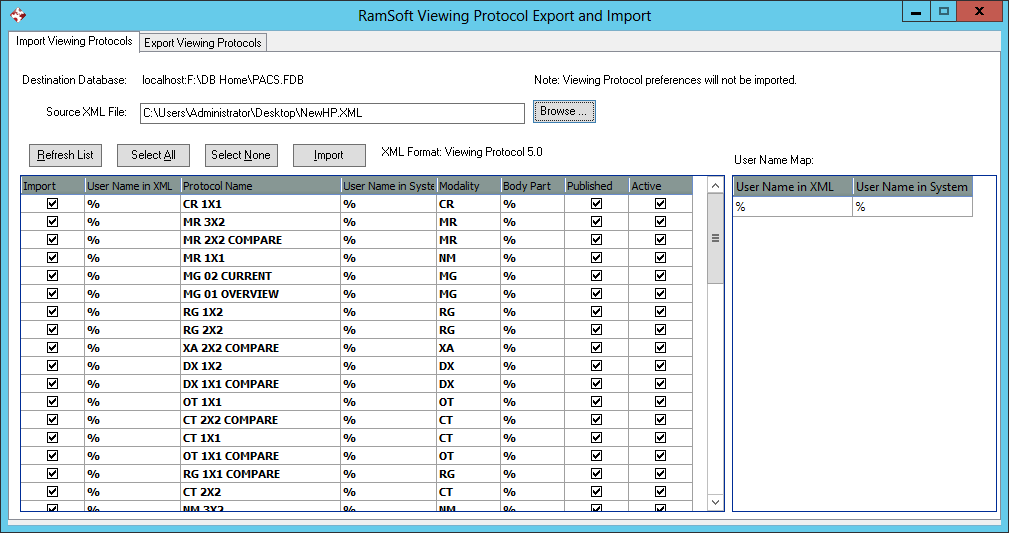
To import viewing protocols, click on Tools > Viewing Protocol import/ Export. The following form will open.
- Click the Browse button, and choose the source XML file from which the protocols will be imported.
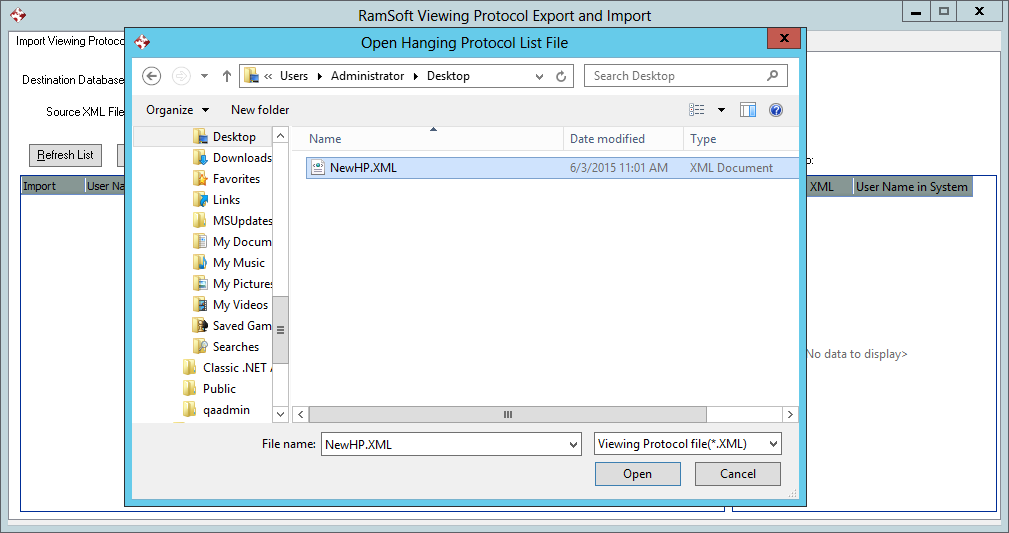
- Once the file has been chosen, click on the Refresh List button to populate the form with all the various protocols which are available in the file.
-
Once the list has been populated, it will contain all the viewing protocols in the XML file. The list has various columns and the list can be sorted according to a particular column by clicking on it.
-
The Import button is used to choose the protocols you will like to import. If you will like to import all the protocols, you can click on the Select All button and select every protocol in the list or deselect every protocol by clicking on the Select None button.
-
The User Name in XML column displays the names of various users to whom a protocol might belong (My Protocols). If the protocol being imported does not belong to a particular user, the column will be populated by the wild card % character.
-
The Protocol Name column displays the name of the protocol as it appears in the XML file.
-
The User Name in System column displays the name of the user in relation to the name as it appears in the XML file. This column is used if a particular user in one database is available with different user id in the other database. If a particular viewing protocol belongs to a user who does not exists in the current database, a particular user must be chosen in this column. If you do not wish to associate the protocol with any particular user, you can choose the wildcard (%) option. This option will make the protocol available to all users and not just one particular user.
-
The other protocols such as Modality, Body Part will allow users to distinguish the protocols according to modality and body part etc. The Published column denotes protocols which are published and Active column denotes the Active/ Inactive status of the protocol.
-
Often times, a situation may arise where a protocol in the XML file has a user name that does not exist in the new database. Hence, the User name Map has been introduced. The User Name Map table is visible on the right. It contains the User Names in XML file vs. their User Names in the system. The user can then choose the name of a user in the system for a user name in the xml. In this manner, the user names in the XML file are linked to the user names in the system.
-
Once the users and the protocols have been properly categorized, click the Import button to import the viewing protocols.

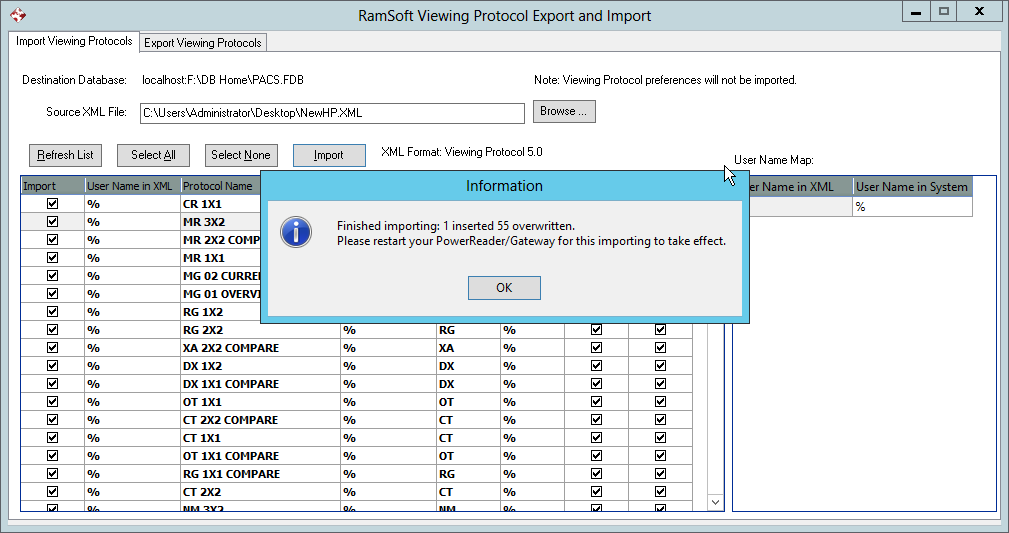
- A message will be displayed denoting the number of viewing protocols imported.
Resolving a viewing protocol conflict
When viewing protocols are being imported from an XML file, they are matched against the list of existing protocols in the system. In some instances, a viewing protocol being imported might be already present in the current database. In such a case, a conflict function might be triggered.
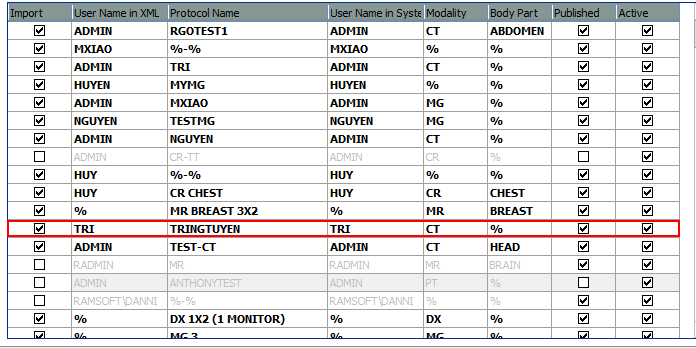
- If a situation arises where a protocol in the XML file has the same name, modality and user name as that of a protocol in the database, the record of this conflict is displayed in bold black font.
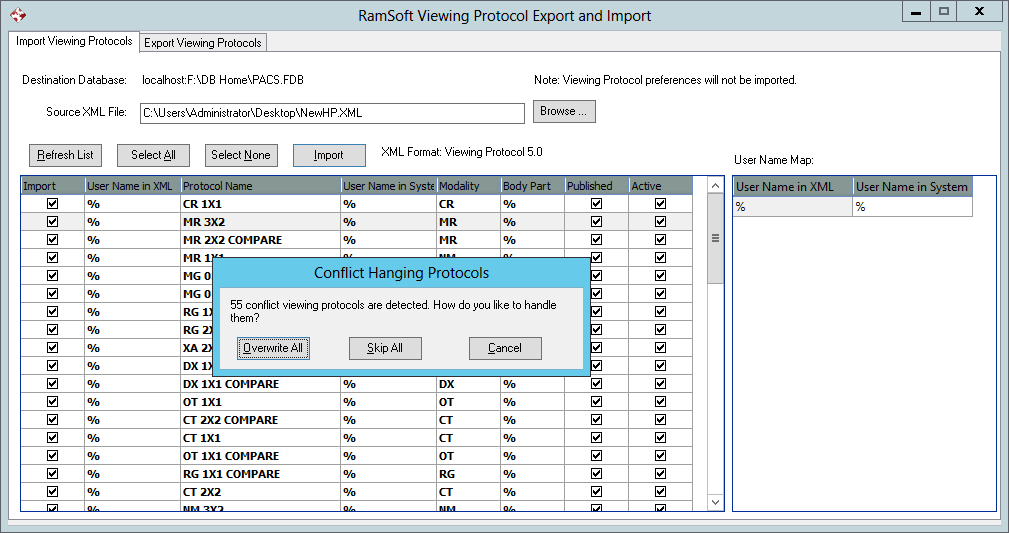
- If the user chooses to import protocols with conflict, a message will appear.
-
The user has the option to overwrite the existing protocols with those in the XML file. The user can also choose to skip these conflicted protocols. In such a case, all the protocols will be imported except for the conflict protocols. The user can also choose to cancel this operation by clicking the cancel button.
-
Once the import process has been completed, a message will display the number of protocols imported vs. skipped or overwritten.
- Another type of conflict which can occur is where a protocol in the XML file belongs to a user whose user name does not exist in the current protocol. Hence, as a solution to this problem, a User Name Map has been introduced where the import export tool allows users to map such user names to an existing user name in the new database. This action may result in two protocols having common user name, modality and hanging protocols. In such as a case, the conflict protocol is displayed in bold red font.
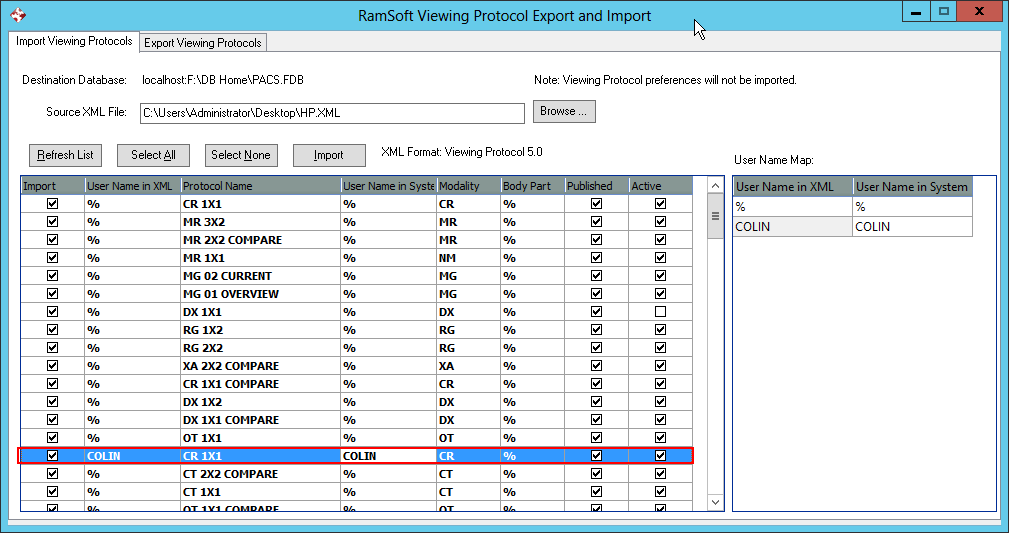
In this case, the user must deselect one of the conflict protocols or change the user name in system through the User Name Map. The system requires user action before the protocols are imported.