How Do I Migrate Studies From Another Station?
The software allows users to retrieve studies from another station. The query retrieval process has been divided into two sections i.e. the Setup section where the specifics for the query process are defined while the Perform section is used to perform the actual query.

Setting up the Auto Query-Retrieve tool
To access the setup of the Auto Query Retrieve model, go to Tools > Auto Query-Retrieve > Setup.
This will open the Auto Query-Retrieve Setup.

The setup has five menus.
-
The Maximum Server Connections field controls the number of threads used to query studies in the other station. The number of threads used to retrieve the studies is configured in the Station List of the PowerReader.
-
After a connection with another server has been lost, the system waits for a certain time period before it attempts to re-establish the lost connection. The Retry Interval field determines that time period.
-
The Max Request Queue Entries field determines the maximum number of studies the station can request from another station at once. The default limit is 100 which can be adjusted.
If the sending station's limit for the maximum records sent is less than the number of records expected, the auto-query retrieve tool can miss studies. For example, if a very large time range has been set in the Auto Query-Retrieve tool, only 100 studies might be displayed while the actual number of studies might be larger.
-
The Time Interval Per Query field determines the amount of hours at each Retry Interval. This value should be set to 24 as long as the source DICOM system can return a full day's worth of records in a single query.
-
The Max Retrieve Failure field sets the maximum number of times a study can be re-retrieved if the first retrieval attempt failed.
Using the Auto Query-Retrieve Tool
To perform an auto-query retrieve, go to Tools > Auto Query-Retrieve > Perform option.

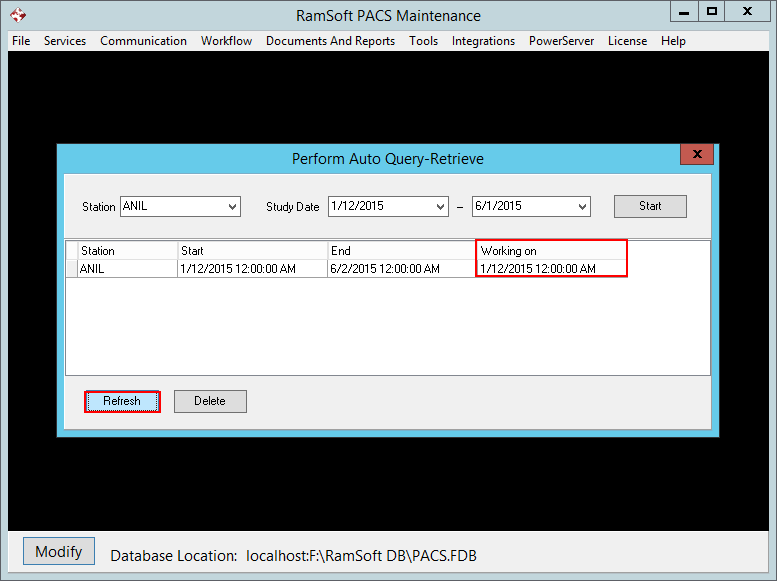
The Perform Auto-Query-Retrieve form will open up.
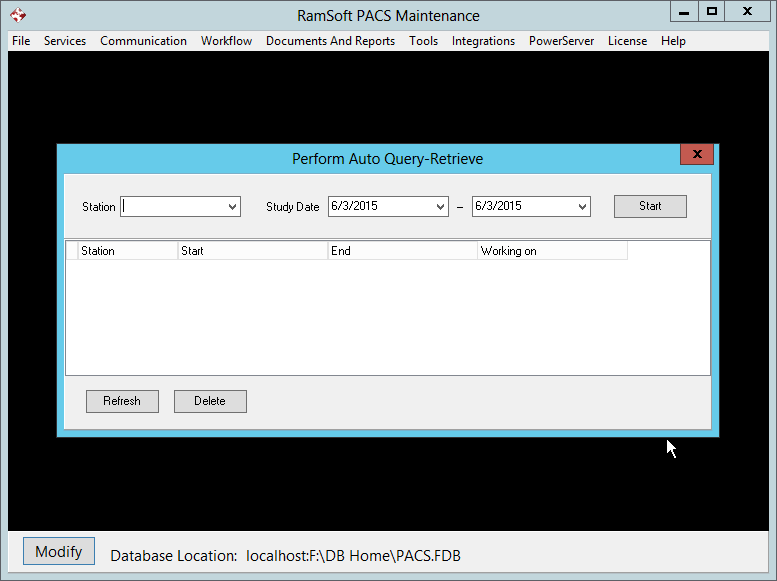
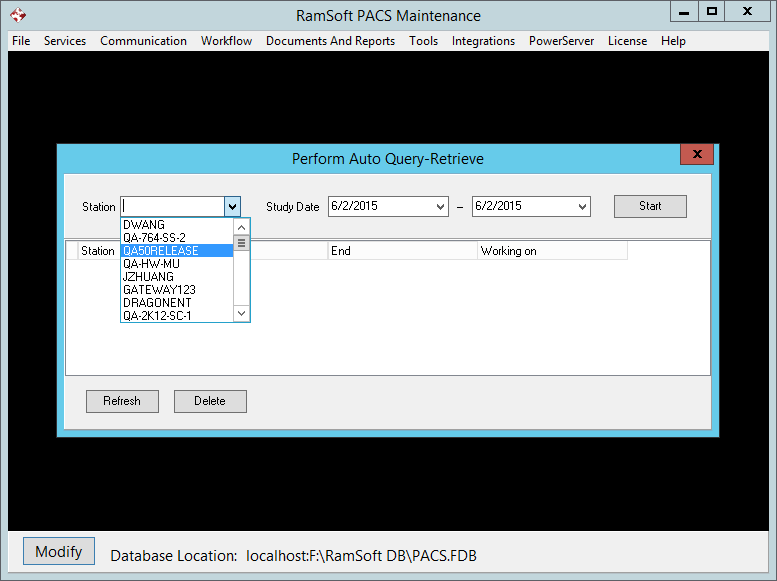
Select the Station to retrieve the studies from. The list of stations in the drop down menu is created in the RamSoft Server.
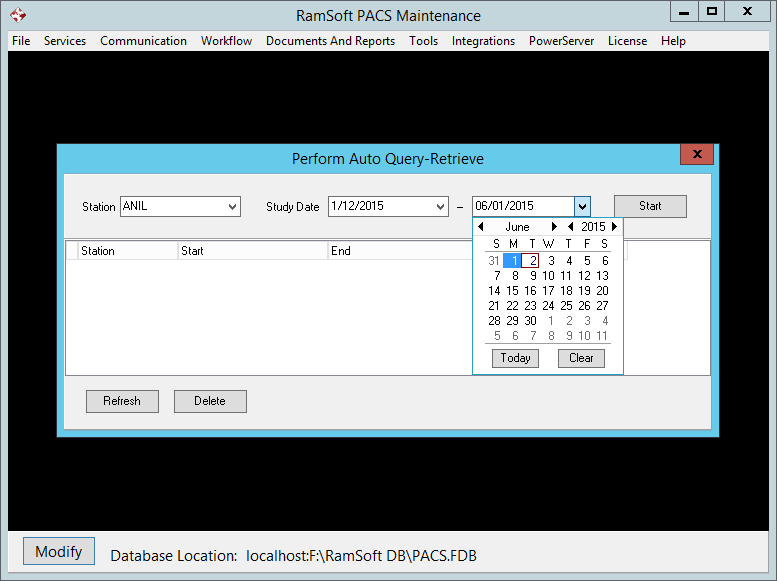
Select the range of the study dates by selecting a Start Date and an End Date for the studies you want to retrieve. The Start date can be after the End date. This would cause the system to retrieve studies from other stations in descending order
Click the Start button to start the retrieval process.

To keep track of the retrieval process, the Working On column indicates the current study date being retrieved. Clicking the Refresh button will update the Working On column.
If the sending station's limit for the maximum records sent is less than the number of records expected, the auto-query retrieve tool can miss studies. For example, if a very large time range has been set in the Auto Query-Retrieve tool, only 100 studies might be displayed while the actual number of studies might be larger.
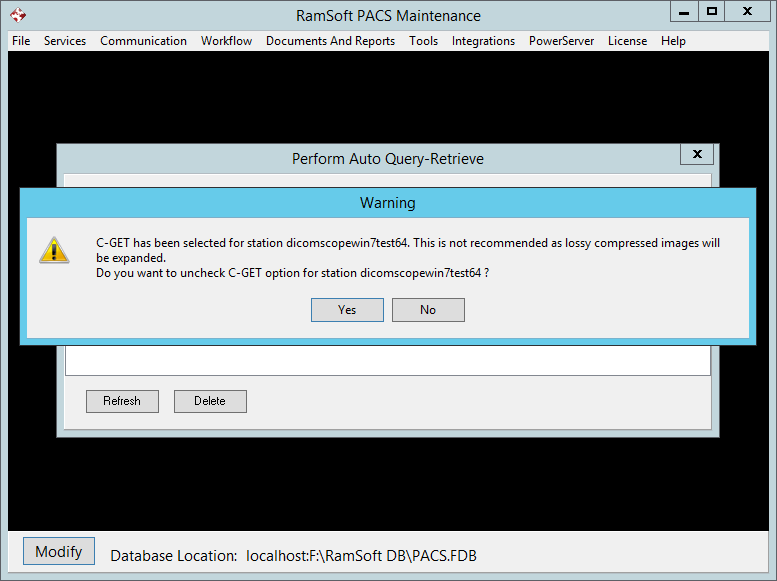
If the sending station has C-GET selected in the Query tab of the Station List, the following message will be displayed:
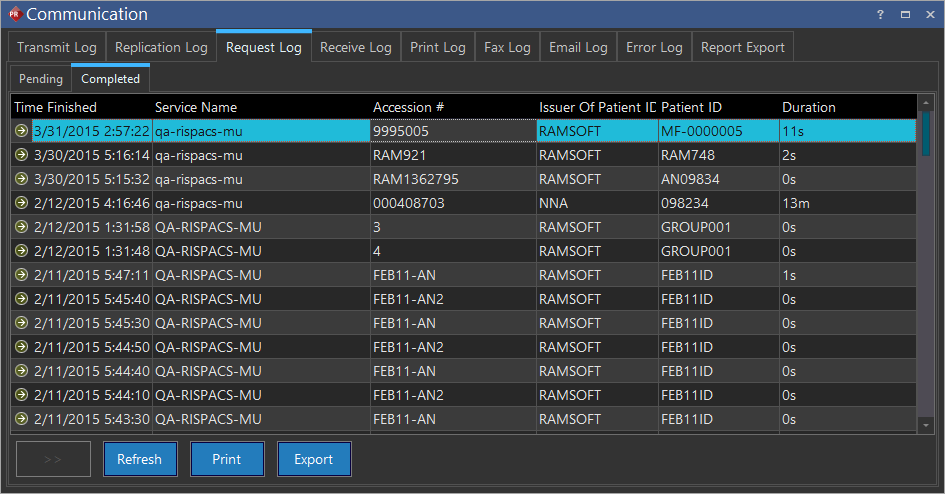
Keep in mind that the queried records will be batched together in the PowerReader request log for each interval. Real time progress can be viewed in the PowerReader Request log by going to Settings > Logs > Communication > Request Log.
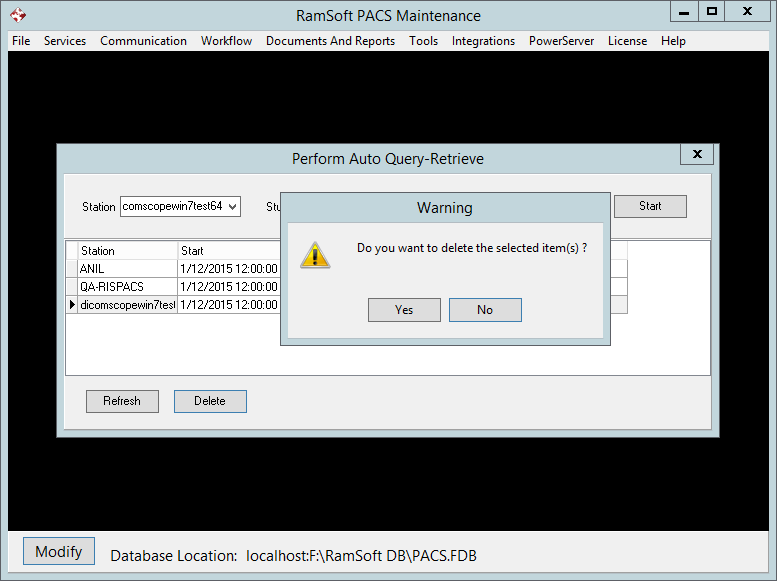
If you wish to stop the auto-query retrieve process, click on the Delete button. A message will appear asking for conformation. Click Yes to delete the station from the list.