How Do I Configure Rule Based Compression?
Rule-based compression enables an option to compress image data at specified lossy compression in JPEG 2000 based on user-defined rules. After establishing rules in Maintenance module, the user can expect object files of matching studies to be reduced in size. The rule-based compression offers an automated way to reduce storage spaces by compressing data that are not important anymore. It allows users to define which types of studies are unimportant and how much they should be compressed. The ultimate goal of this function is to cut down the cost of storage for imaging facilities.
Compression Process
The Rule-Based compression task goes through a five step process:
-
The task goes through each rule defined by the user
-
The task then checks for qualified studies against the rule
-
Inside each qualified study, the tasks checks for objects which can be compressed
-
The task compresses objects with user-defined lossy ratio in JPEG2000.
-
The task then logs the activity.
The rule-based compression task will compress the studies which fulfill any of the following criteria:
a) New objects are imported in the study.
b) Another study is merged with the study in question.
c) Study properties which may qualify a study for compression have changed.
d) A change is made in any of the rules.
Various rules are assigned a priority by the user and for studies where more than one rule can apply, the compression is performed according to the higher priority rule.
Creating Compression Rules
To create a compression rule, go to Services > Rule Based Services > Compression Setup.

Once the Compression setup is chosen, the Compression Rule Setting dialog opens up.
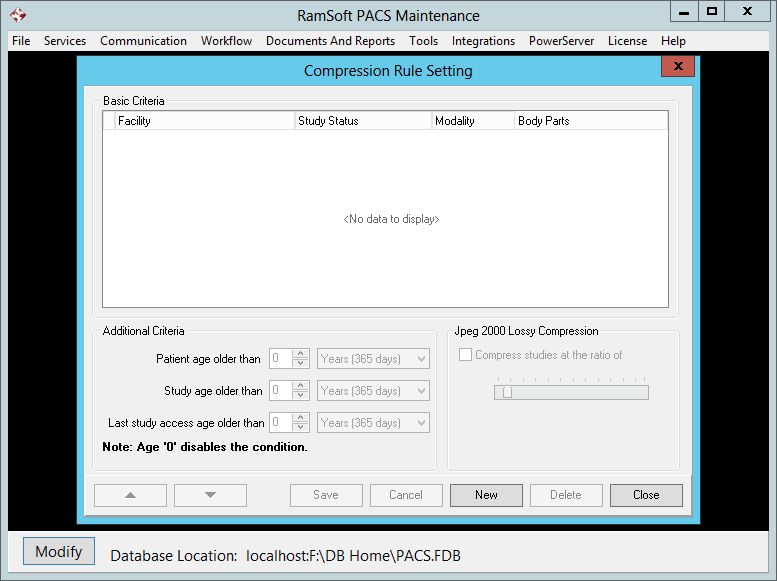
Click the New button.

The compression rule setting is divided into three sections. The Basic Criteria section contains criteria such as Facility where the rule will be applied, the Status of the study, the Modality of the status and the Body Parts for which the rule will be applied. Each single criterion will work as a filter and not applying a particular filter e.g not selecting body part will apply the rule to every body part.

The Additional Criteria section of the compression rule setting contains further criterion for the rules such as the age of the study, study of the patient etc. To define additional criteria, select the specific age of the patient/ age of the study or the last time the study was accessed as well as the time unit i.e. Days, Months or years. Each additional criteria will make the rule more specific.
Selecting a 0 age disables the criteria
Select the option JPEG 2000 Lossy Compression and then select a compression ratio for the image files. If a rule is created but the option is not checked, the system will confirm if you wish to save the rule without specifying a lossy ratio.

Once multiple rules have been defined, their priority can be sorted out. The priority of the rule is defined by the order in which it is placed in Compression Rule Setting table. The priority is important because if a study satisfies two or more rules, compression will be performed according to the rule with the higher priority.
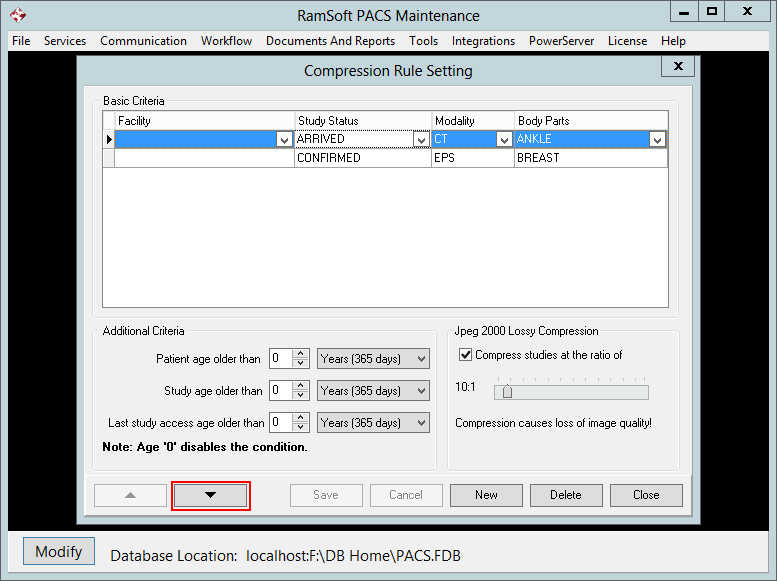
The sort arrows at the bottom of the form are used to sort the order of the rules. To change the order of a rule, highlight it and then click on the Arrow  button at the bottom of the form. Click the Save button to save the Compression rule.