How Do I Integrate Visage Software With the System?
Visage CS Thin Client is a software used for 3D-based image interpretation, post processing and image distribution. Data from different modalities such as CT, MR, PET, PET-CT can be configured individually, based on user roles and display protocols. For further information, about Visage CS Thin Client, please visit http://www.visageimaging.com.
The option is accessed through Integrations > Visage Integration.
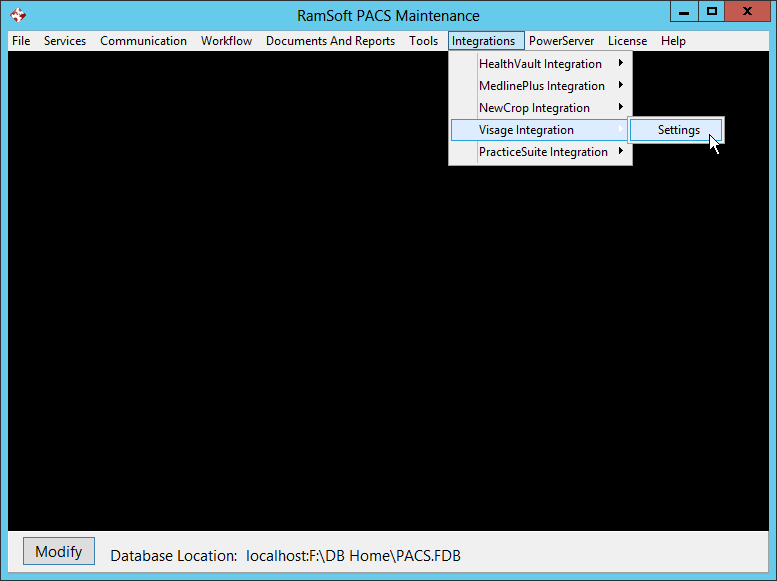
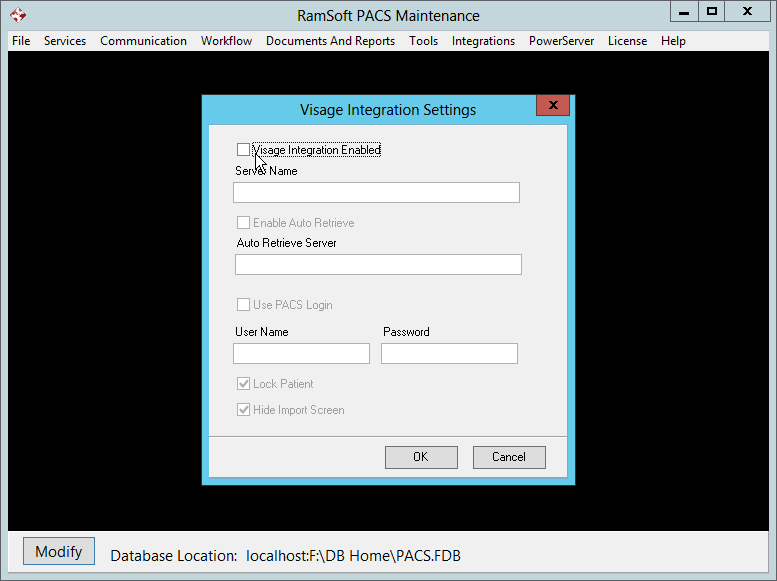
This will open the Visage Integration Settings form.
-
Toggle on the Visage Integration Enabled option.
-
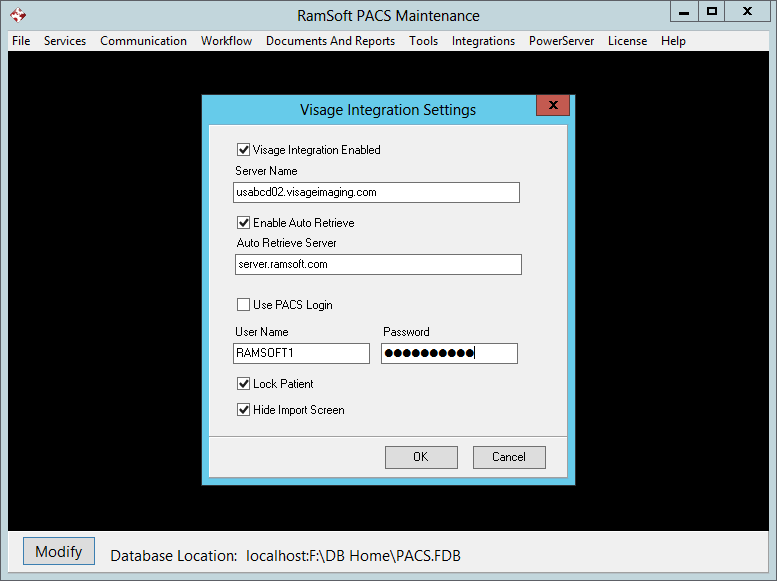
This will enable the Server Name option. Enter the Server name. (For example Server Name: usabcd02..visageimaging.com)
-
Toggle on the Enable Auto Retrieve option. This will enable the Auto Retrieve Server text box below. Enter a valid DICOM server name in the Auto Retrieve Server text box.
The Enable Auto Retrieve option specifies the DICOM server from which automatic retrieves are done if the data is not available in database. This option will fetch the study from RamSoft and display it in Visage if it does not exist in Visage.
- Enter your Visage User Name and Password.
-
If the Visage User Name and Password is identical to the PACS login, then toggle on the Use PACS Login option.
-
The Lock Patient option locks the one patient that is loaded. If this option is checked off, users are not allowed to load image data of another patient.
-
The Hide Import Screen option hides the Visage WS/CS "import" screen.
-
Click OK and exit.