How Do I DICOM Push a Study?
To manually DICOM push a study, you will need to locate that study in your Worklist. If you would like to simultaneously push multiple studies to the same destination, highlight multiple studies by holding the Ctrl key (or the Shift key for studies which are listed together) and selecting the desired studies. Once you have selected all the desired studies, press the Send the Study to Another Station button on the Toolbar menu.
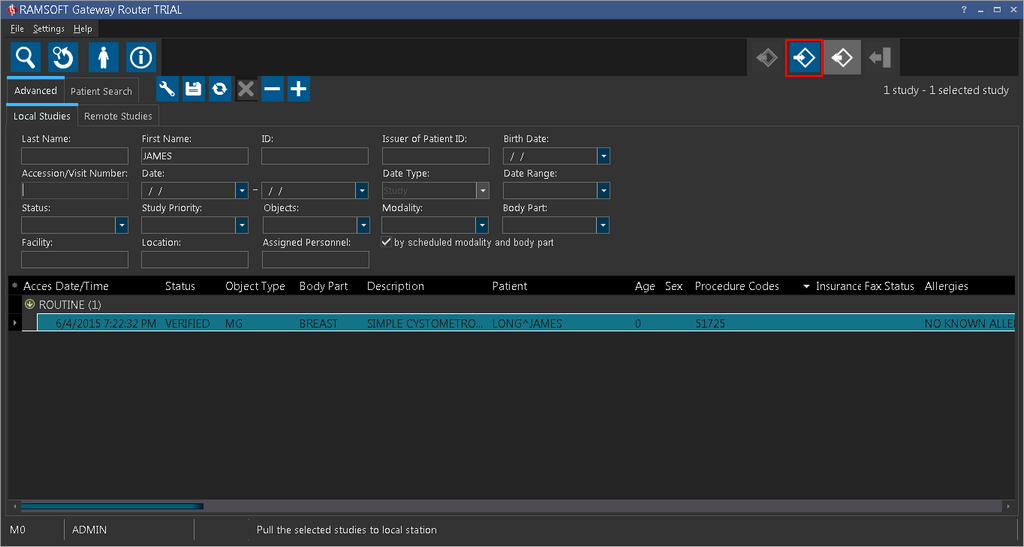
This will open the Push Details dialog.

First determine the target where the study would be pushed to. The studies can be pushed to another DICOM station, to a PowerReader client machine or to a User that is currently logged in. If Target is set to Station, the Destination dropdown menu will be composed of all the DICOM stations that the system recognizes. If Target is set to Client, the Destination drop down menu will contain all of the PowerReader client machines that are associated with the server. If Target is set to User, the Destination drop down menu will consist of all the users that are currently logged into the system.
Next determine the Priority these studies should be sent with. If there are other studies currently being transmitted by the system, this priority will determine if all those studies would be sent before your studies are pushed or whether your studies will take precedence.
Pressing the OK button will add the selected items to the queue.