PowerReader Login Portal
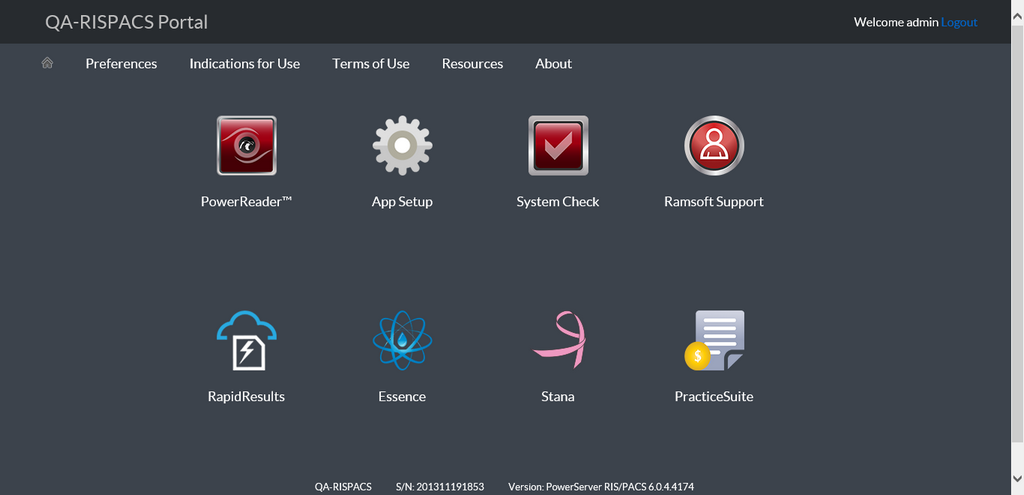
PowerServer 6.0 introduces a new login portal that provides the user with quicker access to relevant applications. The new login portal allows access to PowerReader, System Check, RamSoft Support, RapidResults, Essence and PracticeSuite, and is not limited to these applications.
The redesigned login portal is accessible on phone (iOS and Android), tablet (iOS and Android), and popular desktop browsers such as Internet Explorer, Chrome, and Safari.
After logging in to PowerServer 6.0, the Login Portal with all relevant applications is displayed.
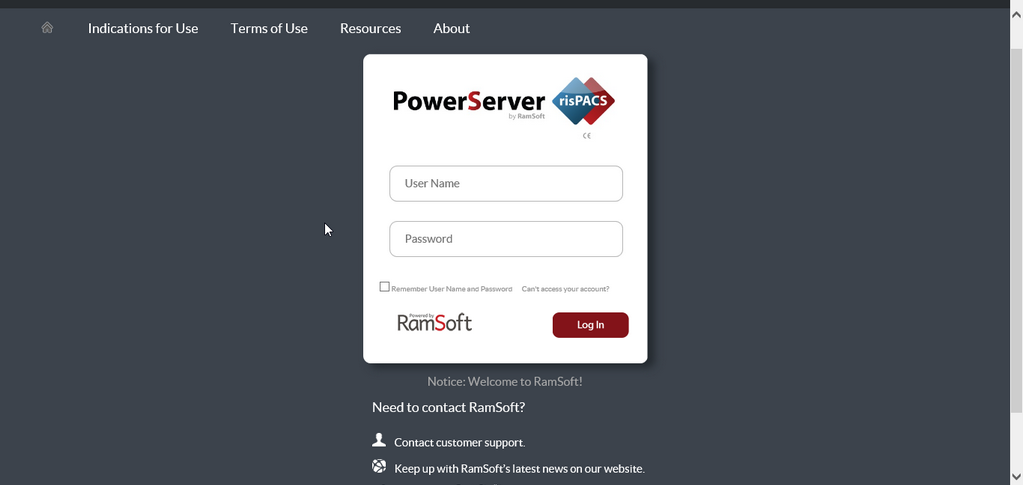
Note: If you have forgotten your PowerServer username or password when you try to sign into PowerServer, please click the Can't access your account? option and enter your email ID. A password reset email will be sent to your registered account. You are allowed 5 password retry attempts by default. Once five attempts are made, your account will be locked out and you will receive a password reset email notification message to your registered account along with a message that informs you of the lockout.
The number of password retry attempts can be made configurable by enabling the Maximum Password Retry Count feature in System Configuration. The Maximum Password Retry Count (up to 20 attempts) must be added to the database by RamSoft Support for this feature to appear in PowerReader System Configuration.
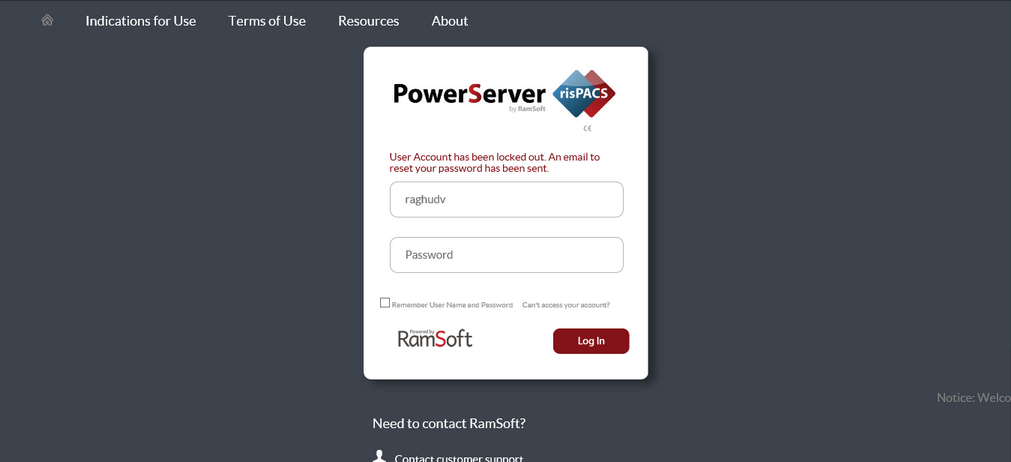
Follow the instructions on the password reset email to reset your password and unlock your account.
If your user role has the privilege "Password Never Expires" unchecked, your password expires the moment you login for the first time. You can enter a new password from the portal itself. This feature enhances security and prevents unauthorized access by personalizing your login credentials.
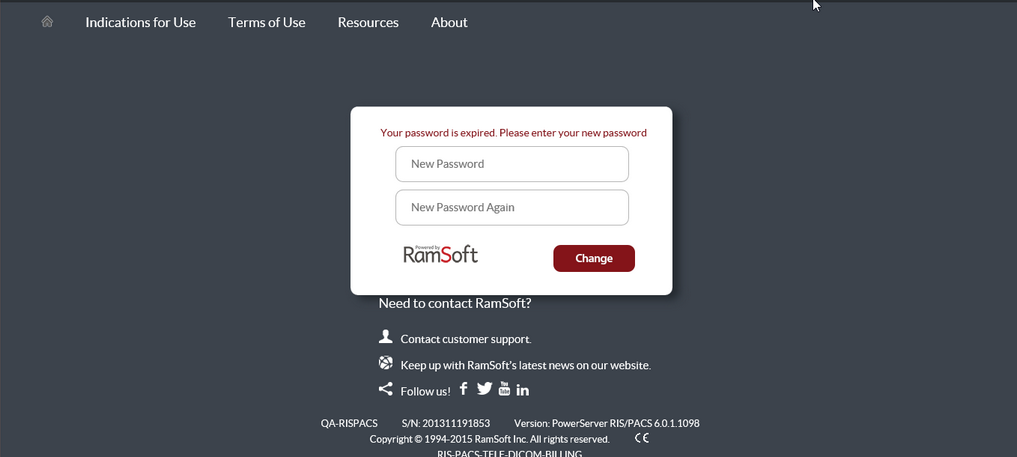
If the privilege "Password Never Expires" is enabled, you do not have to change your password on your first login.
Valid Password
System Administrators: when assigning passwords to new users and users that are resetting their temporary passwords, ensure passwords meet the following criteria:
- must be at least 8 characters in length
- must contain letters, numbers and symbols
- must not contain leading or trailing spaces
Applications
PowerReader™
You can launch PowerReader by clicking on the PowerReader application icon.
App Setup
PowerReader Setup helps you select installation options for installing or updating PowerReader. This application lets you uninstall all PowerReader clients from your local machine.
Note: PowerReader Setup is only available when you are logged in a supported environment (Windows and IE).
PowerReader™ System Check
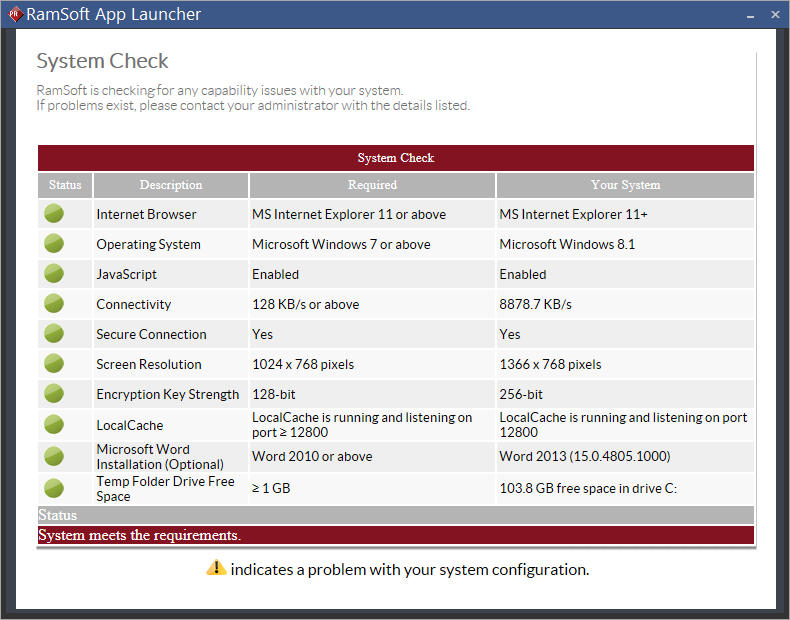
PowerReader System Check checks for any capability issues with your system and alerts you on any conflicts.
RamSoft Support
The RamSoft Support application helps you access the RamSoft Customer Support portal (http://www.ramsoft.com/support/customer-support-portal/)).
RapidResults
RapidResults provides access to medical images and associated documents in a convenience way for healthcare professionals who are on the go to use as the primary diagnostic and review tool. RapidResults supports major desktop and mobile browsers such as Internet Explorer 10.0 or higher, Chrome, and Safari, Apple iOS, Android, Windows Mobile. It can be accessed with Windows 7, Windows 8, Windows 8.1, iOS (iPad Air, iPad Retina, iPad 2, and iPhone), Android (Galaxy Tab Pro, Galaxy Notes), Windows Mobile (Dell Latitude 10-ST2 Windows 8 Pro Tablet).
Note that access to RapidResults is license based and is driven by the privileges assigned to you.
Essence
Essence is a completely new Business Intelligence tool, the next generation of the well-known Management Report and is accessible on Desktop, laptop or Tablet (iOS and Android), and popular desktop browser such as Internet Explorer, Chrome, and Safari.
Note that access to Essence is license based and is driven by the privileges assigned to you.
PracticeSuite
PracticeSuite is a billing module available if you have opted for a integration with PowerReader.
Preferences
You can select the applications that you would want to auto launch by selecting the Preferences option from the menu on the Login Portal.
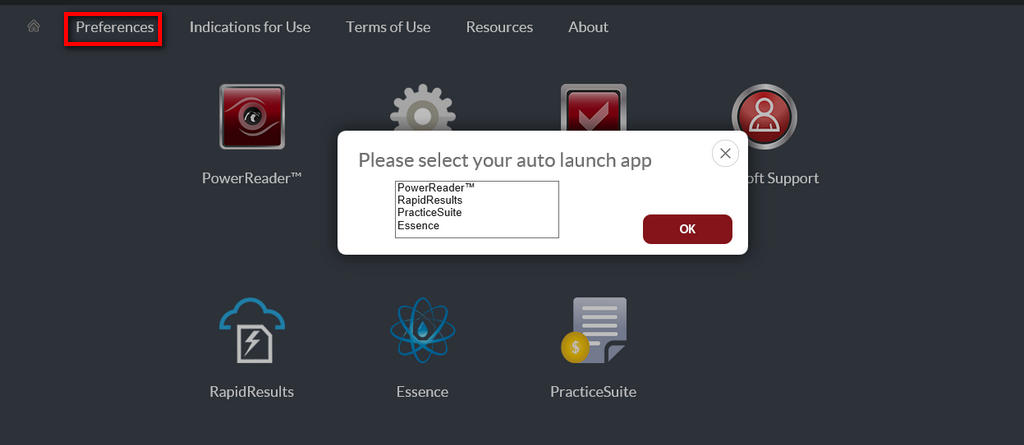
You can select more than one application for auto launch by holding the Ctrl key.