How Can I Save an AU Object with Report?
AU objects can be saved with SR Reports that are created when Dragon is used. This is very useful for Quality Control purposes. This feature allows the saving of the AU object as well as the report when dictating the report. The temporary document files store the Dictation and make them available for Transcription purposes or tie the dictation to the AU object without forcing the user to click the dictate button each time.
-
Assuming Dragon is installed on the workstation, a small red mike icon should show in the taskbar. Configure your profile in accordance with RamSoft PowerReader.
-
After all the configurations have taken effect, right-click on the red mike icon. A menu consisting of Turn Microphone On, File, Tools, Words, Sound, Help, and Exit options will appear. Select Tools > Options.

- The Options form consists of various tabs including Text-to-speech, Correction, Miscellaneous, Commands, Dictation Box, View, Data, and Hot Keys.
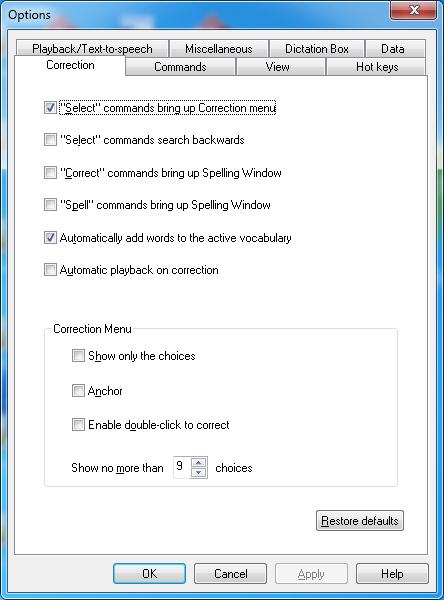
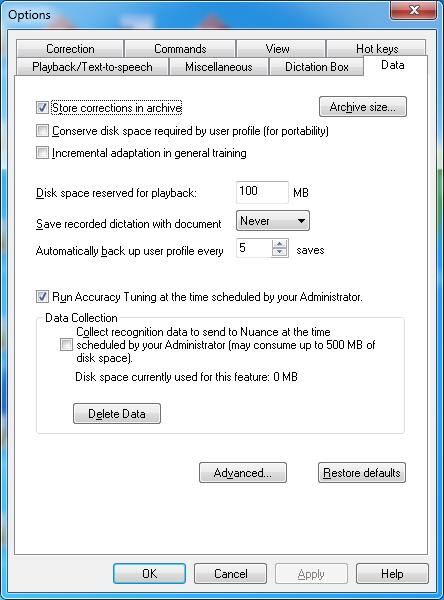
- Click on the Data tab. This tab consists of various configurations that can be edited by the user.
-
Click on the drop-down menu next to the Save recorded dictation with document field.
-
Select Ask me from the drop-down menu. This will prompt the user to save the AU object along with the report. The Always option will save the .DRA file without prompting while the Never option will allow the software to not save the .DRA file. After the changes have been made, select Apply and then click the OK button.
-
Open the Document Viewer for a study. Create a New Word Report from Template. Opening the Document Viewer will turn Dragon on. Begin dictating through the fields.
-
After the dictation has been finished, click Save on the bottom toolbar.
-
Clicking the Save button will prompt a message asking the user to save the Recorded Dictation. This is useful for playback and for correcting the dictated text later.
-
To save the dictation, click Yes. The .DRA file saved after dictation can be played back in the Dragon toolbar.
-
After the file has been saved, Dragon tags are written into the DICOM Header. After the study is Signed and /or Advanced to a default status, the .DRA file is discarded and the Dragon toolbar cannot playback the file.