USB Power Management Settings for Philips SpeechMike
During usage of the Philips SpeechMike, a user may experience an occasional loss of button functionality. When the microphone is turned on, a red LED bar should be lit across the top of the SpeechMike device. If the red bar is not lit, the SpeechMike has lost full USB functionality even though the buttons and the microphone will still work.
To find the root cause, verify that the Device Control Center is running in your task bar (usually as a hidden icon). If all four tabs are visible, the software is running but Windows has turned off power to the USB port. This occurs after the SpeechMike buttons have been inactive for 30-45 minutes. This is the default settings for any computer and while it is designed to save power, this setting is unnecessary for desktop computers and can get in the way of using SpeechMike.
Who are affected
Users operating a SpeechMike to utilize the VR and Dictation features with RamSoft products are affected by this issue.
RamSoft's Recommendation
To permanently prevent Windows from turning off power to the computer's USB ports and disabling SpeechMike's programmable buttons, perform the following steps:
-
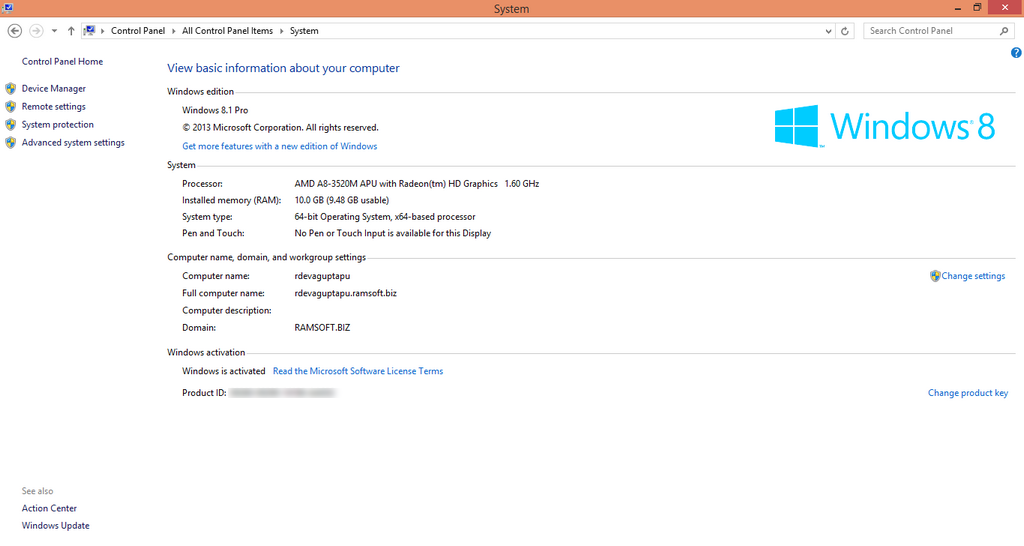
Open the Windows Control Panel.
-
Click Device Manager in the left-hand pane of the window.

-
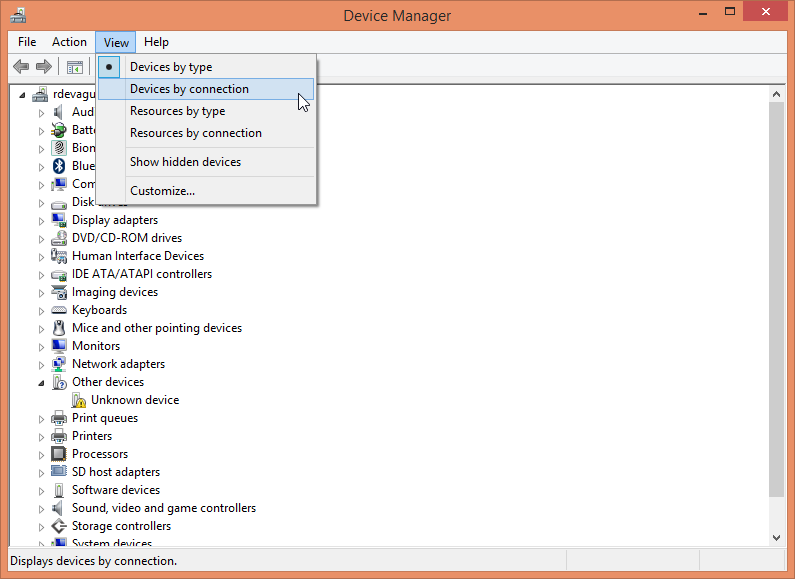
Under the View menu, click Devices by connection.
-
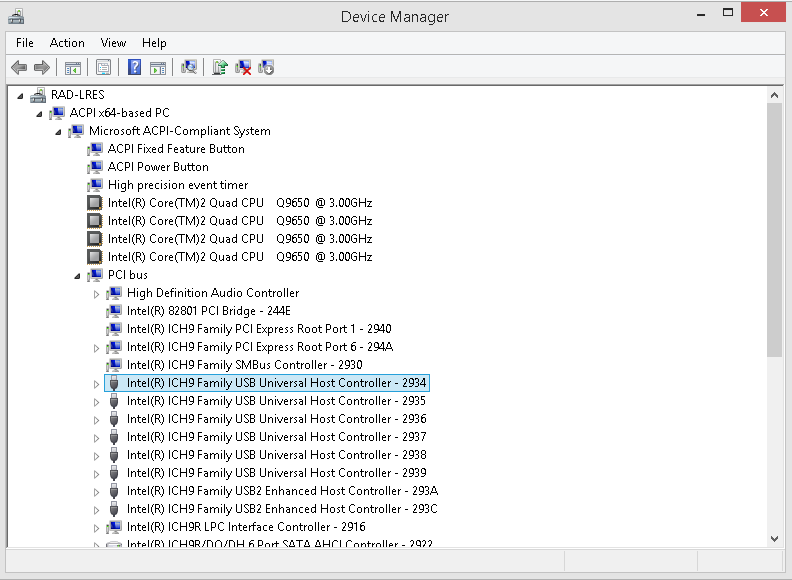
Navigate to ACPI x64-based PC > Microsoft ACPI-Compliant System > PCI bus > Intel(R) ICH9 Family USB Host Controller. Note that the computer may display a different version of the Intel(R) Universal Host Controller.
-
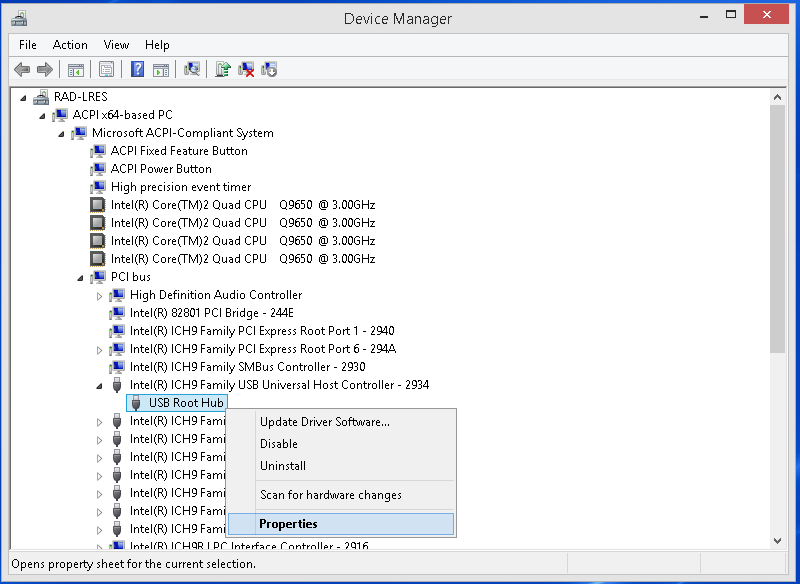
Right-click on the first USB Root Hub and select Properties.
-
Under the Power Management tab, uncheck the option Allow the computer to turn off device to save power.

-
Repeat steps 5 and 6 for each USB port.
Contacting RamSoft Support
Users needing more information about this issue should contact RamSoft Support using the contact information below:
Toll Free: (888) 343-9146 Phone: (416) 674-1347 Fax: (416) 674-7147 Email: support@ramsoft.com
References
- Speech Recognition Solutions Guide to Setting up the SpeechMike Premium (LFH 3500): http://www.speechrecsolutions.com/assets/SpeechMike_Premuim_Guide.pdf