Creating Custom Commands
Speech Understanding offers the ability to use commands which can be used to insert snippets of text, perform keyboard shortcuts, and more. Commands are organized by Groups.
Prerequisite: To enable speech understanding, you will need to install M*Modal Fluency Direct.
This option is available through Personalization > Commands.

Once the Commands form is opened, the commands are divided into two sections. They are Groups and Commands.
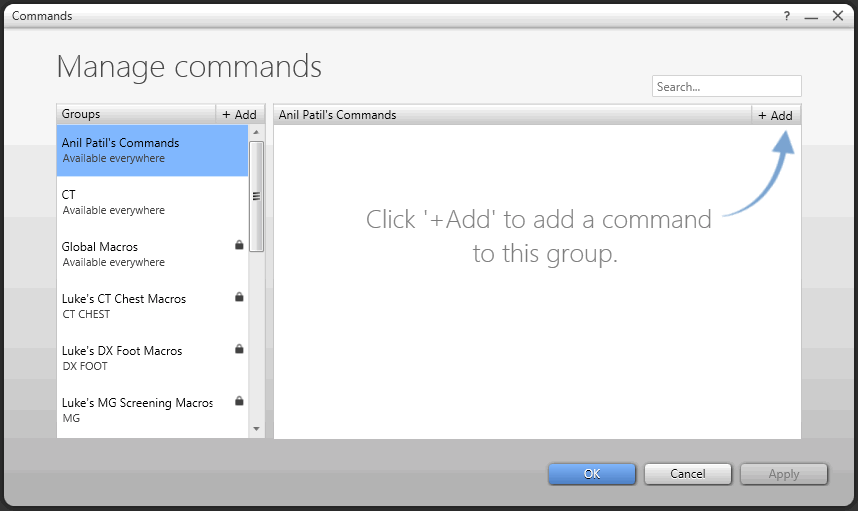
Adding new Group
Click  to add a new group. Add a Group screen appears as shown below.

Type name of the group in Group name text field and click on Save. Once a group has been added, new commands can be added to it.
Select the group name you have created and click to create a command. Upon click, Commands Details screen appears as shown below.

Once the command has been created, you can specify a word in the group window. Commands in that group will only be available when the title of the active window (Document Viewer Title Bar) will contain that specific word. For example, when the document viewer for a User Manual Testing study is opened by the user, the commands in the User Manual Testing Commands group will be available for the user.
Type the name of the command in the Name text field.
Click any or all of the following actions based on the requirement. The selected actions will be performed by the command.


There are four options available: Text, Key, Wait, and Script.
Once you have created the command, click Apply to save it.
Text
The Text option captures the user's key strokes and records them as the command.

To have a particular text font/formatting of a text snippet, it is recommended to type the desired text in MS-Word and then copy it into the Text Snippet window in the Commands form.
To change a key press, highlight the key press, and then press the new keys.
To remove a key press, highlight the key press to be removed, right-click the mouse and select Delete Action.
Simulate pressing
The Simulate pressing option captures the user's key strokes and records them as the command.

To change a key press, highlight the key press, and then press the new keys.
To remove a key press, highlight the key press to be removed, right-click the mouse and select Delete Action.
Wait
The Wait option will cause the system to wait for a specified amount of time before proceeding to the next action.
The default value for Wait actions is 1000 ms (1 second).
Text Snippet
The Text Snippet option will insert a snippet of text during dictation when the command is spoken.
