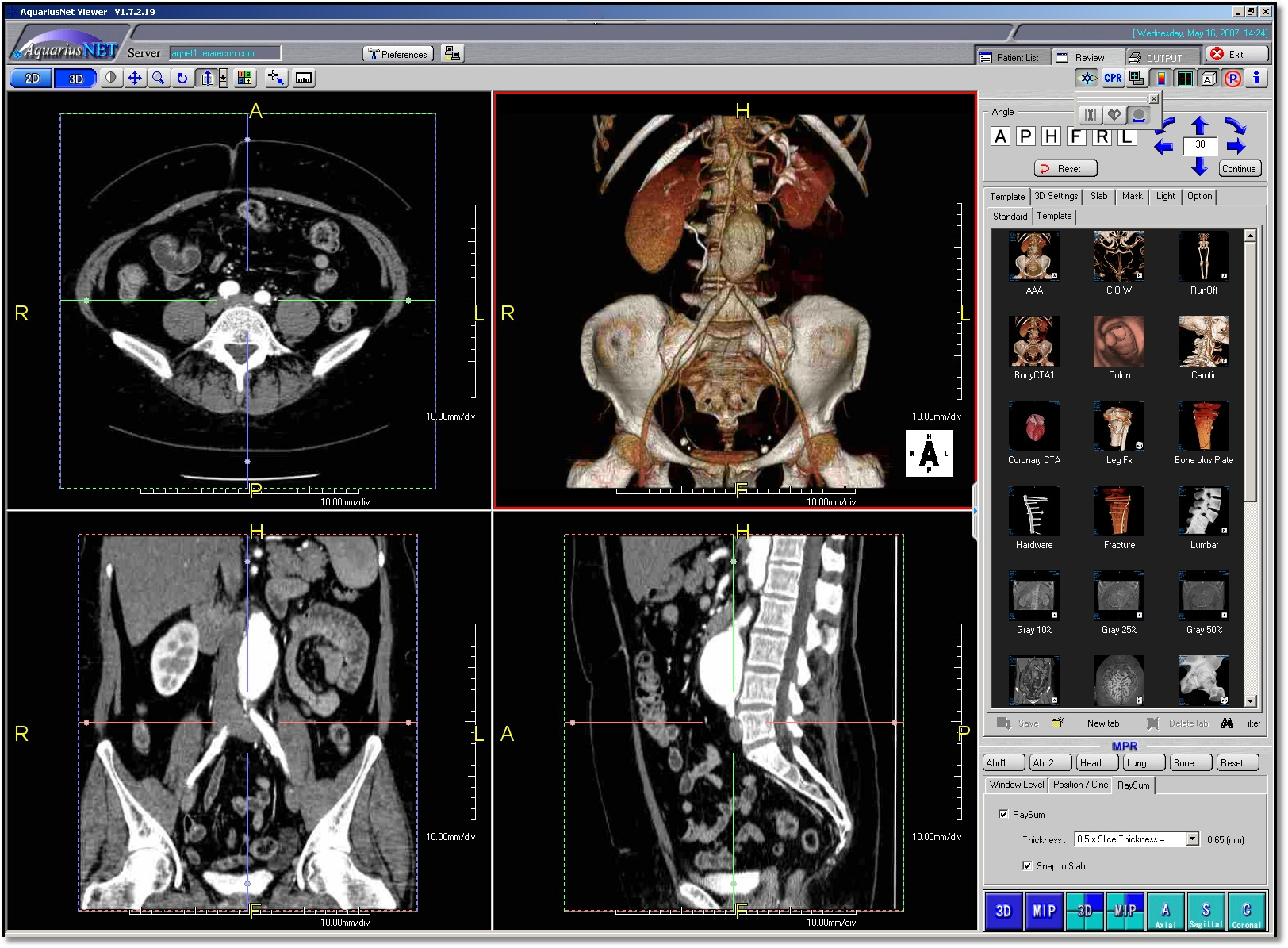
TeraRecon AquariusNet
TeraRecon AquariusNet is a central 3D processing server which delivers real-time interactive 3D imaging. For further information about TeraRecon AquariusNet, please visit http://www.terarecon.com/.
After installing TeraRecon on the client(s), the following steps should be taken to complete the integration and use the application.
-
Go to Settings > IntegrationSetup on the client.
-
Click on the TeraRecon Aquarius Integration tab.

-
Ensure Aquarius Integration Enabled checkbox is selected.
-
Enter the server's address in the Server Host field.
-
Ensure that you have the requisite login credentials configured (Account Details > Integration > Users List) to access TeraRecon.
-
Click OK when finished.
-
Open a patient study. There should now be a Launch TeraRecon button
 on the Image Viewer toolbar.
Note: For the TeraRecon button to be visible, the study should be of a cross section modality (like MR, CT, PT etc.) with more than one image.
-
If it is not present, select Windows > Toolbars > Unlock Toolbars.
-
Select Windows > Toolbars > Reset Toolbars. The button should now be present.
-
Select Windows > Toolbars > Lock Toolbars to relock the toolbars.
-
Click on the TeraRecon button to launch the application and use.