Customizing Speech Understanding
Once the Speech Understanding integration has been completed, logging into PowerReader will start Speech Understanding automatically. A small menu/status bar will be available.

The bar has the user's name and the microphone icon on it. The default color of the microphone icon is grey to indicate that recording mode is turned off.
When the microphone is in recording mode, the color of the microphone icon will turn to green as shown below:

A green bar at the bottom displays the volume/decibel level for the microphone input. This shows how loud the user's voice is registering while they are recording the dictation. The minimum level is recording volume threshold. Recording only starts when the acquired volume is greater than the threshold. Clicking the microphone icon will switch off the dictation.
Clicking on the Speech Understanding bar will open a menu.

| FIELD | DESCRIPTION |
|---|---|
| Microphone Setup | The Fluency Editor option is disabled by default. |
| Personalization | The Available Commands option will provide you with commands that you can say. The available commands window can be displayed by clicking on this option. |
| Editor | Tools option offers multiple functionalities for customizing your Speech Understanding experience. The options available are to configure the added/excluded words or replacement rules via the Dictionary, select recognition Domains, create macros via Commands, configure settings and calibration via Microphone, perform Profile Training or to select the dictation display Options (all these options are explained in detail below). |
| Help | In the Help menu, you can provide Feedback about Speech Understanding and comments regarding the application features. This option should not be used for support or service. The About option displays the Speech Understanding splash screen, which provides information regarding the current installation and version number etc. |
| Change Password | The Change Password button will allow users to change their password as desired. You will need to enter the old password, enter the new password and then confirm the new password for the changes to take effect. |
| Sign Out | Sign Out from the Speech Understanding application. This allows another user to log into Speech Understanding with their credentials. |
| Quit | Quit closes Speech Understanding completely (the menu bar will no longer be available). |
Note: If you closed the M*Modal control bar in Worklist view, you must open the Document viewer (create/edit report) to reopen it.
Explaining the Tools menu
Various options have been provided in the Tools menu which allow multiple functionalities for customizing Speech Understanding.
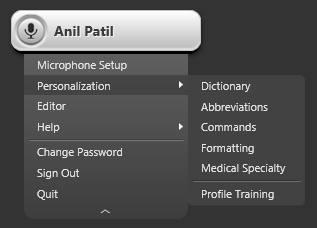
| FIELD | DESCRIPTION |
|---|---|
| Dictionary | The Dictionary option opens the Dictionary, which contains common words/phrases added by the user. |
| Abbreviations | Fluency Direct also allows users to create a collection of abbreviations. This is a list of words or phrases that you use repeatedly but abbreviate when speaking. |
| Commands | Speech Understanding offers the ability to use Commands which can be used to insert snippets of text, perform keyboard shortcuts, and more. Commands are organized by Groups. The Commands option is explained in detail in section the Creating Custom Commands. |
| Formatting | The Formatting option provides additional options related to the display and rendering of the dictation and draft text. More options may be added in the future. |
| Medical Specialty | Users can select their medical specialty to optimize the vocabulary for the types of documents you will be dictating. Select your specialty by scrolling through the options or searching in the search bar. Once selected, click OK to save and exit. |
| Profile Training | The Profile Training option activates a recording mode to train the user's profile for increased accuracy during dictation. See the section Training Your Speech Understanding™ Voice Profile for more information. |