Next and Previous Field Setup Guide
The steps below are necessary for managing the system settings and templates in PowerServer. These settings allow the Next Field and Previous Field voice commands to work properly for RamSoft's Dragon integration. These steps can be taken for MS Word 2007 or MS Word 2010.
-
Open MS Word.
-
Create an empty template by saving the file as a .dot extension.
-
Click on the Macros button in the View tab.

-
When the Macros window opens, ensure that the Macros in: drop-down menu match the name of the template.
-
In the Macro Name area, type the text Next Variable and then click Create. This will launch the Microsoft VBA editor.
-
Inside the Microsoft VBA editor, overwrite the existing text with the following text:
Sub NextVariable()
' NextVariable Macro
' NextVariable Command

Selection.Find.ClearFormatting
 With Selection.Find
  .Text = "[[]*[]]"
  .Replacement.Text = ""
  .Forward = True
  .Wrap = wdFindContinue
  .Format = False
  .MatchCase = False
  .MatchWholeWord = False
  .MatchAllWordForms = False
  .MatchSoundsLike = False
  .MatchWildcards = True
 End With
 Selection.Find.Execute
End Sub

Sub PreviousVariable()
' PreviousVariable Macro
' PreviousVariable Command

Selection.Find.ClearFormatting
 With Selection.Find
  .Text = "[[<>][!<]*[]]"
  .Replacement.Text = ""
  .Forward = False
  .Wrap = wdFindContinue
  .Format = False
  .MatchCase = False
  .MatchWholeWord = False
  .MatchAllWordForms = False
  .MatchSoundsLike = False
  .MatchWildcards = True
 End With
 Selection.Find.Execute
End Sub
-
Click Save. This will embed both VBA macros into the template.
-
Open the PowerReader and select the System Configuration menu from Settings > Systems Configuration.
-
Ensure that the following two configuration settings have these values:
| Configuration Entries | Value |
|---|---|
| Next Variable Macro Name | NextVariable |
| Previous Variable Macro Name | PreviousVariable |
-
Open the Client Integration Setup form in PowerReader from Settings > Client Integration Setup.
-
Ensure that Dragon Integration Enabled has been checked.
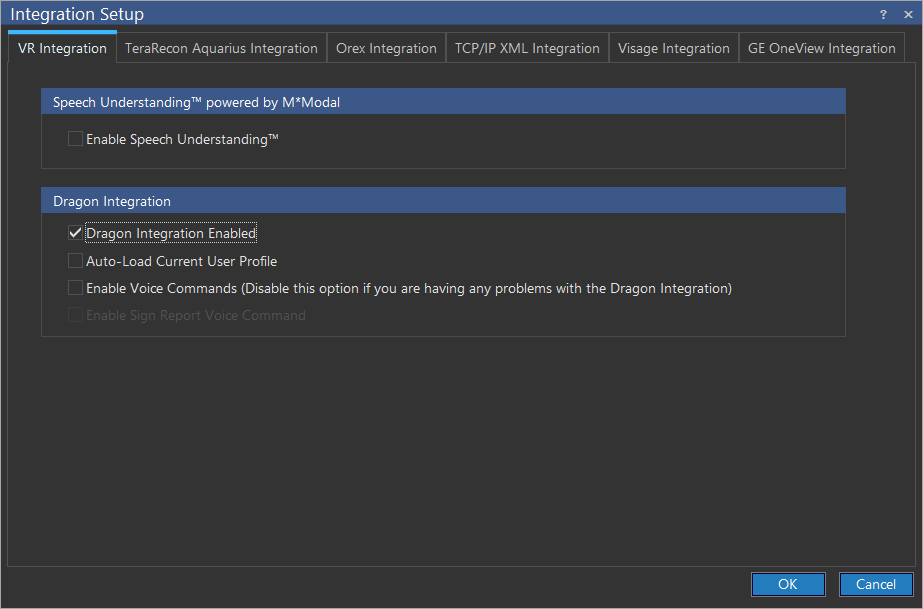
Note that you can use the Voice Commands "Next Field/Next Variable" and "Previous Field/Previous Variable" along with the short cut keys Ctrl+Alt+; (Next Variable/Field) and Ctrl+Alt+J (Previous Variable/Field) when creating Text reports.
Ensure that the text report template you are using has "[]" bookmark placed for each variable.