Direct Messaging
Secure direct messages can be sent to and from external sources who have a direct address. Only users with Meaningful Use License or the Direct Messaging license can use this feature. Direct Messages can be sent in a secure and authenticated way to users in HealthVault using a direct address.
Direct Address Registration
Each new company or organization who requires Direct Messaging must have their chosen domain name registered with Surescripts. The following information is to be passed to Surescripts:
- The Domain Name, i.e. "org.direct.ramsoft.com", where "org" is the name of the organization. Domain Names must be unique.
- The Legal Name of the organization.
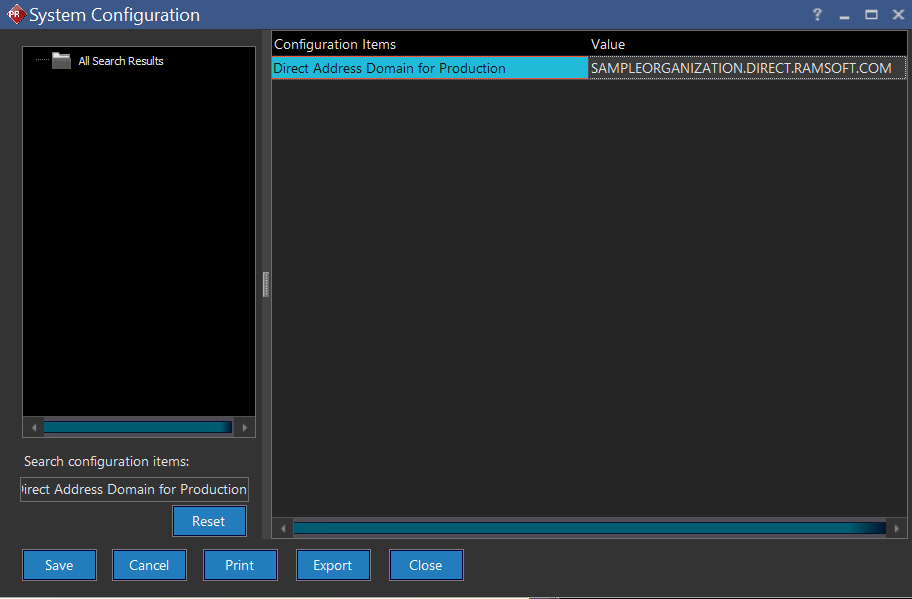
After registering the direct domain, the System Configuration entry named ''Direct Address Domain for Production" must be updated with the Domain Name.
Direct address can be registered for a facility or for users associated with a Facility. All registered direct addresses can be meta-searched.
Note: It is advisable to configure this at the time of installation.
Note: Only one direct address for a user per facility can be registered. When a different direct address for a user is being registered for a facility that already has a direct address registered for the user, the system will display an alert informing the user to unregister the existing direct address and register a new one.
Registering direct address for a facility
When creating a direct address for a facility, the following valid and mandatory fields for the facility need to be filled in with the relevant data:
- 10 digit valid NPI
- Country (USA only)
- State
- City
- Zip Code
- Address
- Business Phone
- Fax Number
To register a direct address for a facility, perform the following steps:
- Go to Settings > Users and Facilities > Direct Address tab.
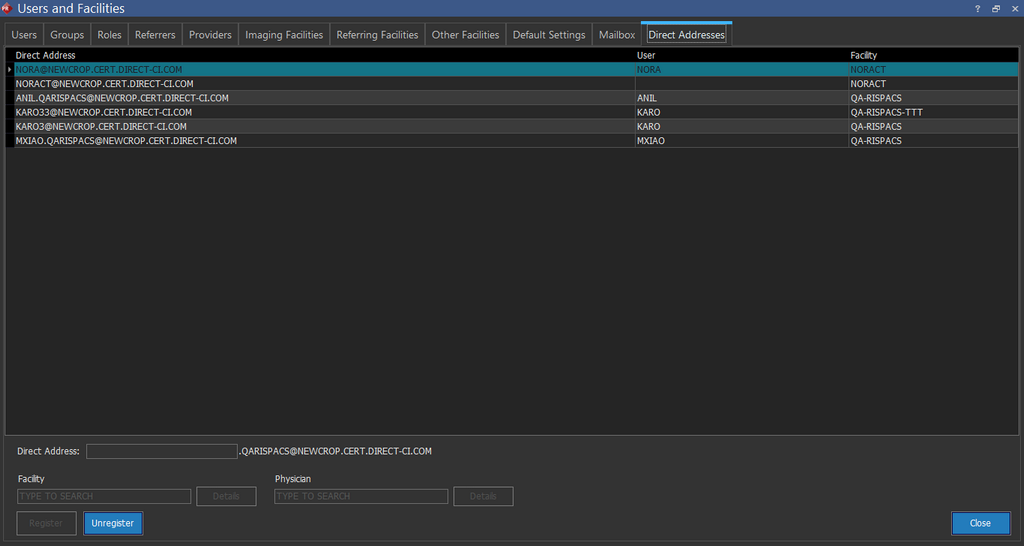
- In the Physician field, select the user with the Meta-search feature.
- In the Facility field, select the facility using the Meta-search feature. Note: If you select a facility first, users associated to that facility along with physicians not associated to any facility will be populated on the Physician meta-search. If the Physician is selected first, then the Facility would list the facility the user is part of. If a physician is not part of any facility, all facilities are listed in the Facility meta-search.
- Enter the direct address in the Direct Address field. The Register button is enabled.
- Click the Register button.
If the Direct address that you have entered does not exist in the Default Direct Address: field under the Default Settings tab (Users and Facilities) you will see the confirmation message "Do you wish to make this direct address <Direct address> default for the report distribution?." If you click Yes, the direct address that you have entered would be set as default for report distribution.
The Direct Address is registered for the facility.
When attempting to unregister a direct address of a user for a facility, the following warning message is displayed:

Click Yes to unregister the direct address for a physician. The direct address cannot be unregistered for a physician if it is the last registered physician direct address.
Note:
-
There should be at least one direct address registered for a physician in order for any direct address for facility to work.
-
Direct address registered for a facility CANNOT be un registered or updated at any time. However, multiple direct addresses can be registered for a facility.
Deactivating a Direct Address
A direct address registered for a facility can be deactivated.
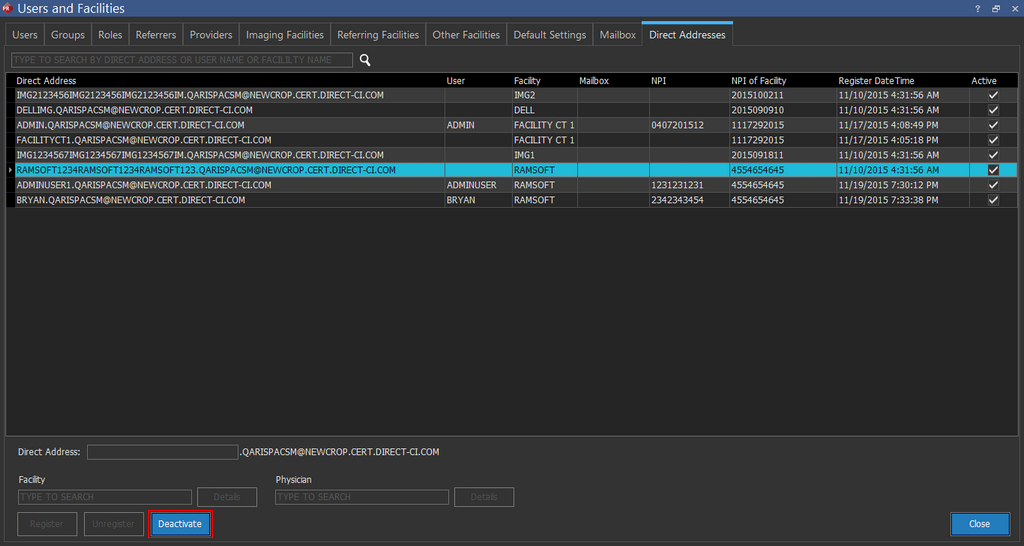
Note: A deactivated direct address will not be available for selection in the From and To fields while composing new messages. However, this direct address can still be used to send direct messages from other systems to our server.
When registering a direct address for a user or a facility, the registered direct address is copied to the Direct Address field in the Personal Contact Information section if it is for a user or to the Direct Address field in the Fax and Direct Address section for the Facility.
Registering direct address for a user
When creating a direct address for a user, the following valid and mandatory fields for the facility need to be filled in with the relevant data:
- 10 digit valid NPI
- Last Name
- First Name
To register a direct address for a user, perform the following steps:
- Go to Settings > Users and Facilities > Direct Address tab.
- In the Physician field, select the user sing the Meta-search feature.
- In the Facility field, select the facility using the Meta-search feature. Note: If a facility is selected first, users associated to that facility along with physicians not associated to any facility will be populated on the Physician meta-search. If the Physician is selected first, the Facility would list the facility the user is part of. If a physician is not part of any facility, all facilities are listed in the Facility meta-search.
- Enter the direct address in the Direct Address field.
- The Register button gets enabled.
- Click the Register button.
- If the Direct address that you have entered does not exist in the Default Direct Address field under the Default Settings tab (Users and Facilities) you will see the confirmation message "Do you wish to make this direct address <Direct address> default for the report distribution?." If you click Yes, the direct address that you have entered would be set as default for report distribution. Once you confirm, you will see another confirmation message confirming if you wish to add this direct address to the physician<username>.
- Click Yes. The Direct Address is now registered for the user.
A a user's direct address cannot be unregistered if the direct address is used by any of the users unless the System Configuration entry Allow Unregister Direct Address Used by Users and Facilities is selected. Note that this configuration entry is not selected by default.

If this configuration entry is selected and when the administrator un-registers the direct address which is used by a user, the direct address will be removed only upon confirmation. For example, the following confirmation message is displayed in this scenario:

If you chose Yes, then the direct address is un registered.
Creating a Mailbox
You can access a mailbox to access all the messages in the mailbox you belong to.
To create a mailbox, perform the following steps:
- Go to Settings > Users and Facilities > Mailbox tab.
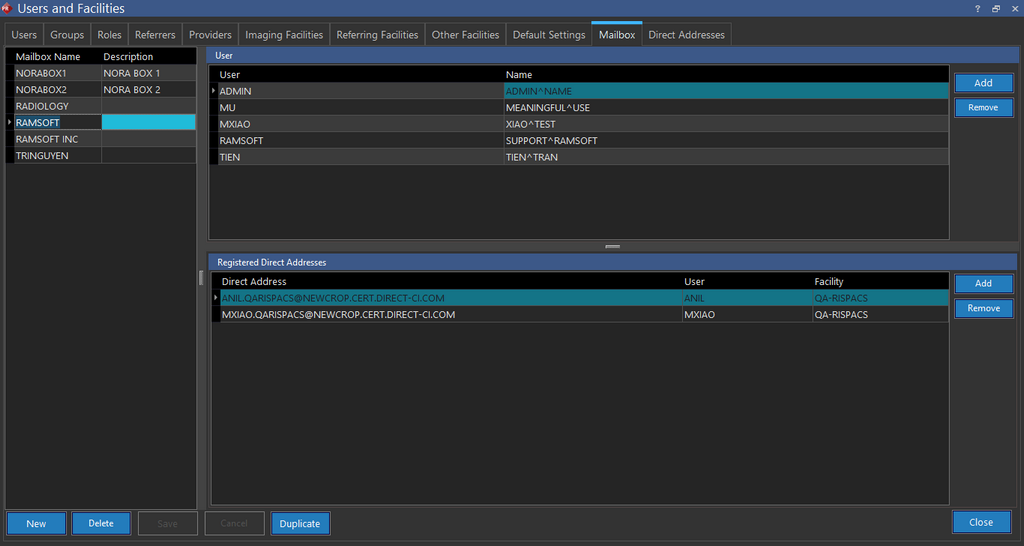
- Create new mailbox with Mailbox Name and Description.
- Add the users and direct addresses under "User" and "Registered Direct Addresses" sections respectively. The users who have been added can use the direct addresses to send and receive the direct messages in Inbox. When you duplicate a Mailbox, the direct address is not duplicated as direct address only associates with one mailbox.
If you add a new User row and click Save without entering the user details, the row would not be saved as it is empty and without any pertinent information.
Users who are associated with the facilities which are not associated with any of the direct addresses in the mailbox cannot be added. Users who are not associated with any facility can be added to a mailbox.
Note that when a user's direct address that is setup in the Mailbox is unregistered, you can see that the following confirmation message is displayed:

Once you confirm, the respective direct address of the user is no longer associated with the mailbox.
Note that for creating mailboxes:
- Each mailbox can include many users.
- One user can have several mailboxes.
- One mailbox can have several direct addresses; however, one direct address can only belong to one mailbox.
Mailbox Privileges for "REFERRALS" Mailbox
The "Referrals" mailbox is unique in that it is a pre-existing Mailbox that cannot be deleted. Users added to the Referrals mailbox has the ability to see referral orders without the SystemWide Admin privilege. Consequently, a user with the SystemWide admin privilege will not be able to see referral orders unless that user is added to the Referrals mailbox.
Steps to add a user to the "REFERRALS" Mailbox
- Log in PowerReader with admin privilege
- Click Settings: Users and Facilities
- Select the Mailbox tab and select the mailbox named "REFERRALS"
- Click the "Add" button on the right side of the "User" grid
- Type the desired username to be added with the "User" meta-search on the grid
- Click "Save" at the bottom of the "Users and Facilities" screen