Adding New Reading and Performing Physicians
Before creating a new Reading or Performing Physician account, make sure you have set up appropriate roles and groups. Information on those can be found in the Creating & Administering Users section. The Providers tab is used to define the Reading and Performing Physicians of the system. If any other type of user is created in this tab, it will be automatically moved to the respective tab i.e Users or Referrers after the user has been saved. Once you are ready to proceed, open the Providers tab by clicking Settings > User and facilities.
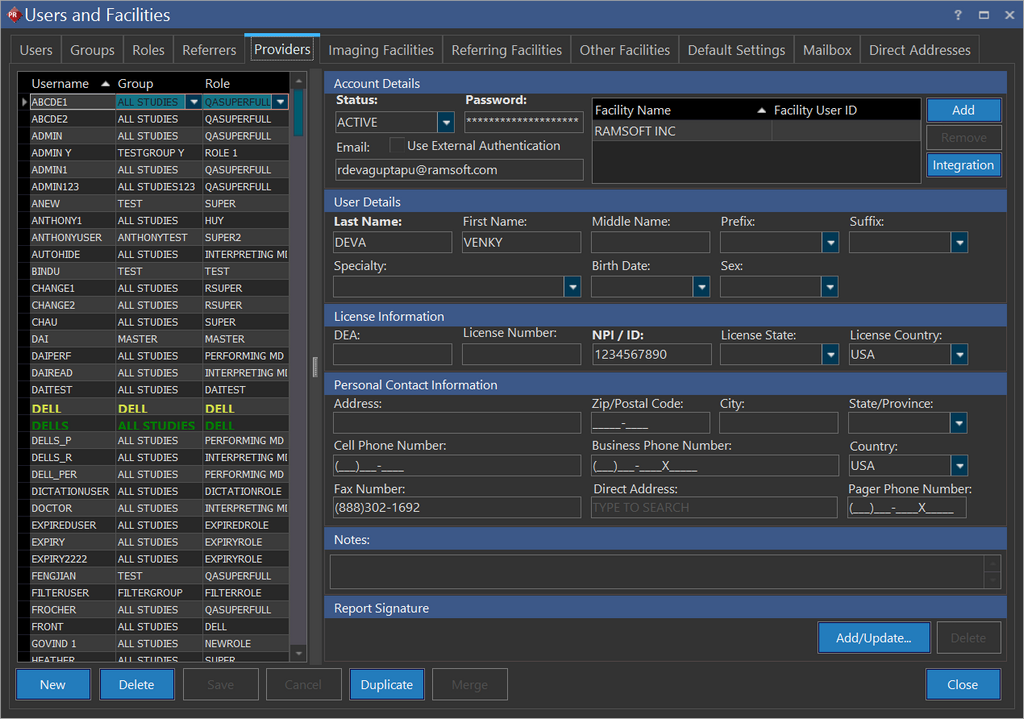
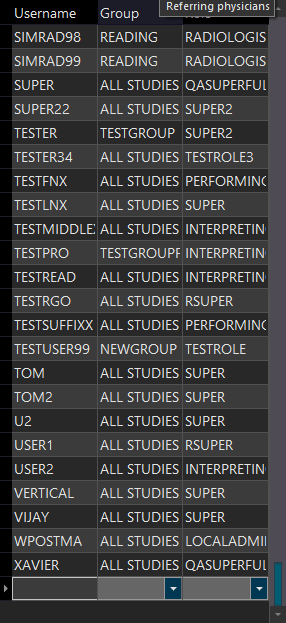
- Click New to add a new user. This will add a new blank entry to the list indicating where to populate the username.
-
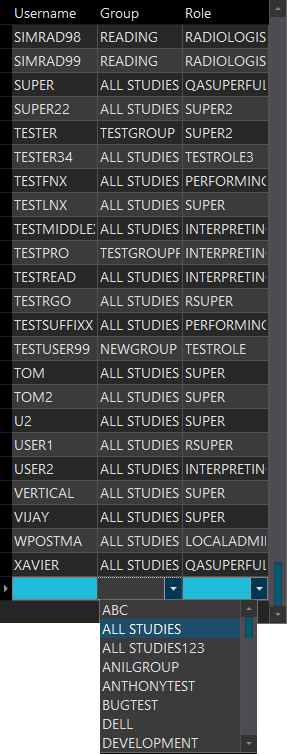
Enter a new Username and choose the appropriate Group from the drop-down menu.
-
The default role for the group chosen will automatically be populated in the Role drop-down menu. This can be changed if desired. The config entry Use Group Default Role will be assigned if the default role is checked off for the Group.
-
On the right hand side fill in all of the users details. The fields Status, Password, Last Name and NPI / ID are required. Other fields such as Physician Specialty, Physician Birth Date and Sex are optional.
-
A new feature of PowerReader is the Facility Name and Facility User ID field.

Once the user clicks on the Add button, a drop-down list of facilities is available. The list contains various facilities defined in the Imaging Facilities, Referring Facilities and Other Facilities tab. Once a Facility Name and Facility User ID has been entered and saved in the field, the user becomes a part of the Users list in that facility's tab. After the user becomes member of a facility, the Workflow triggers, Station lists etc will be filtered to display only those items that belong to that facility. If a user is a member of more than one facility, the user will appear in the Users list of those facilities. For more information, refer to the Creating an Imaging Facility section.
Once a user has been added to a particular facility, he can only perform actions for that particular facility. Hence the system has the ability to define two levels of Admin users for distributed facilities. A Super Admin user who is a member of every facility and able to view, create and manage every user in all the facilities and a lower level Admin user who can view, create and manage users of the facility he is a part of.
- A new feature is the ability to add customized signature to every report viewed. To add/update the signature, simply click on the browse button and locate the Image file containing the signature (JPEG only). After the signature file has been chosen, a small preview will appear in the Report Signature box.

- Click Save.