Creating Other Facilities
Other facilities allow you to create a reading/transcription facility. However, Other Facilities could also be used to create an imaging/referring facility and duplicate an existing facility. The imaging/referring facility created using this tab will need some more inputs to make a complete facility. This tab comprises various sections like Contact Information, Practice type, Users, and Notes.
How to create Other Facilities
- Click Settings > Users and Facilities > Other Facilities tab to create a new facility (reading/transcription/imaging/referring). Other Facilities tab appears as shown below.
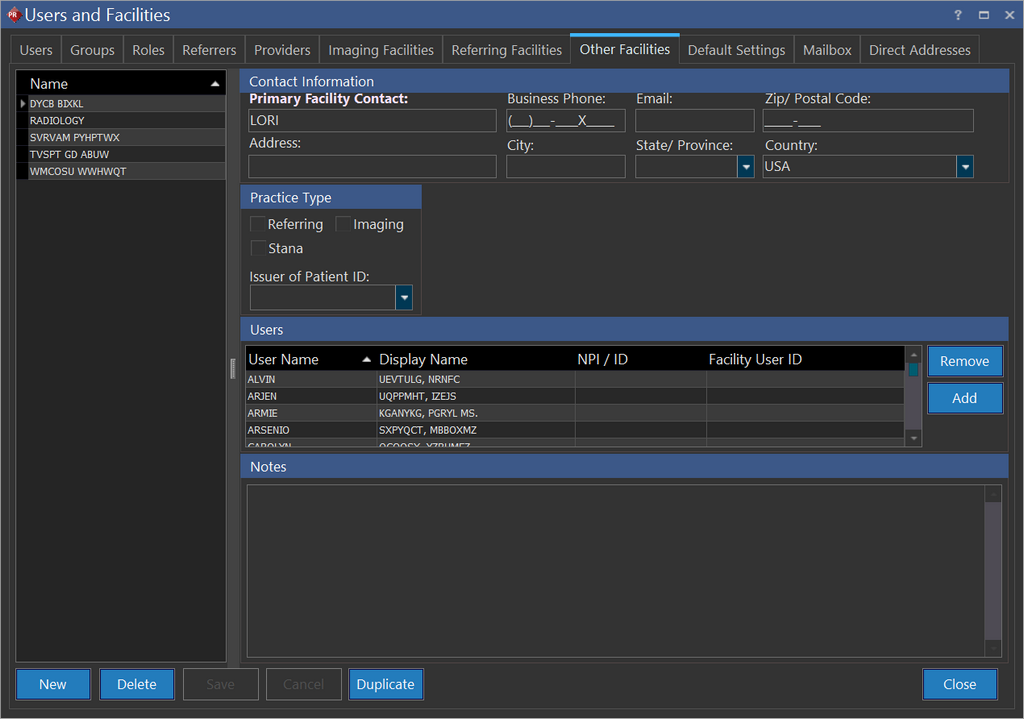
-
Click New. This opens a blank form.
-
Type the name of the new facility in the left pane.
Contact Information
-
Type the name of the facility in the Primary Facility Contact text field.
-
Type other contact information like business phone, email, zip/postal code, address, and city in respective fields.
Prerequisite:
To select a state/province from the State/Province drop-down menu, you will need to select the name of the country from Country drop-down menu.
-
Click the Country drop-down menu and select the name of the country. By selecting the country name, the application will automatically fill in the ISD code in the Fax Number and CC Fax Number text fields.
-
Click the State/Province drop-down menu and select the name of the state/province.
Practice Type
This sections displays the three different types of practices. These practices are optional check-boxes. If your business demands to a create reading/transcription facility, you may ignore these check-boxes.

- Click the Issuer of Patient ID drop-down menu to select the name of the facility that issued the patient ID. The issuer of patient ID will be available in the drop-down menu only if the facility name exist in the database of the application else you will need to type in the name of the facility. However, manually typed in issuer of Patient ID will only be related to this imaging facility and it will not be appended to the application database.
Note: This Issuer of Patient ID option is closely related to Groups. Please refer to the section Group Overview for further information.
Users
This feature allows you to add or remove reading/performing physicians name of the imaging facility.

When you are creating a new facility, you cannot add users unless you save the facility. Once you create a facility by saving it, the Add, Remove buttons in the Users section get enabled.
When adding users for any facility (Imaging/Referring/Other), if you enter an invalid NPI/ID number, the entire User/Referrer row in the grid clears out. This feature helps prevent accidental misidentification of Referring physicians.
Notes
The notes section is used to enter any description about the facility.

Duplicating an existing facility
If your business demands to create a new reading/transcription/imaging/referring facility which is almost similar to an existing facility, you can duplicate the existing facility.
How to Duplicate
-
Select the name of the facility which is most similar in functionality from the list available on the left pane of Users and facilities screen.
-
Click Duplicate. Upon click, the application will create an other copy of the chosen facility.
-
Do the necessary modifications in the required fields and click on the newly created (duplicated) facility name available in the list.
-
Rename it appropriately and click Save.