How Do I Use the Replication Service?
-
Select the desired study from the Worklist.
-
Click Send the study to another station
 button in the DICOM Action menu bar. Push Details screen appears as shown below.

-
Click the Target drop-down menu and select "Station".
-
Click the Destination drop-down menu and select desired destination.
-
Press OK.
You can also push priors when pushing a current study. The Enable check mark allows user to push priors along with the current study being pushed. The user can define a separate priority for the prior study i.e., low/medium/high/same as current.
To keep track of the transmission, entries are added in the Communication screen where it creates a log.
- Click Settings > Logs > Communication. Communication screen appears as shown below.
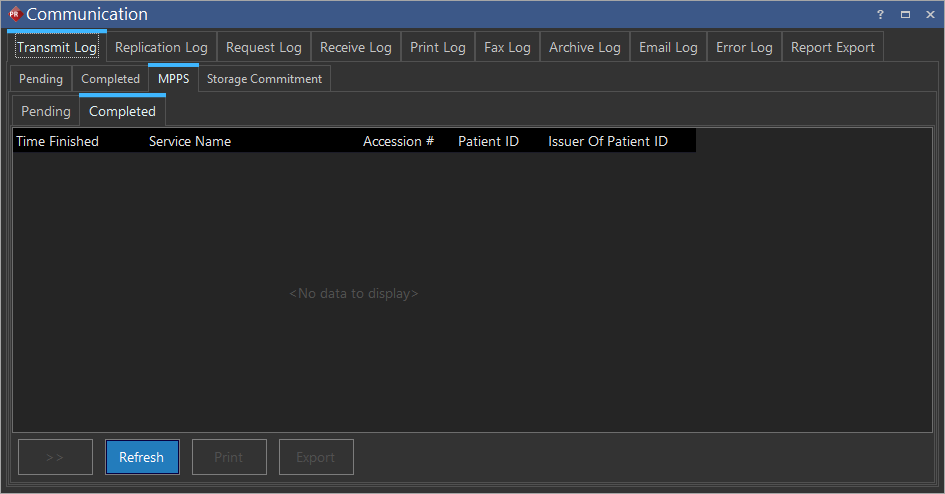
-
Click Replication Log tab.
-
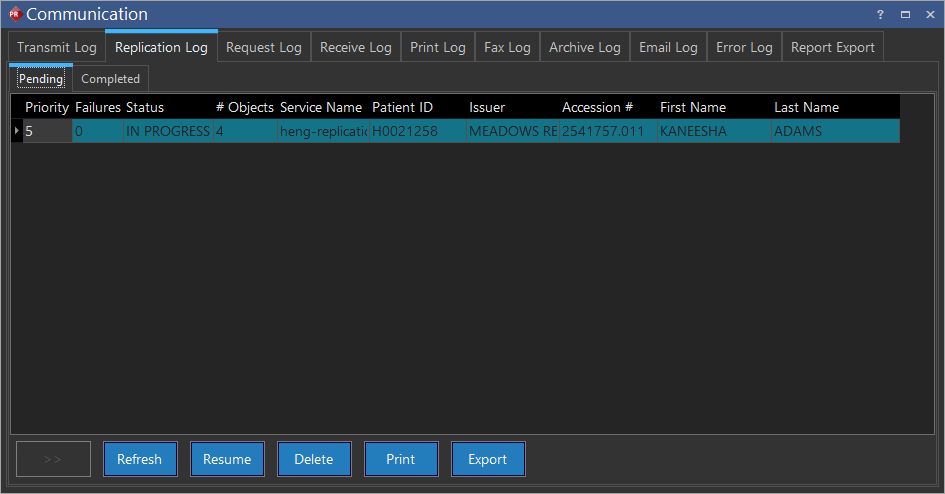
The Replication Log has two sub tabs. The first is the Pending sub tab. This sub tab contains a list of the all the studies currently being transferred to the PowerCache.
The Status column displays the current state of the study. Any given study will have one of the following four statuses associated with it.
-
SCHEDULED - Denotes that the study has been requested. It is in the queue and will be sent once the communication lines are free or when the scheduled time window of the study occurs.
-
IN PROGRESS - Denotes that the study is currently being transferred.
-
FAILED - Denotes that the transmit was attempted and failed. The priority value of a Failed study is decreased by one. After this demotion, if it is still the highest priority study in the list, it is reattempted immediately. If its priority value is lower than other studies in the list, those other studies will be transmitted first. The Failed study will be reattempted after it becomes the highest priority again. This application will reattempt to transmit each failed study to a maximum of ten attempts.
-
TOO MANY FAILURES - Upon failing in all ten attempts, the system will wait for an hour before reattempting to transmit it.
The list can be refreshed by clicking the Refresh button. If a study reaches one of the failed statuses, it can be manually restarted by highlighting it and clicking the Resume button. Any study in the list can be removed from the list by highlighting it and clicking the Delete button.
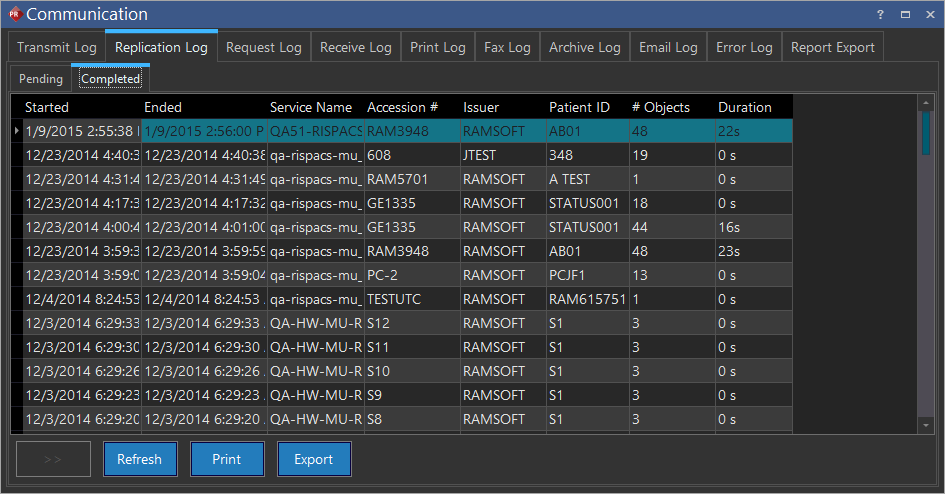
Once the study with the image data has been sent to the PowerCache successfully, it will appear in the Completed section of the Replication Log.
A new feature of PowerReader is the logging of studies received through Replication Service. The entries are logged in the Receive Log. Studies being received at the moment will be logged in the Pending sub tab while those received successfully will be logged in the Completed tab as shown below.

The error log displays errors associated with sending or receiving replication studies. If an error occurs for studies sent through replication, a log entry will be displayed in the error log.
Note: If an AE Title error occurs, a log entry will specifically mention this error. An example of the error log is shown below.
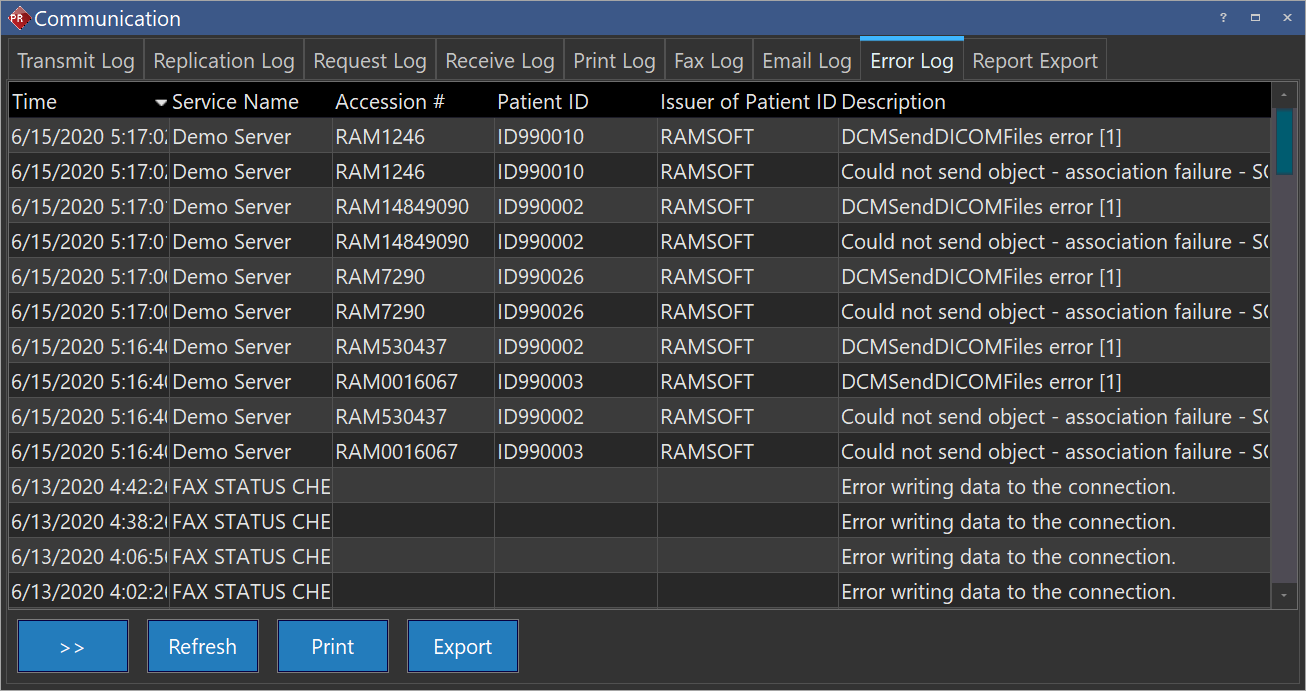
If an error occurs for studies received through replication, a log entry will be displayed in the error log. The error log will display the AE Title matching errors and the IP address of the sending station. The service name will be displayed as "REPLICATION RECEIVER".
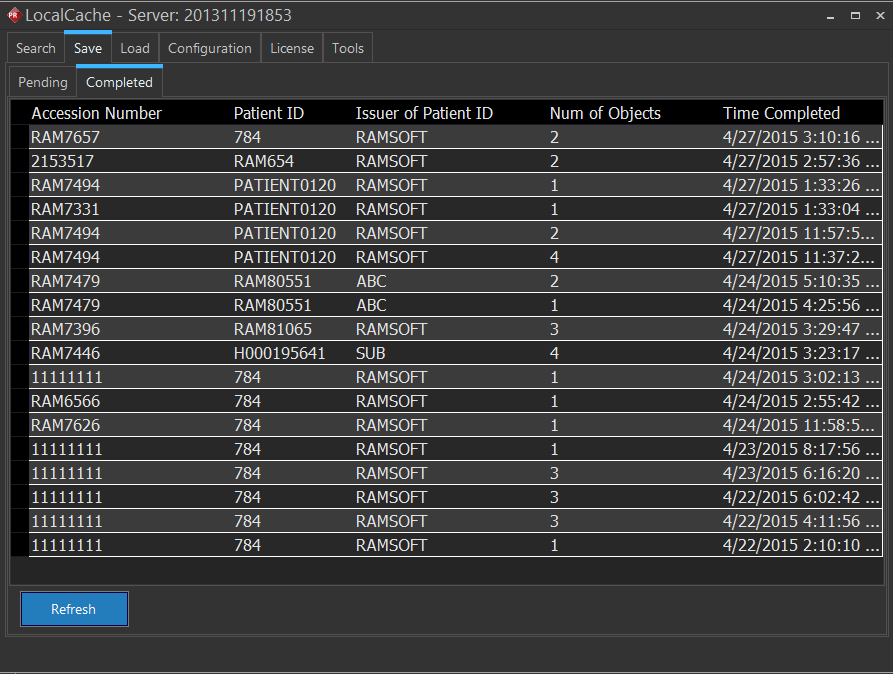
All studies received are tracked in the Local Cache log. The Local Cache log appears as shown below.