Configuring PowerMic II for Dragon Medical
The keys defined on the Dictaphone PowerMic II are different than the ones used by the Philips SpeechMike. Therefore, step-by-step macros have to be defined by the user to move to the next/previous field.
RamSoft has defined two commands for this purpose:
- RamSoft Next is used for the command "go to next variable"
- RamSoft Previous is used for the command "go to previous variable"
Although Alt+Ctrl+J and Alt+Ctrl+K have been described in this section for the RamSoft Previous and RamSoft Next commands, it is possible to define other hot keys for these commands in the template. In that case, you must define the same hot keys in the User Defined macros for these two commands.
Creating macros
The following is the method for creating a macro and then configuring the PowerMic II with them.
-
Open Dragon Medical.
-
Once Dragon Medical initialization is complete, go to Tools > Add New Command or Tools > Command Center > Add New Command (depending on the version)

-
In the MyCommands Editor, enter RamSoft Previous in the MyCommand Name field.
-
Select the Availability as Global.
-
Select the Command Type as Step-by-Step.
-
Click on the Insert button.
-
Once the Send Keystrokes window opens, enter Ctrl+Alt+J (or any other hot keys defined for this command in the template).
-
Click Save.
-
Perform the same steps (3-8) for the command RamSoft Next.
For Step 7, enter Ctrl+Alt+K (or any other defined for this command in the template)
-
In the Dragon menu, go to Tools > Options.
-
Click on the PowerMic II tab.
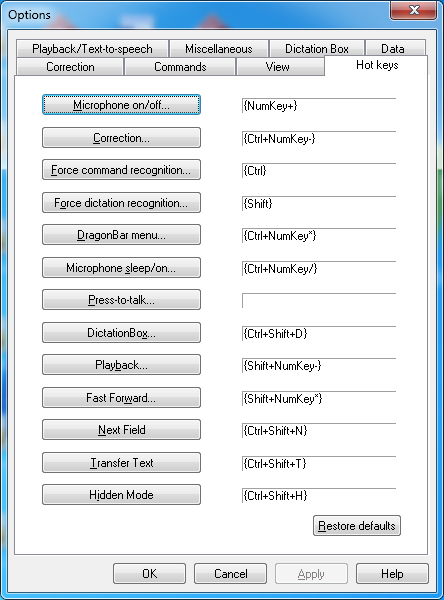
-
In the Tab Backward field, select User Commands > Specify.
-
Type the command name RamSoft Previous in the dialog.
-
Repeat the steps 12-13 for the Tab Forward field.
-
Type the command name RamSoft Next in the dialog.
-
The new macros have been added for the Hot Keys.