How Do I Modify the Default List of Study Types?
Study Types are used to group multiple Procedure Codes. This makes it easier to order studies that are a combination of multiple procedures. Study Types can be found through RIS Settings > Study Types. Study Types screen appears as shown below.
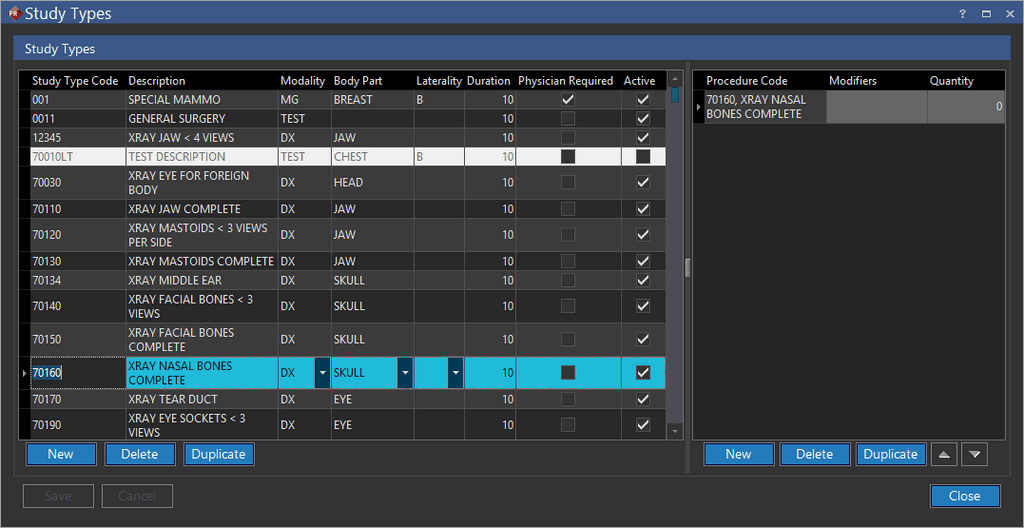
To create a new Study Type, click on the New button at the bottom of the Study Type window. As required, put in a Study Type Code for easy reference and the study type's Description. The Modality of the study type is also required. While the other fields are optional, filling them out is always helpful in narrowing down the study type.
RamSoft PowerReader provides the option of associating multiple Procedure Codes with a study type. To associate a procedure code with a particular study type, highlight the study type and then click New to enter the information in the Procedure Code table.

Once the Procedure Code has been entered, its modifiers and the quantity can also be entered in this field. The procedure codes associated with a particular study type will appear in the Study Information form in the Admin tab.
After all the pertinent information has been entered, it should be saved by pressing the Save button at the bottom of the Study Type form. Any changes made can be undone by pressing the Cancel button at the bottom of the window. To close the form, click the Close button.