How Do I Modify the Default List of Body Parts?
When users create new studies or configure several of the study specific tools, they need to enter the body part of the study or study type in question. These body parts can be manually typed in or can be selected from a predefined list accessible through a drop-down menu. The default list is fairly extensive and covers a wide range of common body parts. However, since the RamSoft software is installed in a variety of imaging environments, a number of the default body parts will not be applicable to certain specialized facilities. To reduce the number of entries available in the drop-down menu and to add new ones, the Body Parts dialog can be used. This dialog is launched by clicking RIS Settings > Study Type Settings.
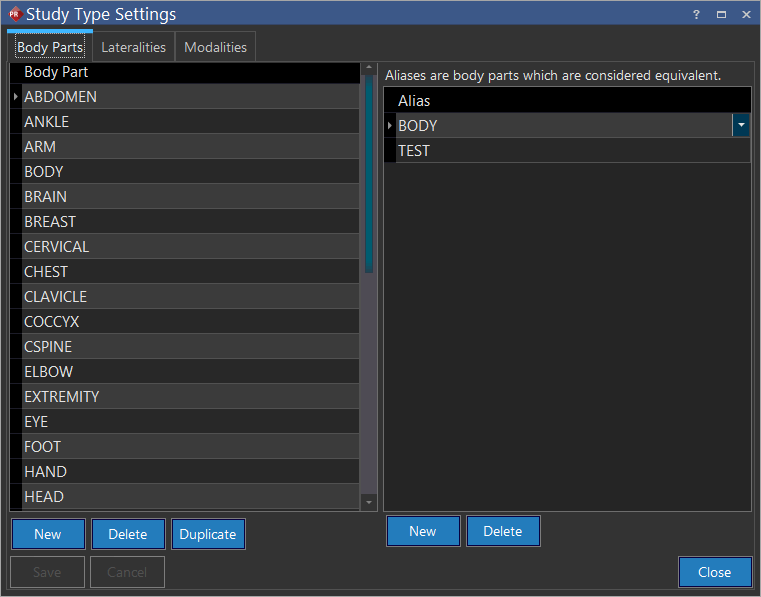
Any entry in the list can be removed or edited. New ones can also be added. Each body part name can have a maximum length of sixty four characters. If a duplicate body part is added by mistake, a message pops up indicating that the body part already exists. Also, the duplicate body part will be highlighted in red. It is a good idea to clean this list up in order to reduce the unused entries that you scroll through. This list is global, and the changes will affect all users of the system. This list is used in the following areas:
- Creating and editing Viewing Protocols.
- Modifying the list of study types that use the Combine Series feature.
- Creating and editing Window Level Presets.
- Creating and editing image Filters.
- Creating and modifying study information in the Study Info dialog.
- Creating and modify series information in the Series Info dialog.
One of the main areas where the body parts table is used extensively is during the creation of a viewing protocol. As matching a protocol with the current study is heavily reliant upon the body part, the concept of Alias has been introduced. Strictly speaking, Aliases are body parts which are considered equivalent e.g.Head and Skull. The Aliases table links up equivalent body parts together and thus allows a system admin to create aliases as needed. Once an alias has been added for a body part, it is on display in the Body Part list in the Viewing Protocol Settings form. Later, when the admin creates a viewing protocol with a body part which has an equivalent alias, the protocol uses the alias to narrow down various series matching the criteria.
The Body Parts table can also be used for creation of Routing Rules and Triggers. The body part aliases are used while defining a rule involving a certain body part.