Configuring Routing
Routing of studies refers to the system automatically sending studies to remote stations such as other DICOM devices or PowerReader clients. Routing is triggered by an update to any of the following fields associated with a study:
- Status
- Modality
- Body Part
- Facility
- Reading Physician
- Referring Physician
- Origin AE Title
In order to determine which changes and what values should trigger routing, you will need to set up routing rules. This is performed through the routing rules dialog which is accessible by clicking Settings > Server Settings > Workflow > Triggers tab.
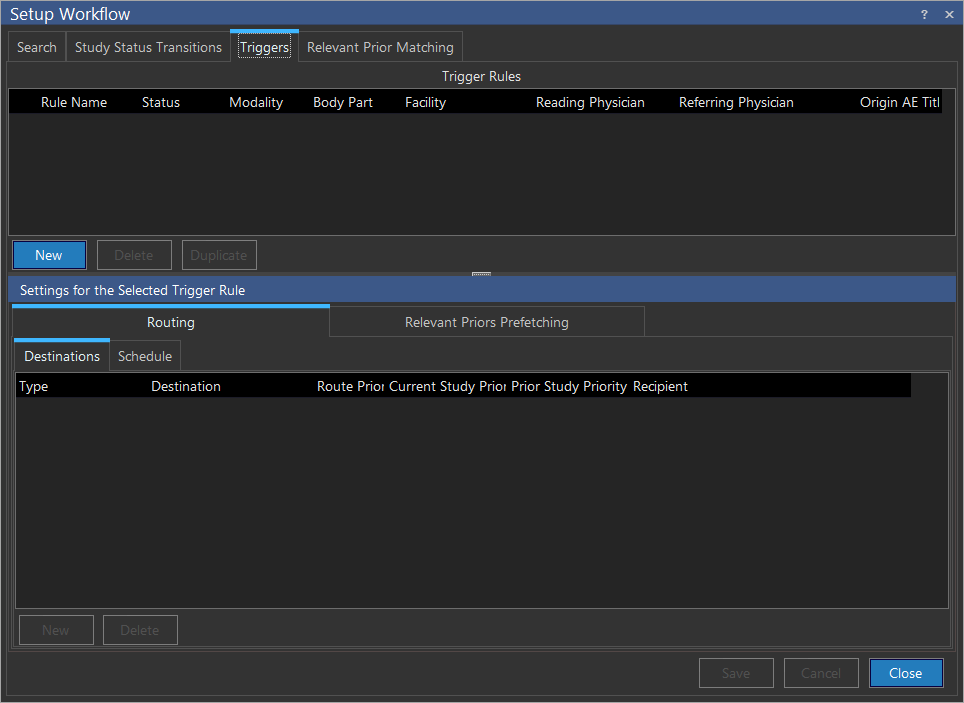
In order to create a new routing rule press the New button in the upper half of the screen. This will create a new entry in the list of Routing Rules. First choose the Status that will trigger the rule. Even though a change in any of the other fields can trigger a rule, those fields are normally static, so the Status field is the most common reason for a routing rule to start. Next, enter values for any of the remaining six filters as required. For example, if this rule should route all studies that have a specific Referring Physician, simply choose that physician from the list and leave all the other filters as %. This indicates that all values for that filter will be accepted. The drop-down menus for Facility, Reading Physician and Referring Physician will be short-listed according to the facility the user is associated with. For example if the logged in user is associated with Facility 1 and Facility 2, the Facility drop-down menu will only contain Facility 1 and Facility 2 as options. However, if the user does not belong to any particular facility, all the facilities will be available in the drop-down menu. The Reading Physician and Referring Physician drop-down menu will only contain names of physicians belonging to those facilities. Any rules involving a specific Body Part will also consider any Aliases defined for that body part. For further information, please refer the section How Do I Modify the Default List of Body Parts.
Once you have configured the rule as desired, click the Save button to save it. If the user creating the routing rule is a member of a particular facility, the drop-down menu for Facility, Reading Physician and Referring Physician will only contain members of that facility. Physicians of other facilities will not be included in the drop-down menu. If the name of a particular referring physician is not visible in the drop-down list, typing a few letters of the name will bring up a list of referring physicians who match the typed letters.
Next you will need to choose the destinations that this rule will be sending the studies to. To do this, make sure the Destinations tab is selected in the bottom half of the dialog and the desired rule is highlighted in the list of Trigger Rules. Click the New button to add a new row to the Destinations area. From the Destination drop-down menu choose the desired machine. If you want to route to a PowerReader/PowerCache, you will first need to change the Type from DICOM Station to Client. This will change the list under Destinations from all the available DICOM stations to all the available PowerReader clients. Next, you will need to choose whether relevant prior studies should be routed along with the study that triggered the routing rule. Toggle the Route Prior check mark on or off to indicate this decision.
The Current Study Priority column has three different levels (Low, Medium and High), which will determines which current studies arrive to the destination first. If you have chosen to route priors in this rule as well, the priority of the prior study is determined by the Prior Study Priority column. It has four priorities i.e Low, Medium, High and Same as Current. Choose the Same as Current option if you will like the priority of the prior to be the same as that of the current.
Finally, you will need to choose what types of objects get routed by selecting the recipient from the Recipient drop-down menu. There will be situations when users on Client stations only need access to certain object types. Instead of routing every object to them, it is possible to limit the objects they receive based on their user privilege. This helps reduce bandwidth usage and speeds up "push" to cache. For example, if a transcriptionist user only has the Play Audio privilege, then only AU objects for the study will be routed to the destination Client station if the transcriptionist is selected as the recipient.
For routing specific objects to a Client station, select a user from the Recipient drop-down menu, or leave as blank to route all objects. When routing to a DICOM station, the Recipient drop-down is disabled and the value is blank since routing based on user privileges is not applicable. Click the Save button to save the destination. This will trigger only the type of objects the selected recipient will need to be routed to the destination. If you will like this rule to be routed to multiple destinations, simply add new entries to the list.
If this rule should only start during certain days of the week, or during certain hours, click the Schedule tab to configure those details.

By default, the option Allow routing any time is chosen. However, if the rule should only execute during certain hours every day, or at a different time each day, one of the other options will need to be chosen. Choosing the Start routing in the time range from option and selecting the hours will cause the rule to work everyday between those hours. If your scheduling is even more complicated and is tied to days of the week, you will need to choose the Schedule week days option.
In order to activate routing on a specific day, press the corresponding button. Next choose the time frame during which the routing should take place. If the rule should not start on any day, ensure the button for that day is not pressed.
Configuring Relevant Priors Query Source and Schedule
Query Source
The Query Source specifies the DICOM entity in which to search for relevant priors. In the Configure Triggers section, if you have selected the check box in the Route Prior section (refer to Configure Routing/Triggers above), you will need to select the query mechanism that should be used. In order to do this, click the Query Source tab.

The Query Source consists of an option called "Max Number of Most Recent Priors" in the Workflow. It is used to specify the specific maximum number of exams to return, rather than relying on the date. This could be used in lieu of a date range, or in conjunction with a date range. The reason for this is that, within a given date range, there is a high degree of variability of the number of available priors between patients. For example, some patients will have a chest film performed every day. So if you have a query model set to Prefetch the last 12 weeks of chest films, this patient will return a huge number of exams, causing too many exams in the queue and delaying normal Workflow.
Click the New button to add a new entry to the list. Next, choose the source you will like to search for priors on. Finally, select the Query Model to use when searching that source. If you have not defined any query models yet, see the Prefetching Priors Overview for details. Now, choose the maximum number of recent priors. This value will limit the number of priors to be routed to the Destination sites for the corresponding query source.
Click the Save button to save the source. Next, add any other sources that should be searched and couple them with the appropriate Query Model. Then, click OK to Save.
Schedule
In the relevant priors Fetching phase, PowerServer performs DICOM Query and Retrieve operations against the configured Sources. The Fetch is performed first to import all candidate studies into the local PowerServer, so that all relevant fields can be reliably found, see the How Do I Configure Prefetching of Priors? section for more details.
In most cases, the candidate studies do not need to be transferred to the local PowerServer immediately, as the referenced study may not be started until some time in the future (i.e. tomorrow or later). Transferring the candidate studies from the Query Source to the local PowerServer right away causes unnecessary load on the network. Typically, the Prefetching of candidate studies from the Query Source to the local PowerServer can be configured to only occur at non peak hours at the clinic.
In order to do this, select the Schedule tab, and click on Only perform prefetching in the range and enter the time range in which you want Prefetching to occur.

Even if the prefetching time range is configured, the system is intelligent enough to prefetch candidate studies immediately should a study be scheduled for the same day.