Configuring Study Status Transitions
This section describes how to define the effects user interaction will have on studies in the system. Each type of user that works with a study will have a different impact on the status of that study. As these users finish their tasks, the studies will be distributed among the users that need to see these cases next. As complex as these interactions sound, the configuration of a robust Workflow is simple.
However, before proceeding with this, two things need to be kept in mind. First, make sure that study statuses have been set up properly. The other thing is to ensure that user accounts have been configured appropriately and proper user roles have been set up. Once those areas are complete, you are ready to set up Study Status Transitions. The Study Status Transitions form is launched under Settings > Server Settings > Workflow > Study Status Transitions tab.
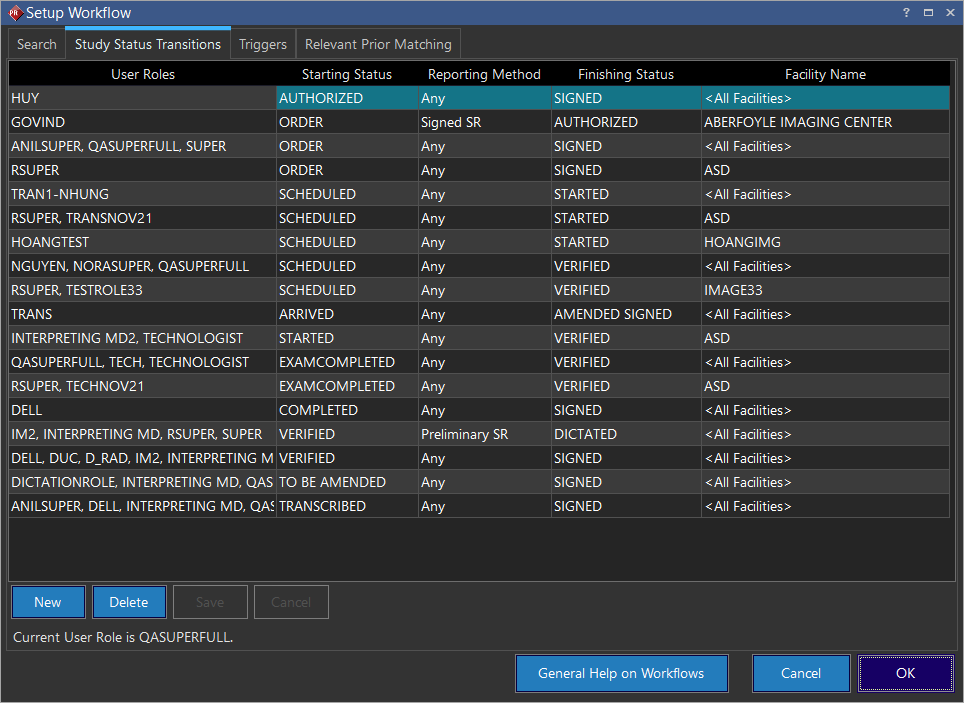
When a user belonging to one of the User Roles opens up a study that has the specified Starting Status, they will have the Finish Reviewing Study button available to them. Once the user has completed one of the tasks in the Reporting Method and clicks on the Finish Reviewing Study button, the status will be changed to the value in Finishing Status and the study migrates to the appropriate Worklists and/or machines.
There are four types of conditions under Reporting Method:
- Dictation: the study must contain a dictation.
- Preliminary SR: the study must contain a diagnostic report with Preliminary status.
- Signed SR: the study must contain a diagnostic report with Signed status.
- Any: there is no required task to complete for the study.
Study Status Transition rules can be created based on Imaging Facility. The Facility Name option limits the study status transitions rule to a particular imaging facility.
The users will be able to view and select facilities they are members of. The users will be able to edit only the study status transitions which are related to their roles. The study status transitions pertaining to other users will be grayed out.
Note: System Administrators will be able to edit Study Status Transitions of any role or facility.
If the user has not completed their tasks but needs to close the case, the Close Study option is available to exit the study without changing its status.
Creating a new study status transition rule
To create a new Study Status Transition rule:
- Click the New button. A new row will appear in the list.
- From the User Roles drop-down menu, select the roles that will be involved with the new transition.
- Next, choose a Starting Status from which the status rule will start.
- Specify which Reporting Method the transition applies to.
- Assign a Finishing Status for the rule. When the user presses the Finish Reviewing Study button (the check mark button in the Study Desktop), the study status will change to this status.
- If this transition applies to a particular imaging facility, select the Facility Name, or leave it as All Facilities.
- Click the Save button to commit the new entry.
Now, any time a member of that user group opens a study that has the defined Starting Status, they will have the option of advancing the study by using the Finish Review Study option.
Study status transitions in the presence of multiple workflows
It is possible that a site has multiple Study Status Transition rules which have the same User Role and Starting Status but different Finishing Statuses. In such a case, users will be able to advance the study by using the Finish Review Study check mark button in the Study Desktop. The users will be able to sign the diagnostic report as long as all the chosen study status transitions have moved past Transcribed (190) status.
Study status transitions for study amendments/corrections
Workflow Amendment and Workflow Correction are two features of PowerServer and Gateway that require configuration. They allow authorized users to amend a dictation and transition the study status back to a lower study status value when the Finish Review button is clicked after a change is made in the study.
Workflow Amendment occurs after a study has been signed off by a radiologist and has the status of Signed. If the radiologist finds a problem with the study, they can dictate the required changes which will cause the study status to transition back to the starting status of the previous study status transition rule (after the Finish Review Study button is clicked). The study will then appear in the transcriptionist's Worklist to be processed again.
Workflow Correction is similar to Workflow Amendment, but occurs after the transcriptionist has finished transcribing the original dictation. The study should have a status of Transcribed. If the report is incorrect, the radiologist may dictate changes which will cause the status to transition back to the starting status of the previous study status transition rule (after the Finish Review Study button is clicked).
For a amended report to be signed, ensure that the end status of the study is always greater than Study Status 190 ("Transcribed").