How Do I Disable Changing the Status of a Study?
You can if required prevent users from changing the status of a study backwards once the study reaches a certain status. This can be accomplished by using the Lock Study Status option under the Search tab in Server Settings > Workflow.
Once a study reaches the configured "Lock Study Status", the study status can only be moved forward in the configured Workflow. Attempting to move the study status backwards are blocked via DICOM and HL7. Only users with Admin or System Wide Admin privileges can override this restriction.
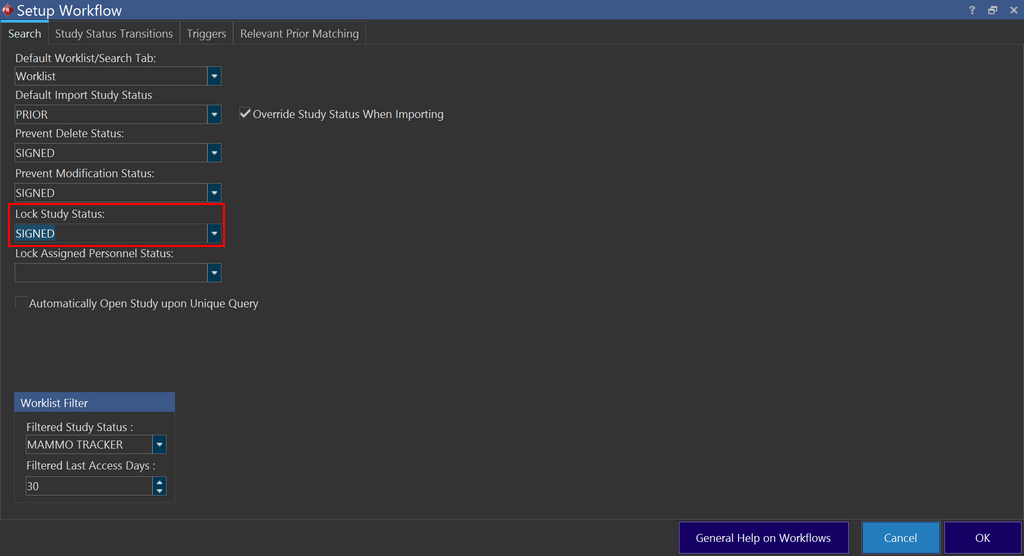
The Lock Study Status sets the point where users can no longer move a status backwards.
Sample Scenario Workflow illustrating Lock Study Status:
- ORDERED (Status Order 20)
- ARRIVED (Status Order 70)
- COMPLETED (Status Order 120)
- VERIFIED (Status Order 160)
- SIGNED (Status Order 200)
If the Lock Study Status Status is configured as COMPLETED:
- Normal Users: Able to update the study status to VERIFIED or SIGNED but cannot update the study status to either ORDERED or ARRIVED. The status can be updated via the Study Information screen by selecting from the Status drop-down menu or by right-clicking on the study and choosing an option from the Status drop-down.
- Admin and System Admin: No restrictions in updating the study status.
Note that any change in a study status that happens through Workflow transition (Study Status Transition) is not affected by this option.
The Lock Study Status is similar to the Prevent Modification Status option, with the difference that Prevent Modification Status prevents modifications of any form to the study, while Lock Study Status only controls the Study Status.