Setting Up Study Statuses
This is the first functionality that needs to be configured when setting up Workflow. Every study that resides on the RamSoft system has a status associated with it. This status helps users identify what tasks have been performed on the study so far and who should be interacting with it next. Furthermore, when other aspects of Workflow are configured, study statuses determine which users Worklist the studies appear on, what stations and users they should be distributed to, as well as who is able to access the studies.
The status concept is very common in medical imaging, so it is important to coordinate the statuses used by the PACS with those used by any other medical systems such as a RIS, HIS or other clerical software. Furthermore, the statuses used should be those that are clear to the system users and that simplify the clinical Workflow instead of complicating it. Before configuring the statuses, it is important to research all of the areas above and develop a proper plan.
Once you are ready, you will need to launch the Study Status dialog. This dialog is accessible by clicking Settings > Server Settings > Study Status.
The option to create custom study statuses is not available with a PowerServer Lite license. Hence, this Study Status form is not available with a PowerServer Lite installation.

Continued below:
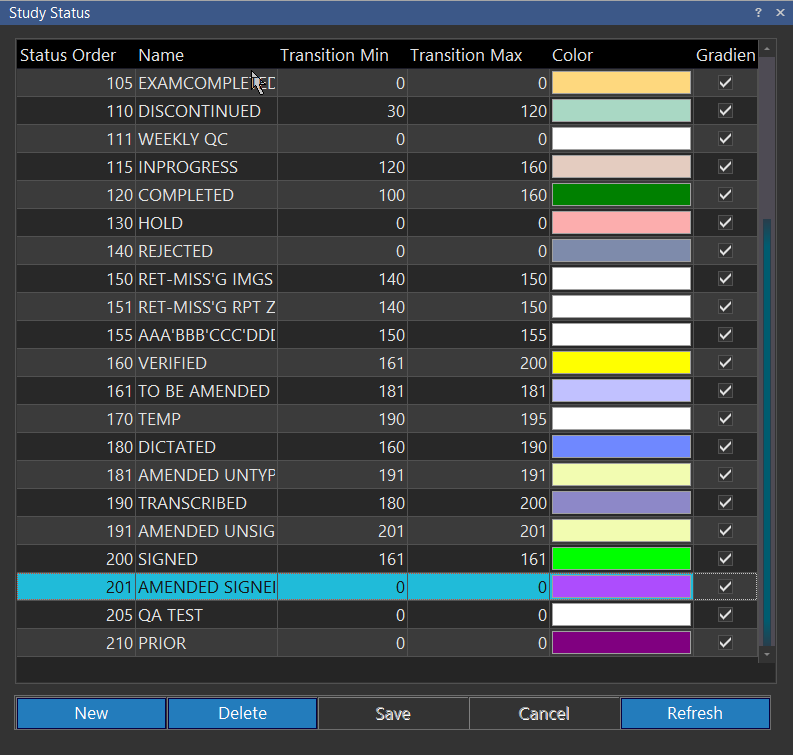
Click the Color picker and select "..." to access the advanced Color Editor to pick custom colors for Study Statuses.
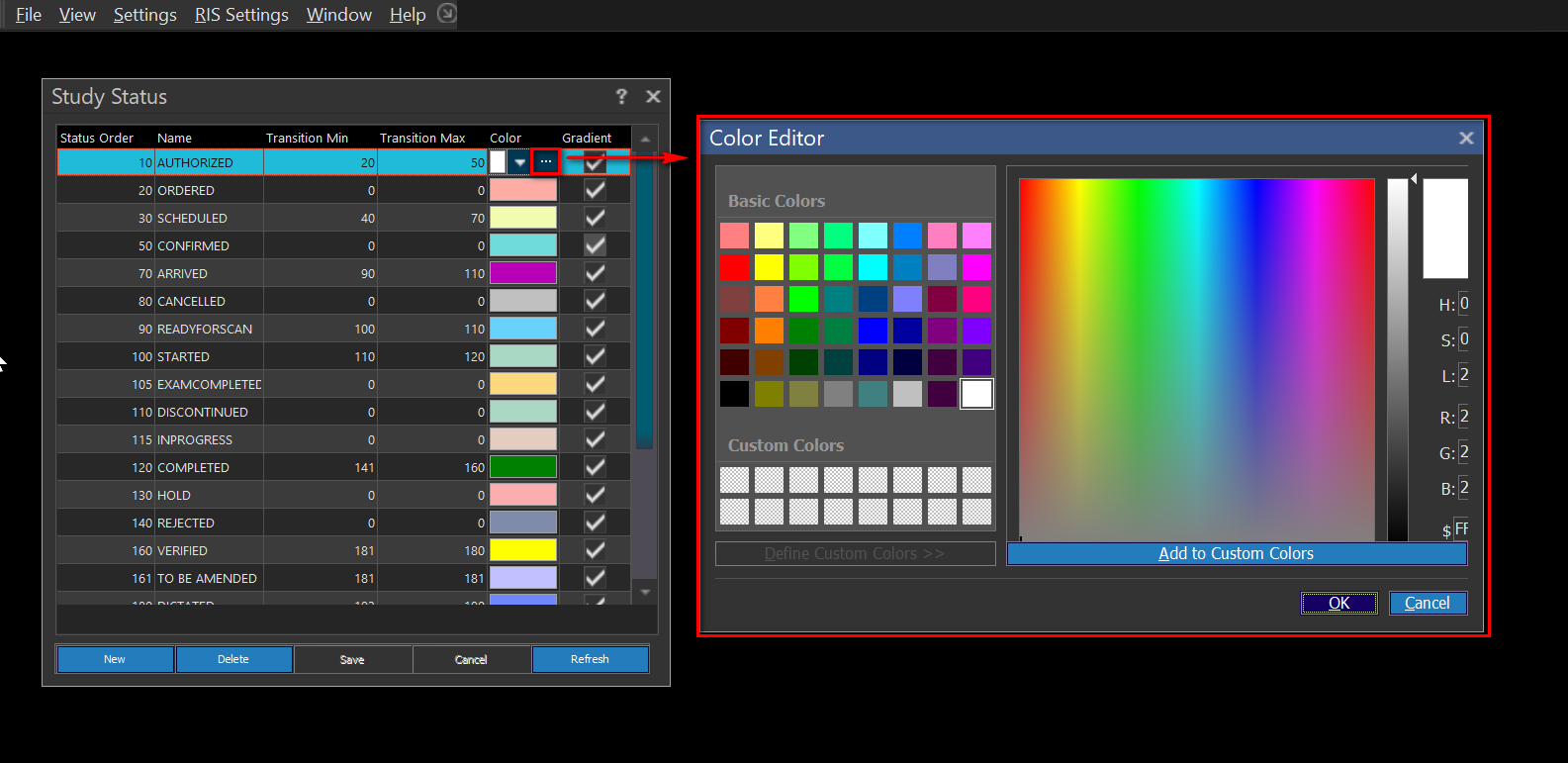
The Status Order dialog determines the sequence of statuses. For example, a STARTED status usually comes before a READ status so it should have a lower order value. The actual numbers used for the Status Order are insignificant so long as they are in a proper sequence. The only exceptions to the rule are outlined in the table below.
| Order Value | Default Status Name | Impact on System Workflow |
|---|---|---|
| 30 | Scheduled | A study that has been placed into the schedule |
| 90 | Ready For Scan | The study is ready for the procedure to begin |
| 100 | Started | When an HC is scanned in, or any new DICOM objects are added to the study, if the study has a lower ordering than this value, it will automatically be set to this value |
| 115 | In Progress | When a study is being received through the DICOM communication. The number of this study status cannot be changed and the study status itself cannot be deleted from the list |
| 120 | Completed | This is the default status applied to any studies received through DICOM communication |
| 160 | Verified | A study reaches this status value once a QC technologist has reviewed the study and performed the necessary changes, signifying it is ready to be read |
| 180 | Read | A reading physician has read the study and created a dictation |
| 190 | Transcribed | Once a study reaches this order value, a reading physician cannot be changed, unless it is done manually by a user with QC privileges |
| 200 | Signed | The reading physician has reviewed the transcription and signed off on it |
| 210 | Prior | A previous study of the patient |
The order values above cannot be deleted due to their impact on system Workflow. However, the status names can be changed. RamSoft services MUST be restarted in order for the status name change to take effect and other issues surrounding a name change be avoided. The names are strictly used by the users and have absolutely no impact on the behavior of the system. The software relies solely on the numerical values.
Certain study statuses, although not necessary, are still recommended. These are the study statuses which deal with an amended dictation. These recommended statuses are:
| Order Value | Default Status Name | Impact on System Workflow |
|---|---|---|
| 161 | To be Amended | If the reading physicians wants to amend the transcription of a signed study, choosing this status will send the study to the Unread Worklist in the system |
| 181 | Amended Untyped | The reading physician will amend the "to be amended" study and advance the study. The study will become Amended Untyped. The study will become available in the Dictated Worklist of the system. |
| 191 | Amended Unsigned | The transcriptionist will re-write the transcription of the amended study. Progressing the status of this study will advance it to "Amended Unsigned" and make it available in the To Sign/ Transcribed Worklist of the system. |
| 201 | Amended Signed | The reading physician will review the amended transcription and sign the report. This will advance the study to "Amended Signed" status. |
The whole process is explained in detail in the How Do I Change the Workflow of Studies with Amended Dictations?.
The first step in setting up statuses is to create the statuses as per the developed plan and remove all the unused ones from the list. When transferring the planned statuses into the list, you will need to ensure that the numbers assigned are in proper sequence. A quick and easy way to create the desired statuses is to simply rename some of the existing entries instead of creating new ones.
The addition of a status consists of setting the order value, giving the status a name, entering the transition values and choosing a preferred color. The transition values determine the range of statuses that the study can be changed to through the Status change option available in the right click menu of the Worklist. The preferred Color will be used as the Worklist background for any studies appearing in the Worklist with the given status. The gradient for the chosen color can be controlled by choosing the Gradient option. All colors have gradient checked by default which allows the color to appear lighter on the left side of the Worklist and darker on the right hand side. If it is unchecked, the color appears as the same shade or grade.
When a study contains unsigned reports, and the user has the Sign Any Report privilege: if the Study Status is advanced past 190 (i.e. set to 191, Amended Unsigned) via Study Information, the reports will be automatically signed.
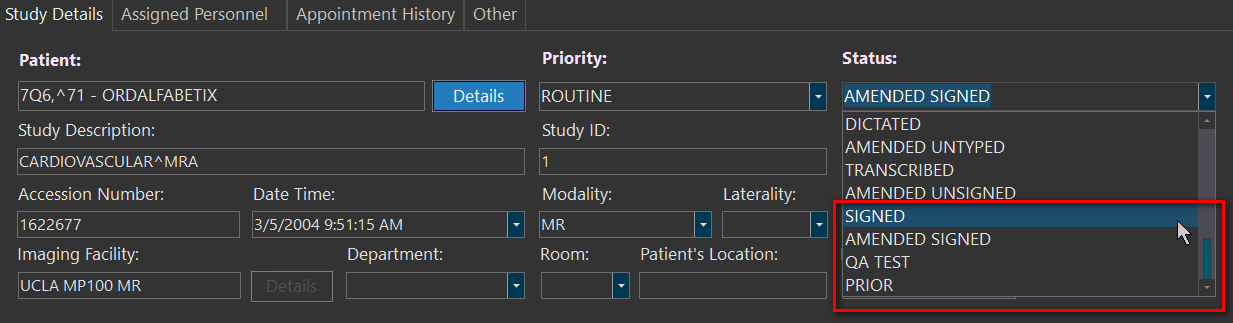
By default, the Reported Status is configured to be 190. This can be changed in the System Configuration setting below:
