Managing Image Filters
The RamSoft software allows the user to define preset values for image filters. These values can be created for specific modalities and body parts. Eight predefined filters are provided by default. These default filters can be modified or deleted in order to satisfy the needs of the site. New filters can be defined and applied to specific modalities and/or body parts. This functionality is found in the Setup Filters dialog.
Click View > Filters to launch Setup Filters. Setup Filters screen appears as shown below.
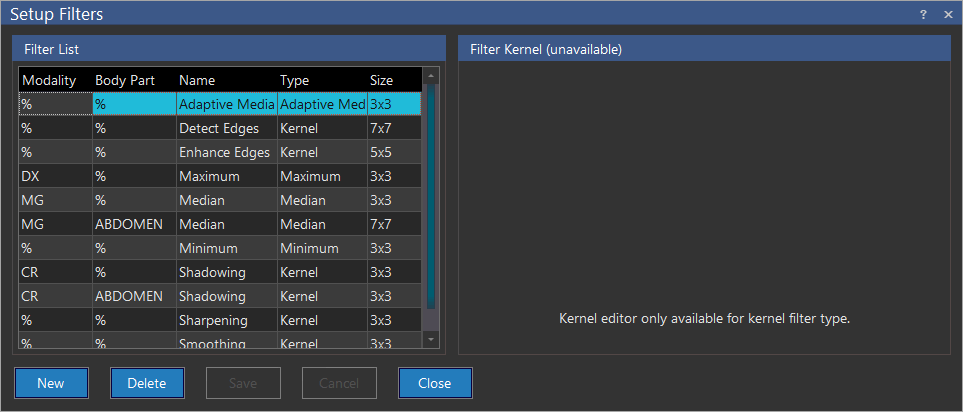
The Modality field specifies what modality the filter can be applied to. If a filter is not applicable to the current modality, it will not show up in the listing of filters the user can apply. Body Part specifies what body part(s) the filter can be applied to. Putting in the % value for either of those fields will make the filter available for all values associated with that field.
The Name field is used to define the name of the filter. This is what you will see when selecting a filter to use. The Type field determines the type of filter being used. The possible types are Kernel, Median, Minimum, Maximum and Adaptive Median. The Size field defines the size of the matrix used by the filter algorithm.
A new Filter can be added by clicking the New button. This will add a new row to the list. If the filter Type is set to Kernel, this will open the filter matrix. This matrix needs to be manually edited in order to achieve the desired values.
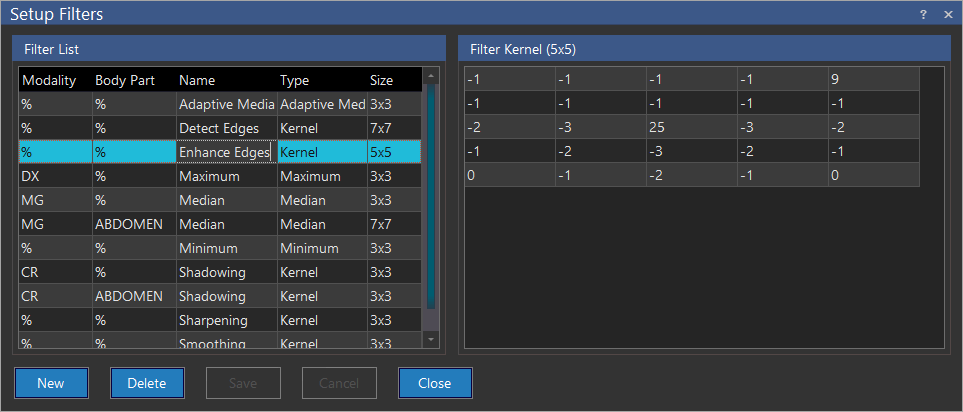
Once a filter is completed, click Save to save the filters value.