How Do I Set Up a Layout With Multiple Viewports?
Viewports layout setup depends on the Viewing Protocol setup settings. The Viewing Protocol settings depend on the number of monitors being used.
You can set up Viewports layout when you are on a study or from the Worklist screen.
Setup Layout With Multiple Viewports
The Setup Layout for Multiple Viewports tool  splits the Image viewer screen into multiple viewports or Image Framesets. You can set up layout with Multiple Viewports using the Viewing Tools toolbar on the study desktop or through the View Viewing Protocols option from the View menu.
How Do I change my Viewports layout when the Study is not open?
You can edit the viewing protocol or the viewports layout using Viewing Protocol Setup > Viewing Protocols Settings. You can open Viewing Protocol Setup by clicking View > Viewing Protocols.
You can setup viewing protocol layout for a single monitor setup or a multi monitor setup.
Single monitor Setup
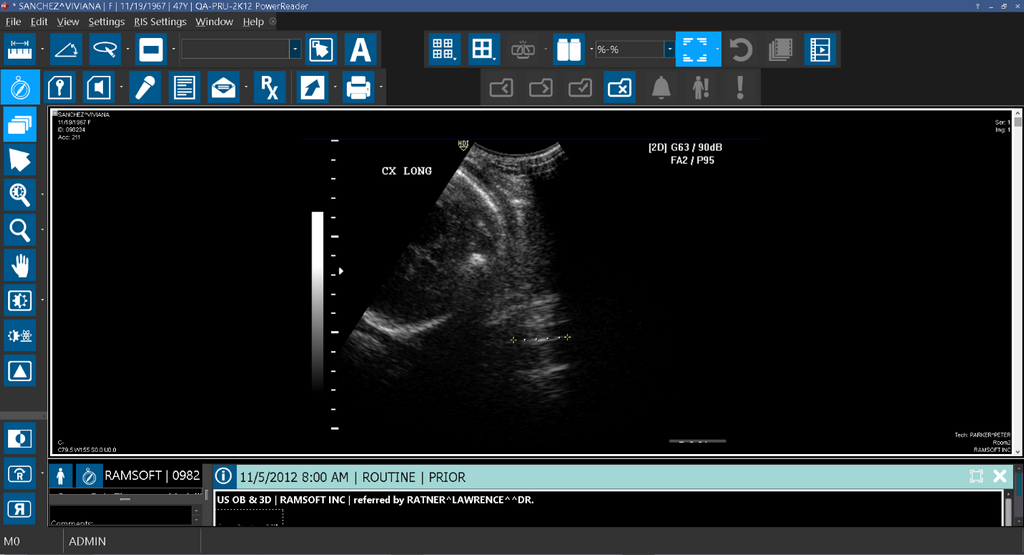
For a single monitor setup, the default viewing protocol setup with a single viewport layout is as follows:
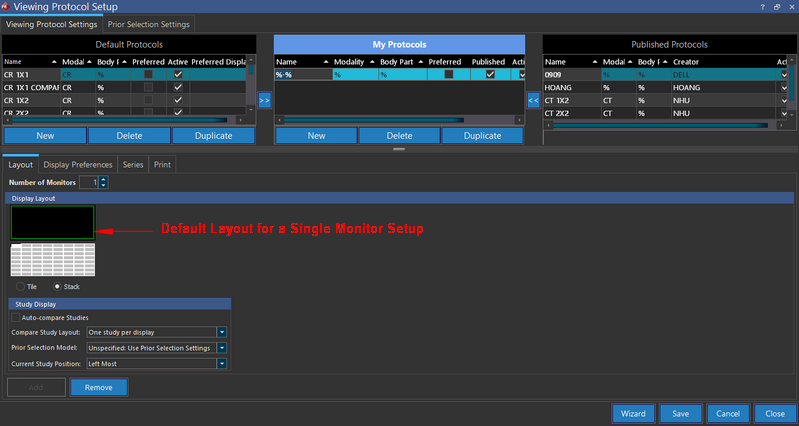
Notice that the Number of Monitors field is set to one and the Display layout shows a single Viewport covering the entire screen area.
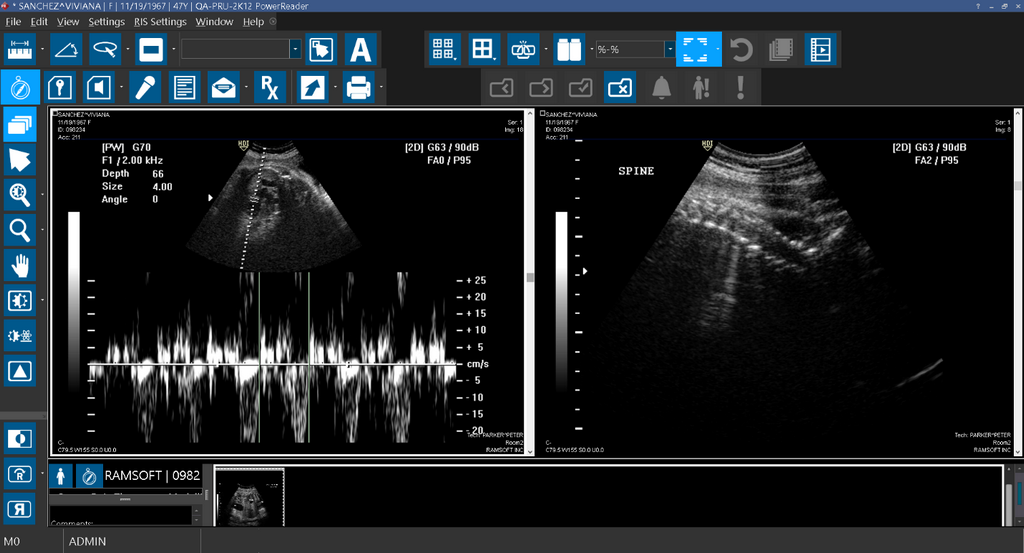
If you want to split the screen into multiple viewports, you can select the desired layout in the grid and the Display layout shows how the layout is displayed on the monitor. In this case, the layout is 1x2 setup.
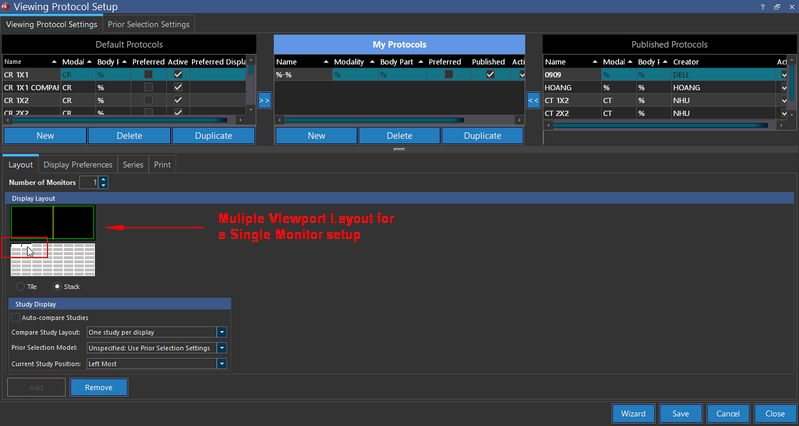
You can save a multiple Viewports layout as a viewing protocol. When you set Layout Multiple Viewports to more than one, the Viewing Protocol gets saved or updated as a Stacked layout. Only when you set Layout Multiple Viewports to one, the current layout, the Viewing Protocol gets saved or updated as a Tiled layout.
Multiple monitors setup
You can set up multiple Viewports for a multi monitor setup using the Viewing Protocol settings when you are not working on the Study desktop.
Once you set the Number of Monitors field as 2, you can select the desired multiple viewports layout settings and save the Viewing protocol settings. Once you do this, when you open the study in a multi-monitor setup, the appropriate viewing protocol setup for multi monitor display is applied.
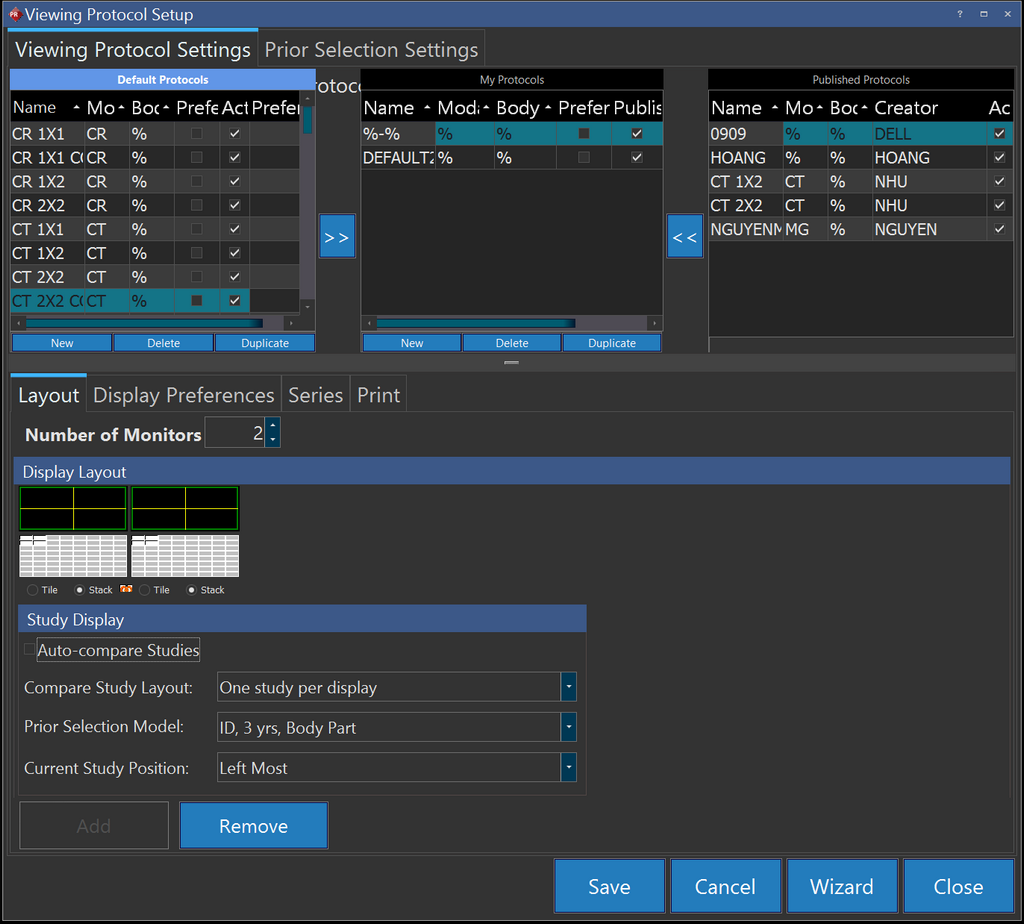
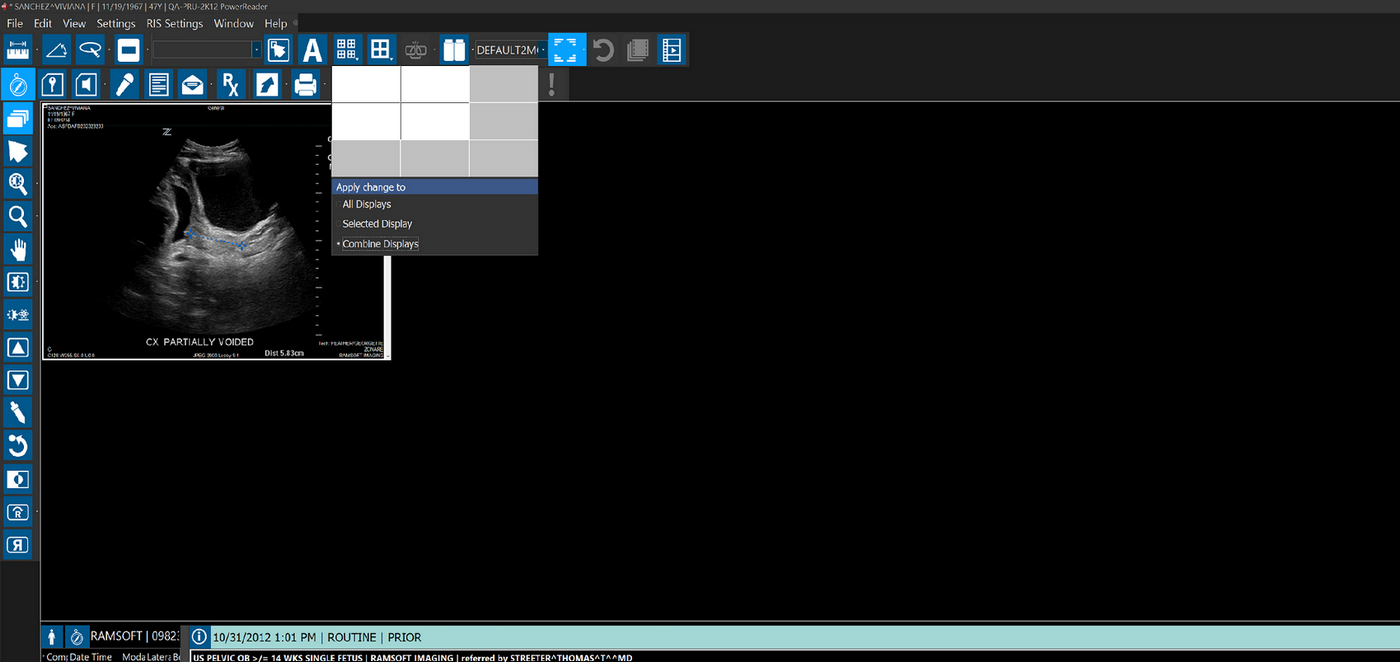
Select Layout Multiple Viewports for Combined Displays
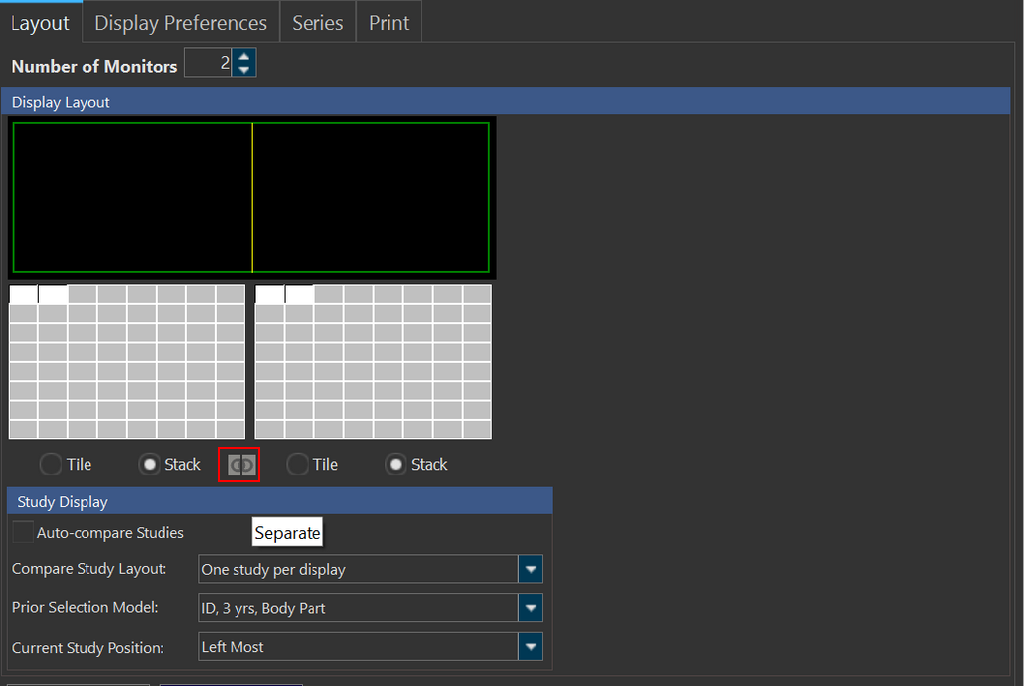
You can fuse the monitors by using the Combine Displays icon under the display layout grids. The Combine Displays option is visible only if two or more displays exist.
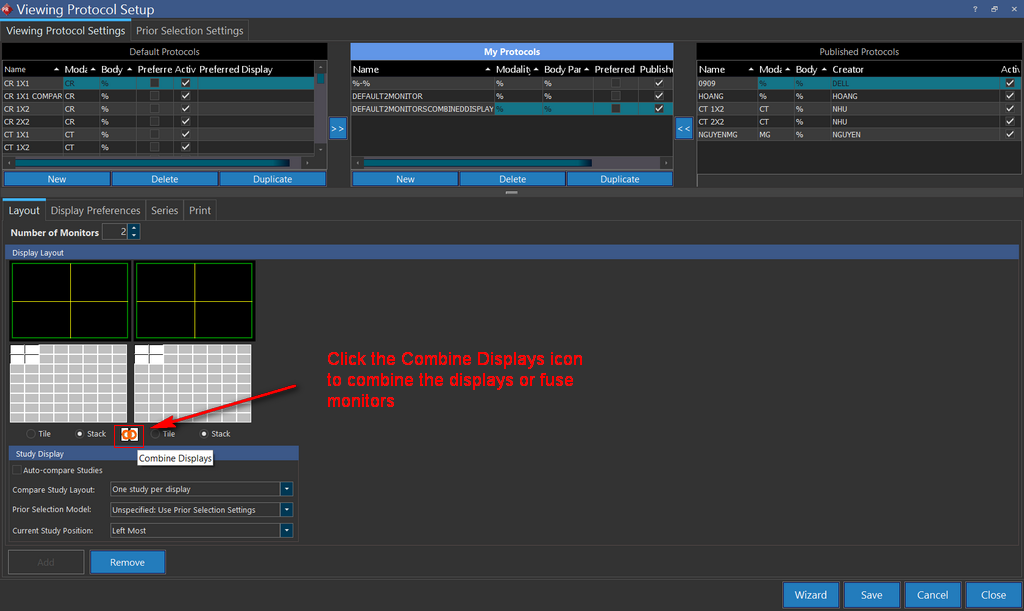
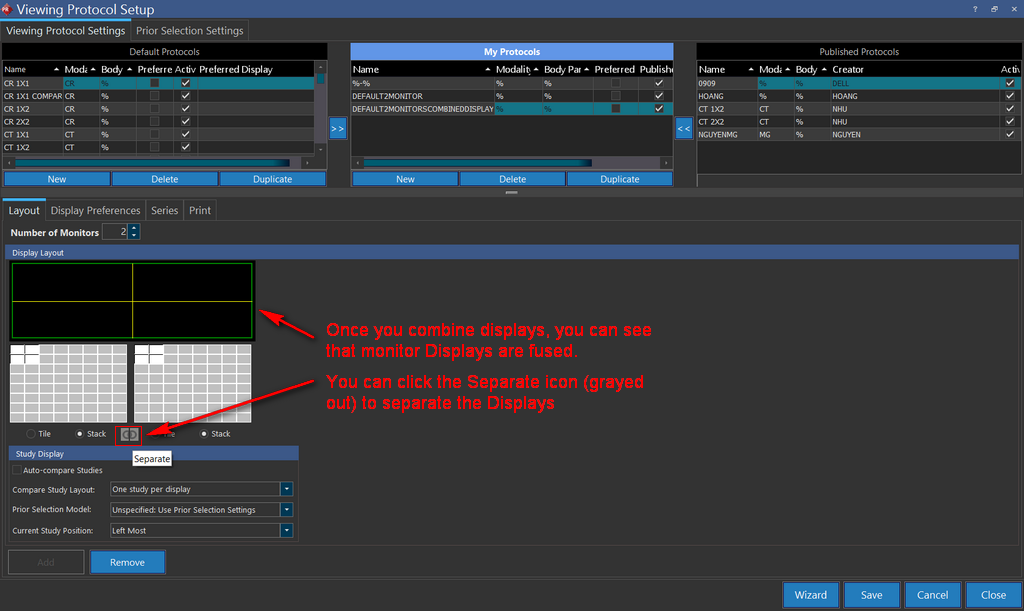
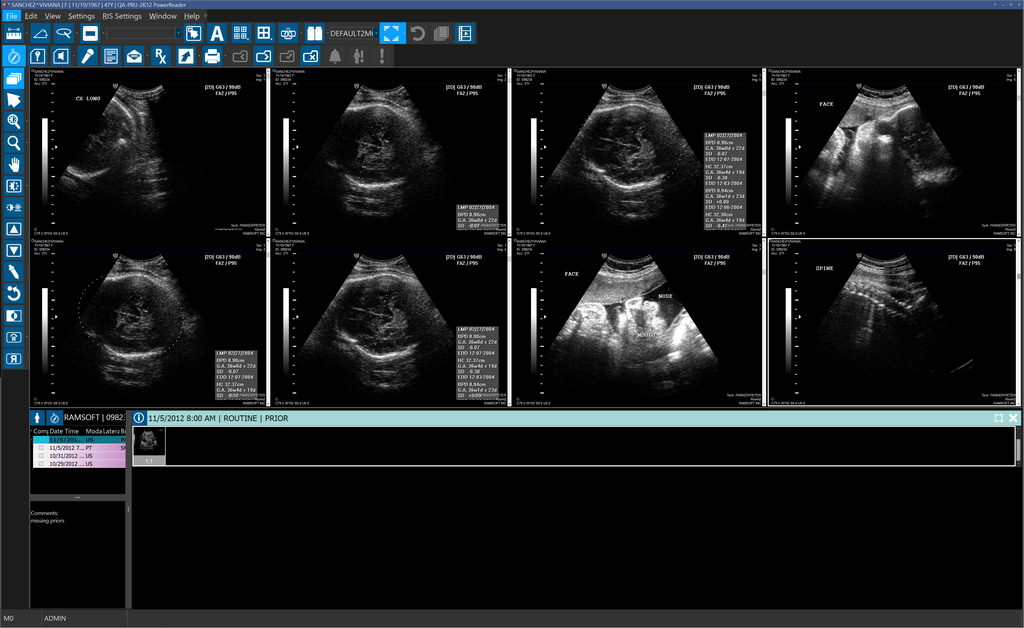
You can save your settings and then apply this viewing protocol settings for your image display layout. When you are on a study that has a combined display layout, you can see that the Setup Layout Multiple Viewports tool has an additional option for you to apply the layout changes to.
The Combined Displays option applies the layout changes to the combined displays. This option is selected by default if it is enabled in the current viewing protocol. If this option is not enabled in the viewing protocol, the All Displays option is selected by default.
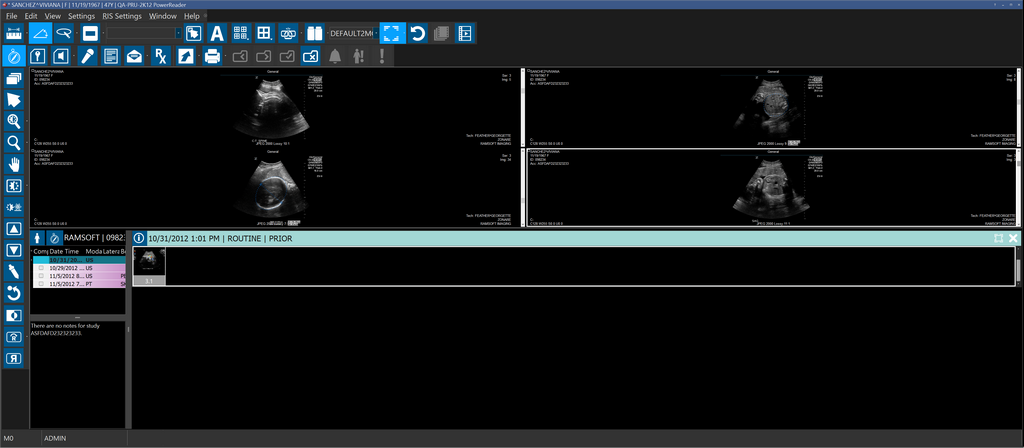
The following screenshot shows a Study with Combined Display layout:
You can undo combing displays by selecting any of the other layout options(All Displays or Selected Display) from the Setup Layout Multiple Viewports tool menu on the study desktop or by clicking on the Separate icon in the Viewing Protocol setup Settings tab. Note that
How Do I change my Viewports Layout when the Study is open?
You can change the Viewports layout for a viewing protocol when a study is open by using the Setup Layout Multiple Viewports tool in the Viewing Tools toolbar.
When you click on the Setup Layout Multiple Viewports icon, you can see that the display layout grid is displayed showing the current layout.
In this example, the current layout that has been setup in the Viewing Protocol Setup settings is 1x2 multiple Viewports layout.
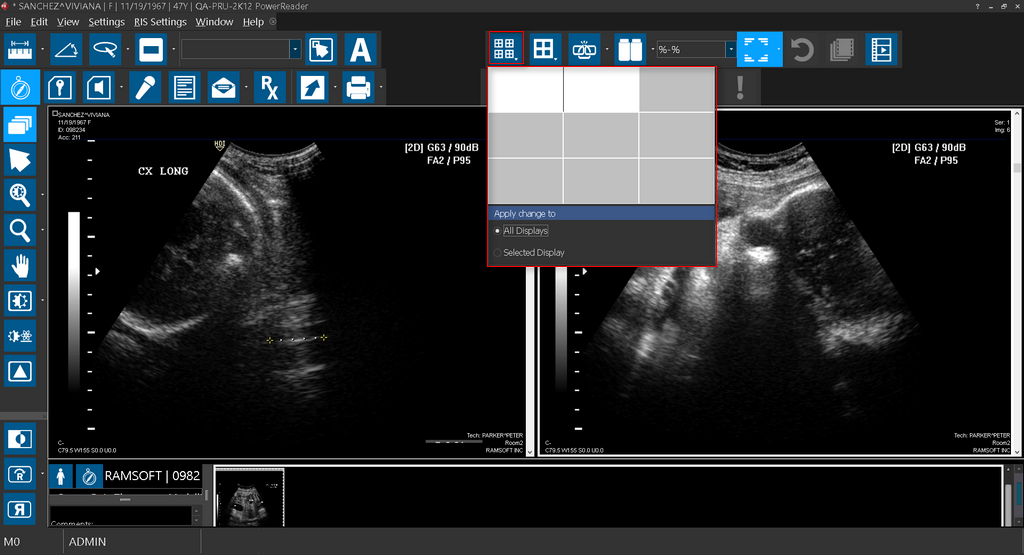
You can change the layout by selecting the desired layout (holding the left mouse button) on the grid and dragging it to the desired grid box and releasing the mouse button.
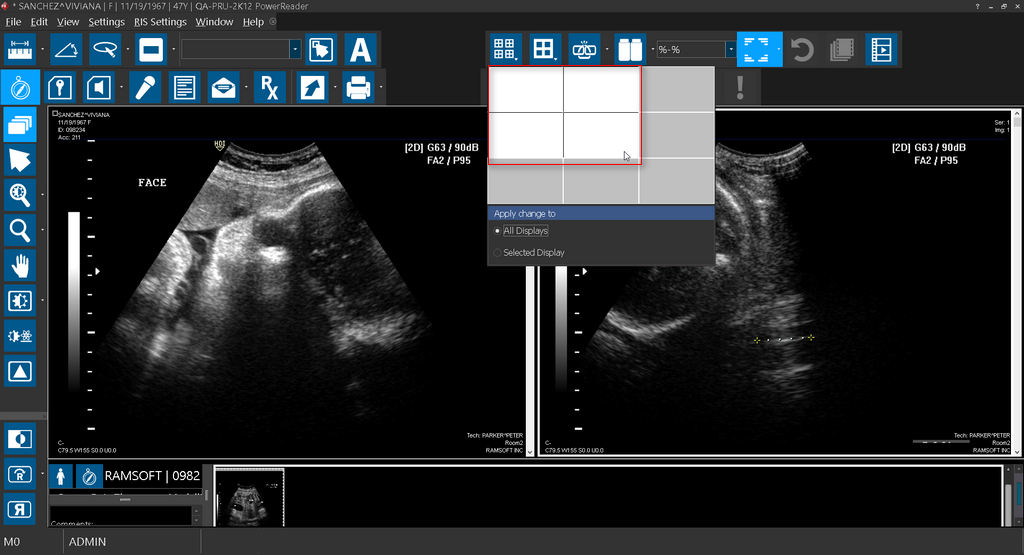
For example, in this case, the user decides to change the layout to 2x2 grid. This would mean that there would be 4 Viewports displayed in the Image viewer.
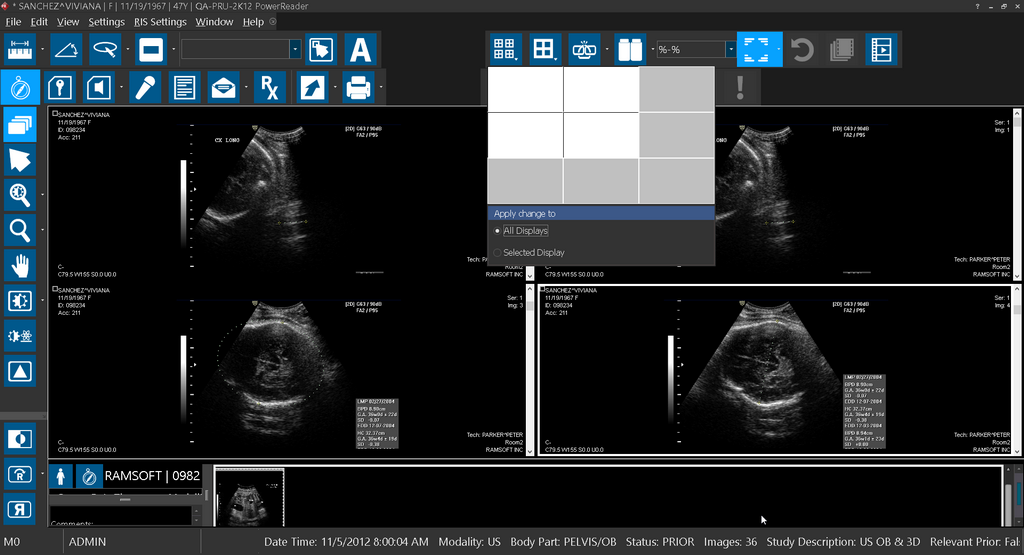
By default, you can see that a 3x3 layout grid is available for you to choose. If you wish to choose a layout with more Viewports, selecting the maximum available layout always automatically increases the layout grid by one scale.
For example, when you choose the 3x3 layout which is the default layout and then click on the Setup Layout Multiple Viewports tool, you can see that the grid now displays a 4x4 layout to choose from.
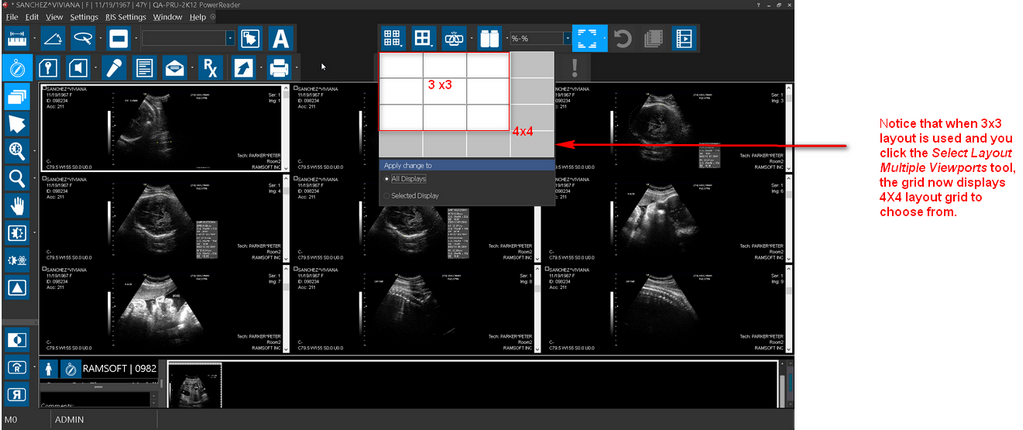
When you select or change multiple Viewports layouts, you can see that you have two options to apply the layout changes to:

-
All Displays
The All Displays option is selected by default except for Combined Displays. With All Displays option, the Viewports layout changes are applied across all the monitors.
-
Selected Display
The Selected Display option can be used when you want to apply the layout changes to a specific display. This is useful when you need a different set of Viewports for each monitor.