Playing CINE Objects
The Cine tool can be used to view studies such as Ultrasound in real time. It can also be used to quickly scroll through a large series of images without having to manually click the mouse buttons. This feature is accessible through the Cine icon  in the Viewing Tools toolbar. The Cine tool will only be visible if the study contains more than two image.
Media Feature Pack must be installed to play Cine objects on Windows 10. Media Feature Pack can be downloaded from here: https://www.microsoft.com/en-us/software-download/mediafeaturepack
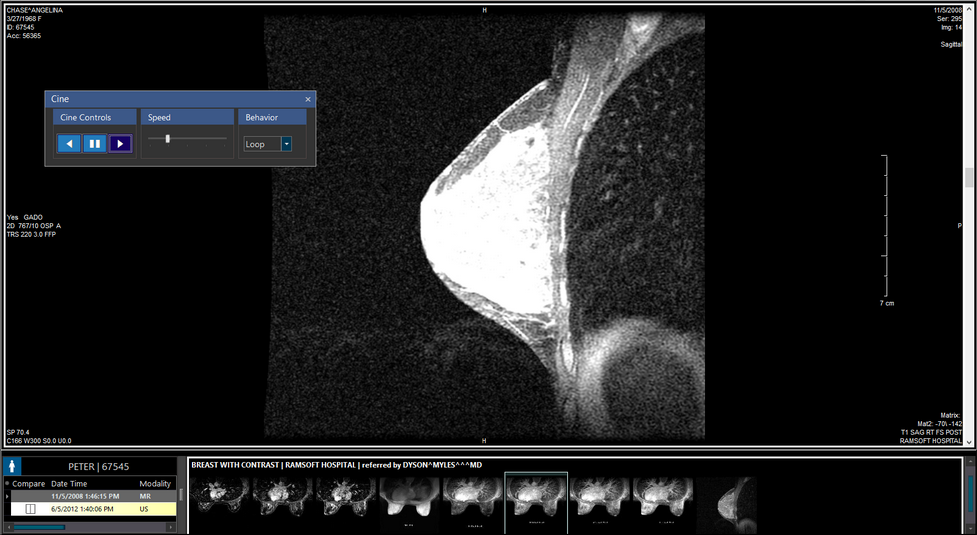
Clicking the Cine button will open the following window.

Choosing the Forward  or Reverse buttons
  in the Cine Controls box determines the direction in which the tool will scroll through the series. Selecting the Pause button
  will stop any scrolling.
The Speed of the Cine can be controlled by sliding the speed box bar to the left (slower) or right (faster). Having the bar in the middle corresponds to the real time speed of the captured Cine.
The Behavior box drop-down controls the way in which the Cine behaves when it reaches its end. Selecting Loop from the drop-down will cause the Cine to repeatedly start over every time the last frame is reached. Selecting Bounce will cause the Cine to reverse direction when it reaches the end or beginning. Scroll Once will only play the Cine until the end is reached, at which point it will stop.
When a study with Cine objects is opened, by default, the Cine tool plays the Cine objects. The user does not need to click on the Cine toolbar button on the top toolbar of an open study.
RamSoft PowerServer is designed to prevent the skipping/dropping of image slices while scrolling through images in Stack/Cine mode.