PowerServer 6.7
Feature Guide
Release Date: 01/30/2026
Access Blume Share from the Worklist
Blume Share1 provides easy access to sharing studies in a secure manner, and now it is available in PowerServer as an option from the worklist. This feature effectively can replace need for creation of CDs. Users can select a study and send the study share link to an email address. Recipient would need to enter patient’s date of birth or ID to access the study in a zero-footprint web viewer, which also provides options to download, print, burn to a disk, or view images or reports.
Secure User Log-In with MFA and SSO
PowerServer now supports Multi-Factor Authentication (MFA) and Single Sign-On (SSO), providing advanced user authentication and integration with enterprise identity systems.
- Supports OAuth2 and SAML protocols.
- Administrators can configure MFA policies at a user or role level.
- Enables seamless log-in across PowerServer and connected systems such as OmegaAI.
Enhanced Encryption (AES256)
Cache encryption & general encryption has been upgraded from AES128 to AES256, offering enhanced data security consistent with current industry and healthcare compliance standards (including HIPAA and ISO 27001).
Note: No configuration needed.
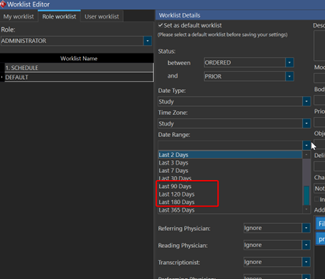
Expanded Worklist Date Range Options
New preset date filters have been added to simplify navigation and study retrieval within the Worklist, including:
- Last 90 days
- Last 120 days
- Last 180 days
This enhancement supports faster access to historical data and better workload organization.
How to: Options are added to the existing worklist details page (Figure 1)
Modern App Portal Icons
The PowerServer application portal now features modernized iconography, aligning with the OmegaAI design framework. The updated interface improves clarity, accessibility, and overall user experience.
How to: Options are added to the existing worklist details page (Figure 2)
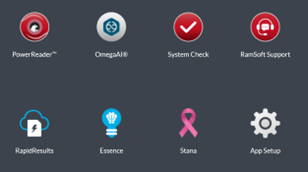
OmegaAI Access from App Portal
An OmegaAI shortcut icon2 has been added to the PowerServer App Portal, allowing users in hybrid deployments to seamlessly switch between PowerServer and OmegaAI environments through a unified access point (Refer to Figure 2).
Auto Insertion of Key Objects into Reports
This is a new global configuration option that when turned on, would allow automatic insertion of key objects into the key object (image) bookmark in the report (Refer to Figure 3). A secondary option, (with technique and patient annotation) will show the patient and technique annotations (the overlays/annotations in the corners of the image) on the key object that is auto rendered into the report (Refer to Figure 3).

Figure 3 Key Image Auto Rendering Configuration
Support for CAD 3D Navigation
PowerServer now supports Computer-Aided Detection (CAD) 3D Navigation, enabling enhanced volumetric image analysis and interactive visualization tools to support more accurate diagnostic interpretation. Feature is activated when a study has CAD objects. In Volume (DBT) MG, the slice option would show up, allowing the user to navigate to the slice with the CAD finding by clicking on the slice number (Figure 4).

Figure 4 Slice navigation is done by clicking on the slice number
In addition to navigation, 6.7 also supports color coding of CAD findings (Figure 5). This feature is only available in iCAD generated objects.
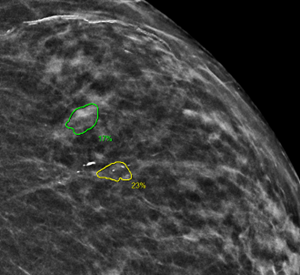
Figure 5 Based on the iCAD score CAD findings are color coded
New Database Engine
This release introduces a new, high-performance database engine (HQBird 2024) to improve data management, query execution speed, and scalability—especially for enterprise and cloud-based environments. Both HQBird 2024 Firebird 5 and HQBird 2024 Firebird 3 are supported.
Support for HTJ2K Image Encoding
PowerServer’s now supports High-Throughput JPEG 2000 (HTJ2K) encoding (lossy and lossless options) available for DICOM stations to send and receive data, and image viewer to render images, offering:
- Faster image decompression and display times
- Lower latency when viewing large datasets
- Broader compatibility with modern DICOM imaging modalities
New Sub-Critical Finding Option in Radiology Workflow
Radiologists can now classify findings as Sub-Critical in addition to the existing Critical Finding option.
- Enables more granular categorization of findings based on urgency and clinical impact.
- Supports configurable notification workflows for both critical and sub-critical alerts.
- Enhances compliance with structured reporting and communication-of-results policies.
How to: This could be setup by enabling Enable “Two Level Critical Finding” from system configuration. Subcritical Finding Study Priority Value defines the study priority that will be used when a user select subcritical findings. (Figure 6,7)
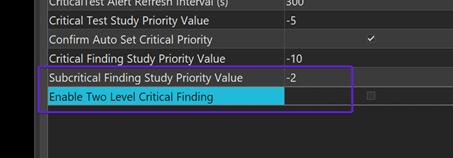
Figure 6 Subcritical Finding Configuration
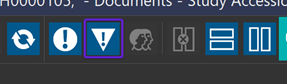
Figure 7 Subcritical Finding Toolbar Option in Document Viewer
New Worklist Fields
Following new searchable & filterable data fields now are available in the worklist:
Secondary Financial Type, Tertiary Financial Type, Patient class, Account Number, Primary Financial Type, SSN, Patient Email.
How to: Available without any configuration (Figure 8).
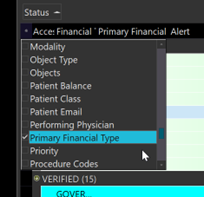
Figure 8 An example of selecting one of the new worklist fields
Configuration Update Tracking in Audit Log
A new activity type Update Configuration has been added to the Activities tab of the Audit Log (Figure 9). This enhancement provides clearer visibility into administrative and configuration changes across the system. In addition, audit logs now show the IP address of the user at the time of configuration change.
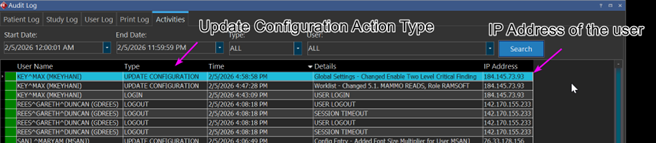
Figure 9 Action Types under Audit Log
Key Capabilities
1. New Activity Type: “Configuration Update”
- Logged whenever a system configuration setting is modified.
- The Details column records the specific configuration screen where the change occurred (e.g., Worklist, Users & Settings, Workflow, DICOM Stations).
2. Expanded Detail Capture
The audit log now records granular details depending on the configuration area affected:
| CHANGE AREA | DETAILS CAPTURED |
|---|---|
| Worklist | Worklist name, Owner (user + role) |
| Users & Facilities | Username updated, Role changed, Facility changed |
| DICOM Stations | Station added, renamed or deleted |
| Workflow | Any modified workflow configuration |
| Study Status | Updated study status value |
| Global Settings | Name of updated configuration field |
3. User IP Address Logging
- The system now logs the IP address of the user performing the configuration change, improving traceability and security auditing.
Support for Cool, Cold Storage Tiers
Cold Storage allows customers to reduce long-term storage costs by automatically moving large, inactive studies to a low-cost storage tier. Only objects larger than 600 KB are eligible, and recently accessed studies are protected from tiering.
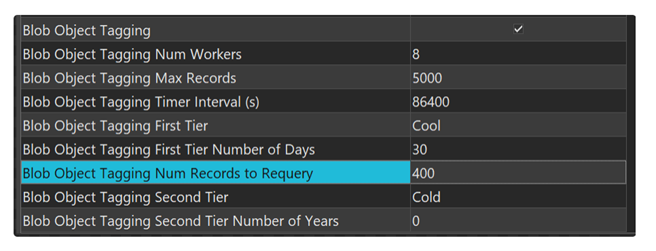
Figure 10 Cold Storage Configuration Options
How the System Performs Tiering
The system uses a background service called Blob Object Tagging to evaluate stored objects on a scheduled basis and assign storage tiers.
Processing Characteristics
| SETTING | PURPOSE |
|---|---|
| Number of Workers | Parallel processing for tier evaluation |
| Max Records | Upper limit per processing cycle |
| Records to Requery | Re-check threshold for partially processed data |
| Timer Interval | How often tiering logic runs |
These settings control performance, not eligibility rules.
Storage Tier Configuration
A- First Tier: Cool Storage (on by default)
| SETTING | VALUE |
|---|---|
| Blob Object Tagging First Tier | Cool |
| Blob Object Tagging First Tier Number of Days | 30 |
Instructional Rule
A large object becomes eligible for Cool Storage only if it has not been accessed for at least 30 days.
This rule applies to all studies, regardless of age.
B- Second Tier: Cold Storage
| SETTING | DEFAULT |
|---|---|
| Blob Object Tagging Second Tier | Cold |
| Blob Object Tagging Second Tier Number of Years | 0 |
Interpretation Guide
- 0 years → Cold Storage is disabled
- > 0 years → Cold Storage is enabled
When enabled, this value defines Cold Years, the minimum study age required for Cold Storage.
Upgrade Recommendation
All PowerServer Cloud customers are strongly advised to upgrade to version 6.7 to benefit from enhanced security, workflow flexibility, and performance improvements.
Before upgrading, ensure that a full database and configuration backup has been completed and that your environment meets the prerequisites detailed in the deployment guide.
Requirements: Customer Should be on any 6.0 Version before they can upgrade; hardware recommendations. This version is only available to existing cloud customers.