Automatic Configuration of Monitors
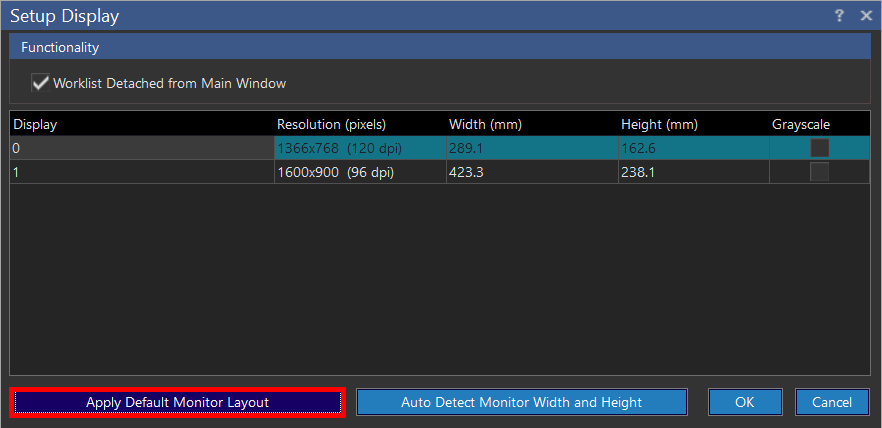
The Setup Display options allow the user to reset the layout of the PowerReader windows. Click View > Setup Display.
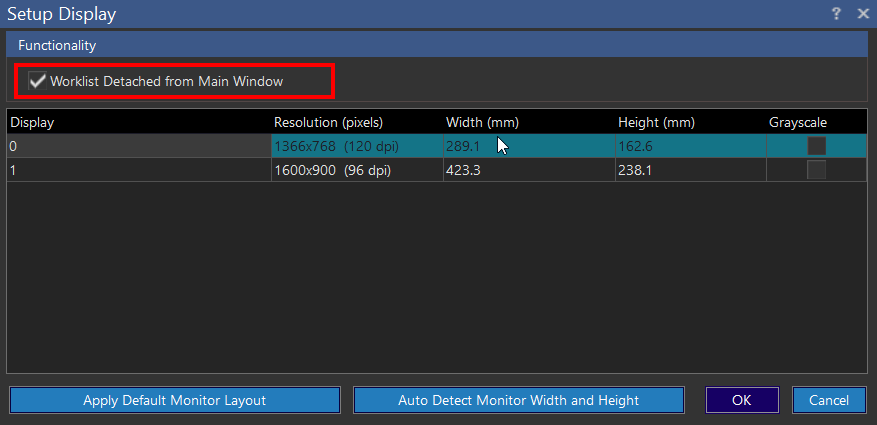
The first section on the screen is the "Worklist Detached from Main Window" checkbox. Checking this checkbox will automatically detach the Worklist from the Main Window (the window with the main menu) upon starting PowerReader. This option is checked by default.
The second section configures the Resolution of the various displays. Click the Width and Height to modify the sizes of the windows on the available displays.
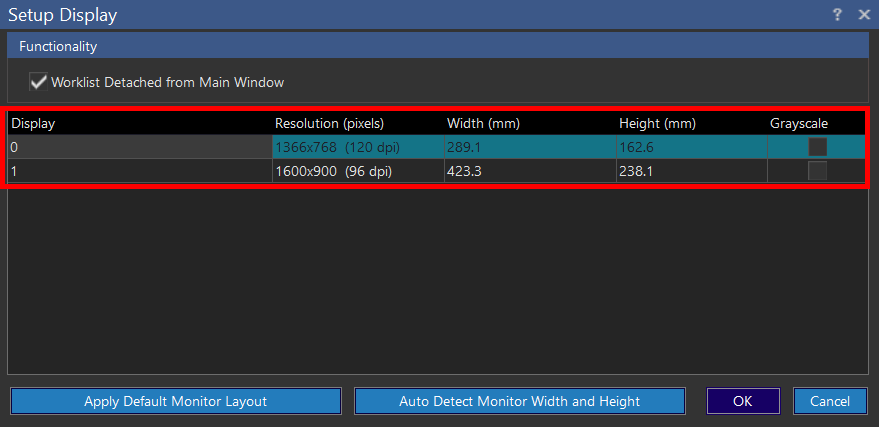
The Grayscale option toggles the selected display between color and grayscale modes. Note that grayscale rendering will be approximately 30% faster than color mode.
The "Auto Detect Monitor Width and Height" button automatically calculates the Width and Height of all the Monitors that are set up and displays this information according to the correct order of the monitors.

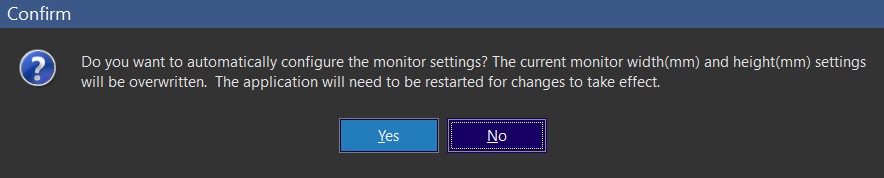
Click the "Auto Detect Monitor Width and Height" button and click "Yes" to allow the Width and Height values to be modified by the system. These values can still be overwritten by manually typing into the boxes.
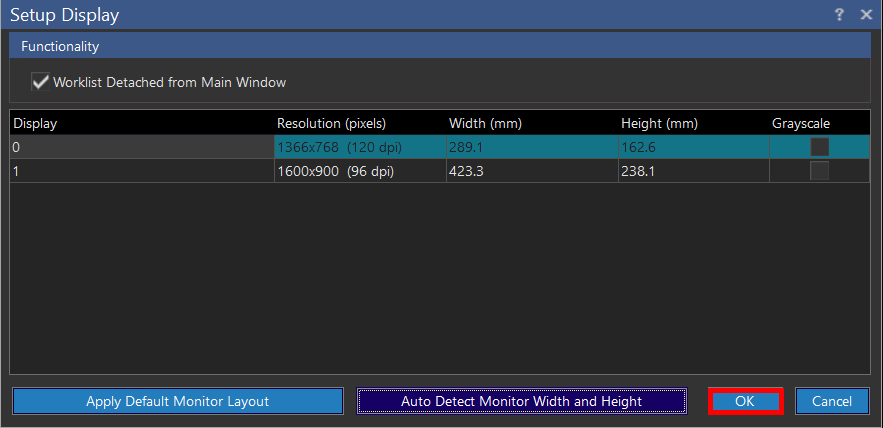
Click "OK" and restart PowerReader for the new settings to take into effect.
The last option, at the bottom left of the screen, applies the Default Monitor Layout. Clicking the Apply Default Monitor Layout achieves the following:
Sets the Worklist Detached from Main Window checkbox to "checked" status, and:
If there is 1 unused display:
- If it is a portrait display, places the Document Viewer at the top half and Patient Explorer at the bottom half of the display
- If it is a landscape display, places the Document Viewer at the left half and Patient Explorer at the right half of the display
If there are 2 or more unused displays:
- If there is a portrait display, display the Document Viewer on the portrait display and display the Patient Explorer on the next available display
- Otherwise, select the first available display for Patient Explorer and the second available display for the Document Viewer
Click "Yes" to confirm the changes or No to cancel.

Note: Apply Default Monitor Layout and Auto Detect Monitor Width and Height are performed and the display settings are displayed when PowerReader is run for the first time. However, when a new monitor is added or removed, or if the monitor configuration is changed (e.g. monitor resolution or positioning in Microsoft Windows Desktop Settings), the following message is displayed to take into account the changed hardware/settings.

Clicking "Yes" will automatically apply Default Monitor Layout and Auto Detect Monitor Width and Height.
Clicking "No" will not change any monitor settings. The user can still navigate to Setup Display to configure the display settings manually.