Installing & Configuring PowerReader Clients
A PowerReader client can be installed on any computer that has access to the server through the LAN, or across the Internet, and is running Microsoft Windows 7 or higher. The machine will also need to have Microsoft Internet Explorer version 11 or higher installed. Other internet browsers (Mozilla Firefox, Google Chrome and Microsoft Edge) are also supported.
Note: You will need Administrative privileges for the machine where the client will be installed for the first time. Once you install it, you DO NOT need administrative privileges when updating the client.
- To install a PowerReader client, open Internet Explorer and type in the URL of the server (For example, http://demo.ramsoft.biz). The PowerServer login screen appears.
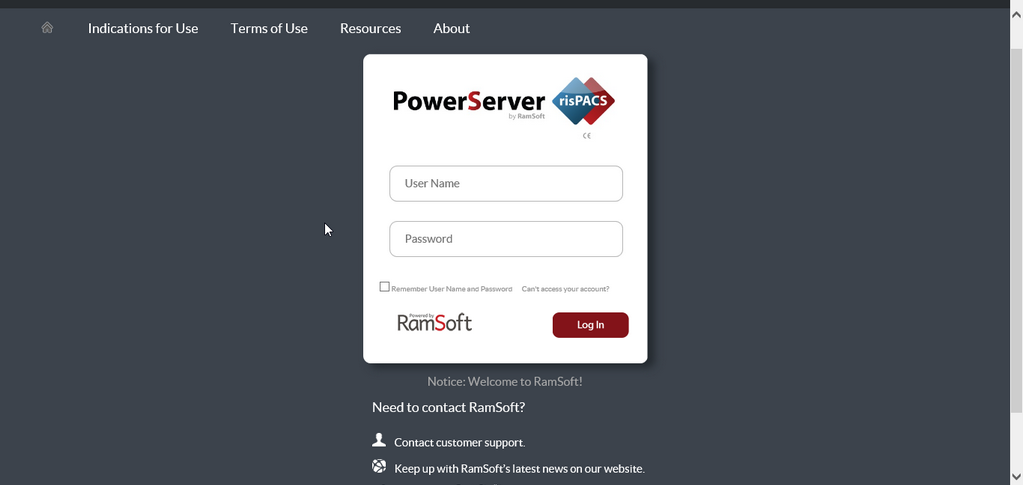
- Once a valid username and Password is entered, you can see the portal.
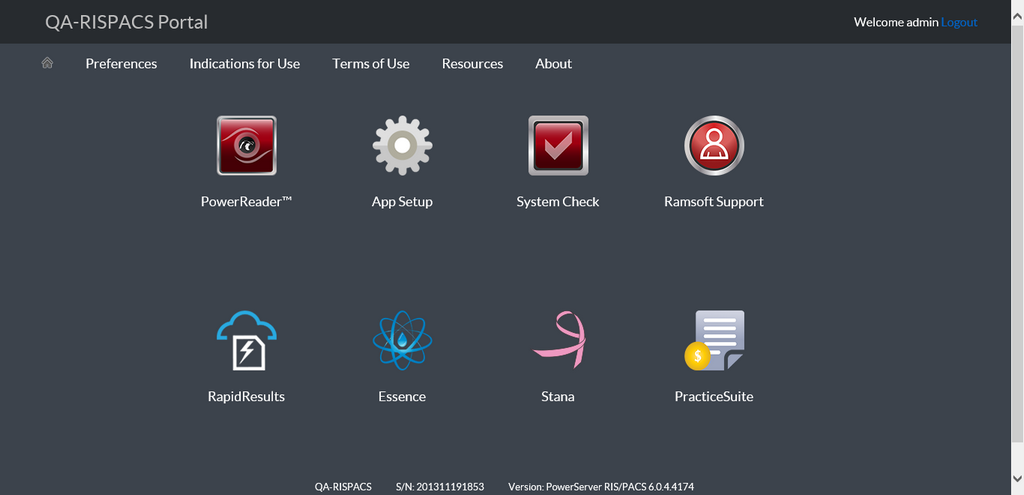
- Click the PowerReader™ icon
 . The Install App Launcher pop up appears.
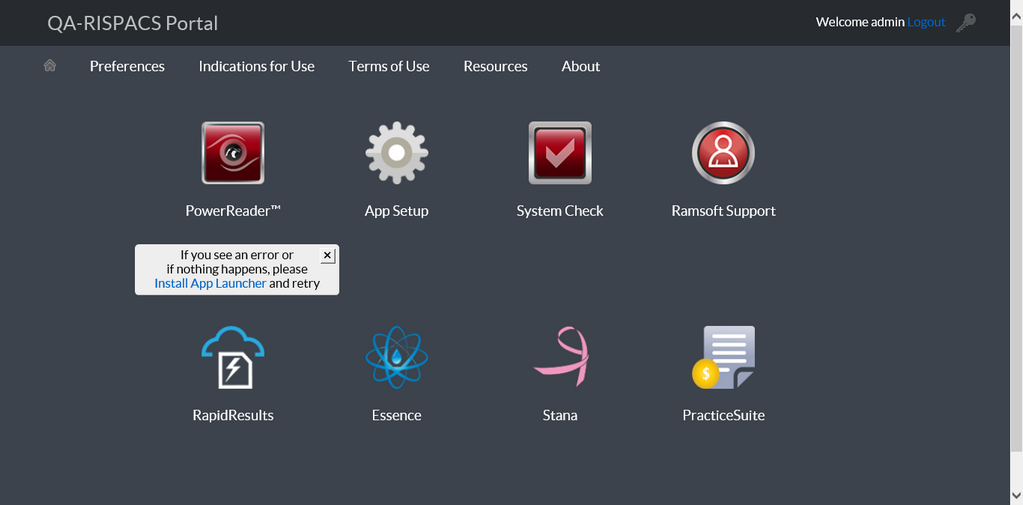
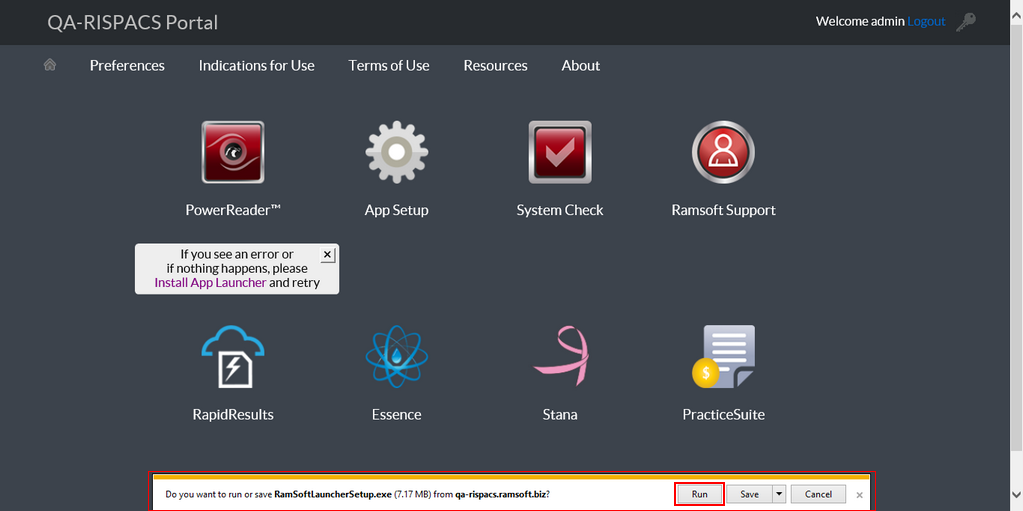
- Click Install App Launcher. The options to run or save the RamSoftLauncherSetup.exe file appear in a pop up message. You only see this pop up message when you are installing the PowerReader client for the first time. When you are upgrading to a higher version of PowerServer, the app launcher is automatically upgraded.
Note that when using Chrome or Firefox, first click on the Install App Launcher link and then click on the PowerReader icon to install PowerReader Client.
When using IE, click PowerReader icon installed App Launcher and subsequently PowerReader client.
-
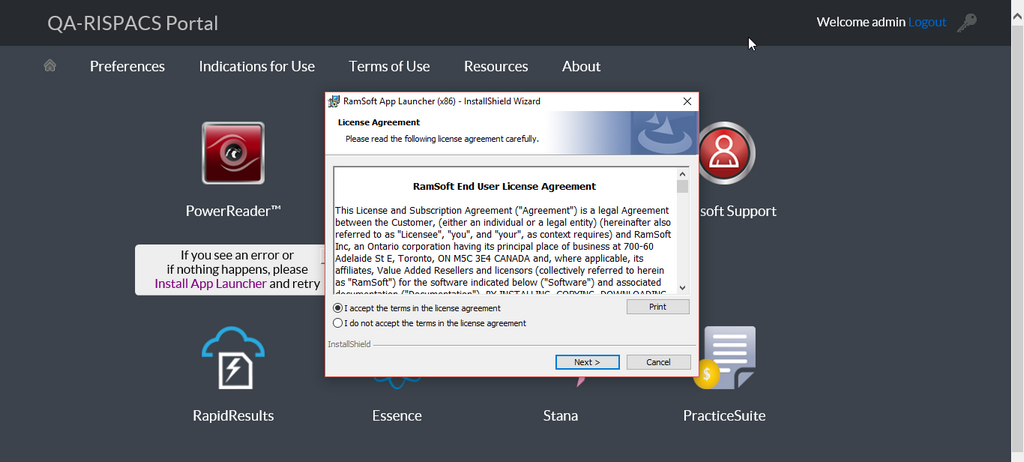
Click Run to run the Setup file. The RamSoft End User License Agreement screen appears.
-
Accept the RamSoft End User License Agreement and click Next.
-
Click Finish to finish the installation process.
-
Click the PowerReader icon. The RamSoft App Launcher is launched.
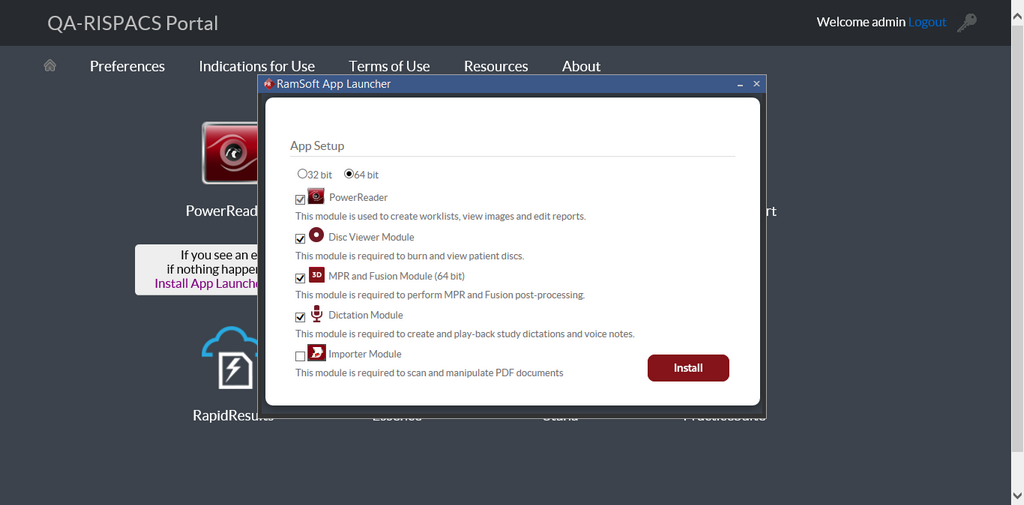
Note: The PowerReader option is selected by default. Based on the user role setup in Maintenance module, the other install options in the App Launcher would also be pre-selected by default.
- Click the Install button to install the selected applications.
Note: When you login to PowerReader after a critical update has been applied to the server, PowerReader displays the following warning message "A critical update has been applied to the server. Please save your work and log-off and re-login as soon as possible for this update to take affect". Follow the instructions in the message to apply the updates.
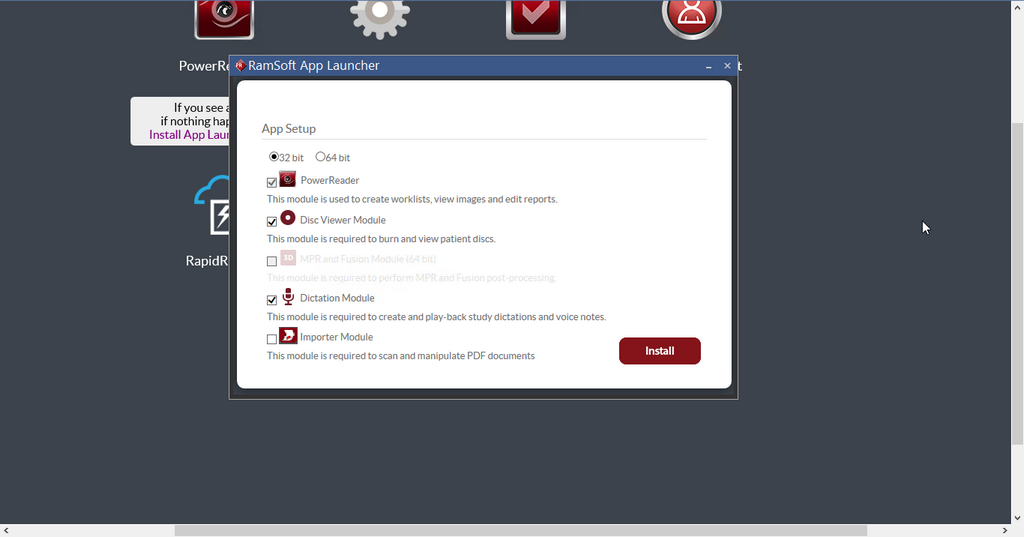
If you are installing the PowerReader Client for a 32 bit system, note that the MPR and Fusion Module is not available as it can only be enabled in a 64 bit system.
- When the installation completes, the PowerReader client will be launched. The first time the client is launched, the Local Setup dialog will open. Here, settings relating to the client machine can be modified. This screen will only open during the first launch of the PowerReader client software.

The PowerReader shortcut icon will be available on the desktop and can be used to open the PowerReader webpage in the future. If you connect to multiple servers, multiple shortcut icons will be generated.
Clicking the App Setup Icon  displays the App Launcher with the installed applications as shown below.
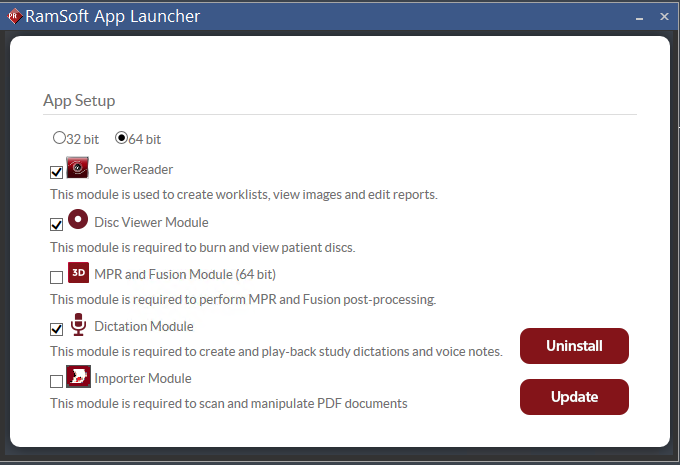
The App Launcher displays the modules as shown above. If initially you have not installed a module and now want to install it, you can select the desired module (check box) based on your requirement and click Update. Based on your selection, the modules will be installed.
Updating the PowerReader Client
PowerReader clients can be auto-updated to a Server's version by running the Update Service within configurable time periods in system configuration entries.
PowerReader installer installs the RamSoft Update Service to log on as Local System Account.
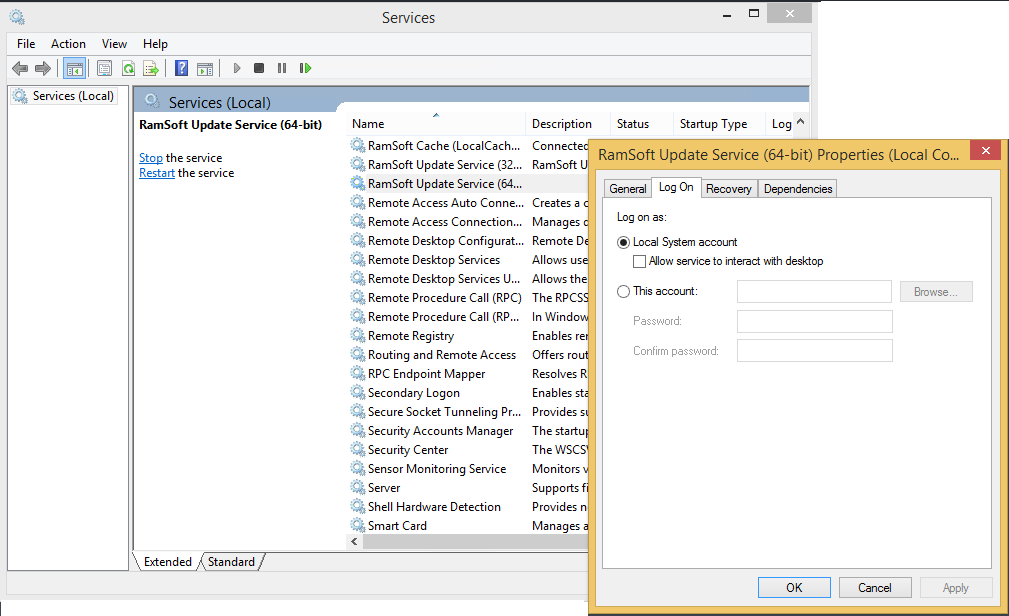
There are instances when this may be blocked due to GPO or firewall restrictions.
In this case, the following platform specifications are required for the Update Service to run effectively:
- URL/Ports (URL of server and port HTTPS/443 (or HTTP/80 if HTTPS is disabled)
- Folder Access (Full control over Program Files\RamSoft\PowerReader)
- Registry access (Full control over HKEY_LOCAL_MACHINE\SOFTWARE\RamSoft Key)
If Local System Account does not have these privileges, an alternate account may be specified in the Services screen or updated via the Registry:
For 64-bit: Computer\HKEY_LOCAL_MACHINE\SYSTEM\CurrentControlSet\Services\RSUpdateService64
For 32-bit: Computer\HKEY_LOCAL_MACHINE\SYSTEM\CurrentControlSet\Services\RSUpdateService
The default is ObjectName =LocalSystem but LocalSystem can be replaced with a Domain or Service account.