How Do I Customize Toolbars?
To customize toolbars, ensure that the toolbars are unlocked first.
To unlock the toolbars, select Window > Toolbars > Unlock Toolbars.
To lock the toolbars, select Window > Toolbars > Lock Toolbars. This will remove the Add/Remove button from the toolbars and it will also disable the Customize option.
Reset Toolbars - Resets the toolbar to the original default layout.
Duplicate Toolbars - This option is only enabled when you have more than one monitor being used. Once you select this option, the tool bar is duplicated in other monitors. Un-checking this option would reset the toolbars to the default layout.
Note that Duplicate Toolbars option is only available for monitors with identical resolutions.
Toolbars persistence
When a user is logged in two machines, the toolbar layouts of each machine do not interfere with each other as long as the PowerReader station names (which are by default set to the Windows PC names) are unique for each machine. In this case, the toolbars position for each machine is retained in the last saved position for each specific machine.
Customizing the toolbar

To customize your toolbars, right-click anywhere on the toolbar. The following option appears.
 | Choose the Customize option. The following dialog appears. |
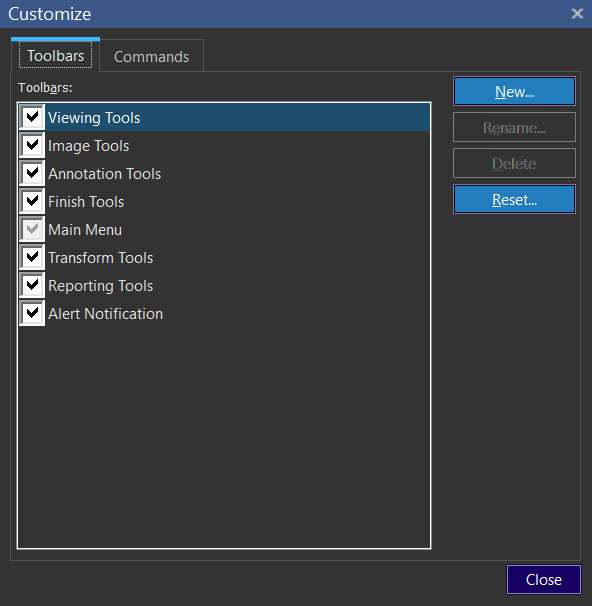
This form gives you the same functionality as the original right-click menu in the toolbar. Any of the toolbars can be hidden by removing the check in the box beside them. Clicking Reset will undo all the changes to the currently highlighted toolbar. There is also the option of creating a new toolbar by clicking on New. A dialog will appear asking to name the toolbar, and after entering one, a blank toolbar will appear. To continue customization click on the Commands tab.
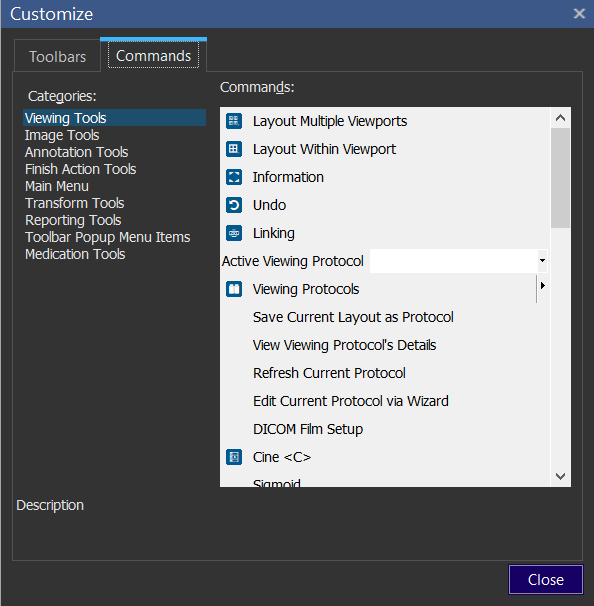
This is the main customization area. Here you can choose any tool from any of the menus and place it anywhere on the toolbar. On the left-hand side, select a Category and then highlight the tool you will like to move from the Commands area. Next click on the tool and drag it into the desired location in the toolbar.