How Do I Enter the Allergies of the Patient?
- Click View Patient Information
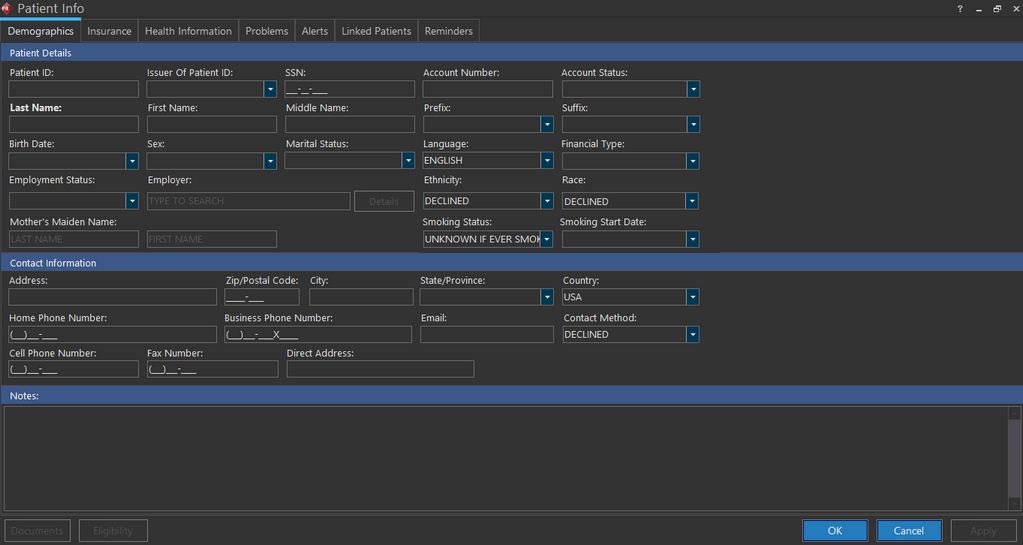
 icon. Demographics tab of Patient Info screen appears as shown below.
-
Enter the patient's details whichever is mandatory under Demographics tab.
-
Click Health Information tab. Health Information tab of Patient Info screen appears as shown below.
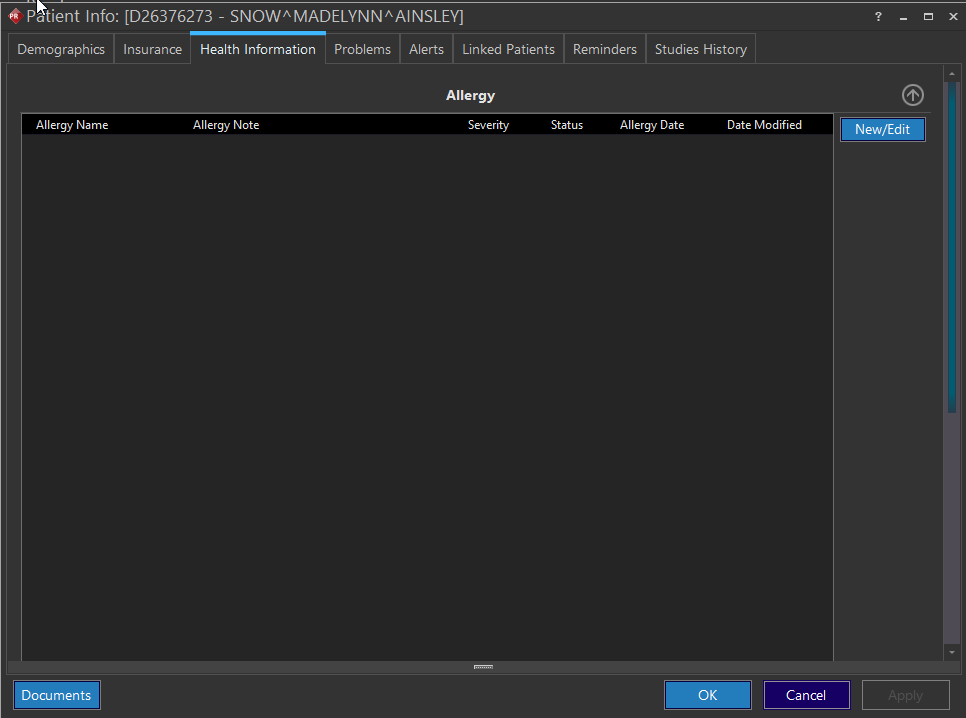
- Click New/Edit button. The application launches NewCrop interface. By default, the interface displays Med Entry tab.
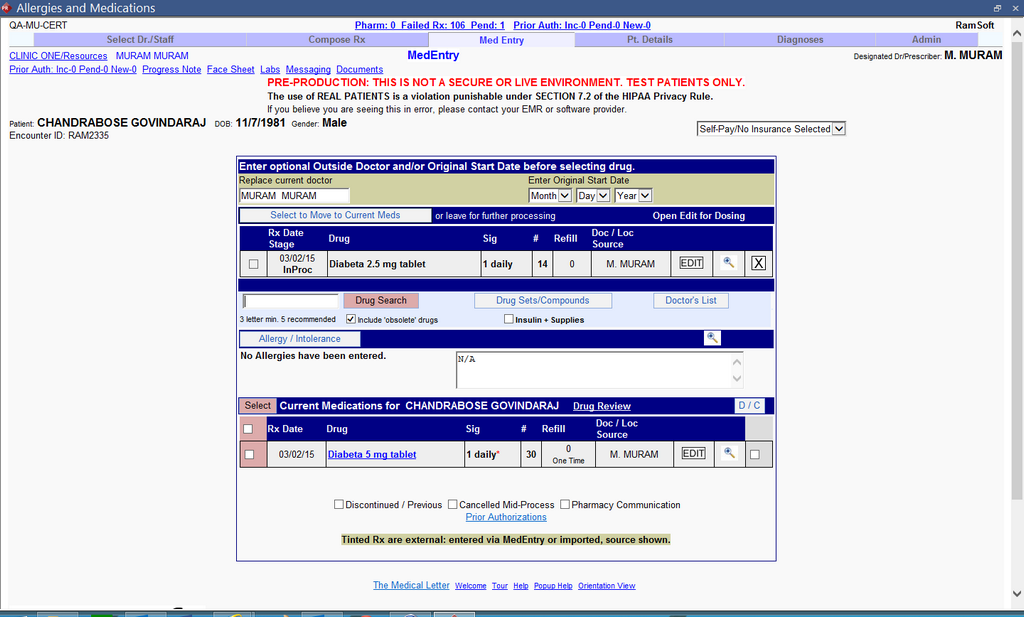
- Clicking the Allergy / Intolerance Search button allows the user to search for a specific Allergy/Intolerance which can be added for a specific medication. The following screen appears.
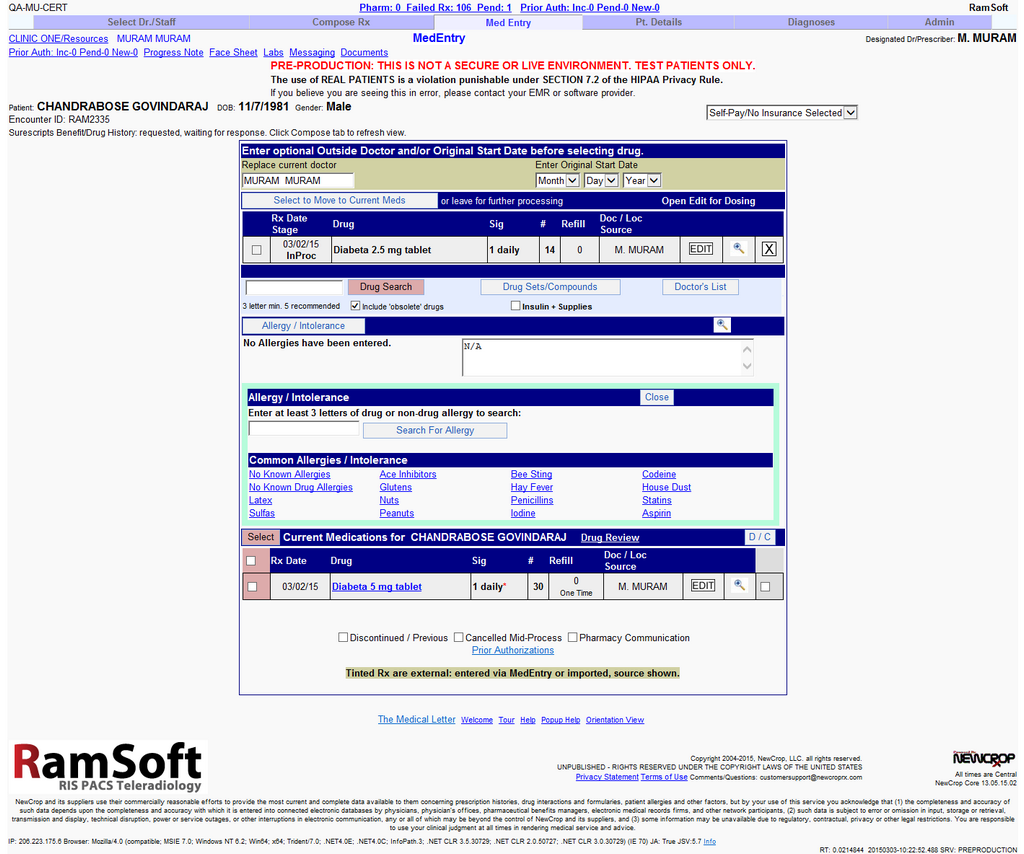
- Type the first three characters/letters of the allergy and click the Search For Allergy button as shown below.

For example, let us consider "Pen" as first three characters/letters of the allergy. Type "Pen" in the text field and click the Search For Allergy button.
The Newcrop interface will show you all allergy names starting with "Pen" as shown below.
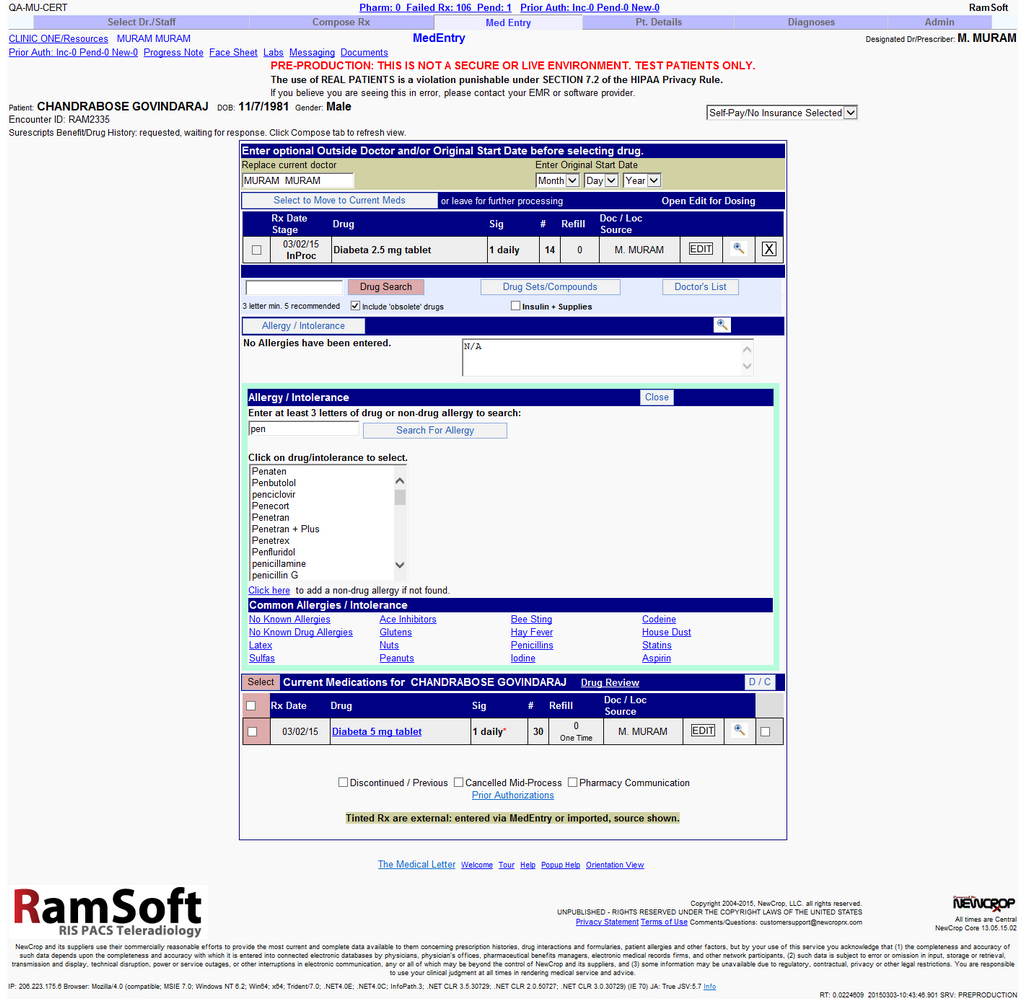
- Select the appropriate allergy name. The name of the allergy is displayed in red font as shown in below image.
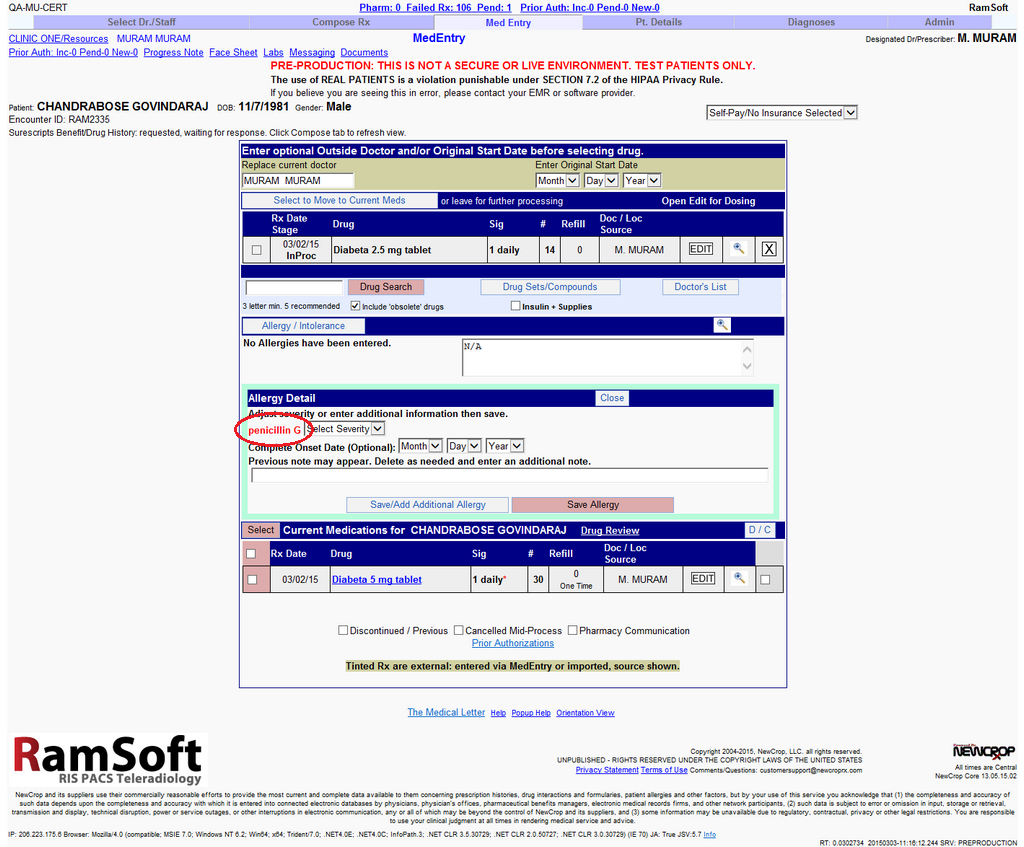
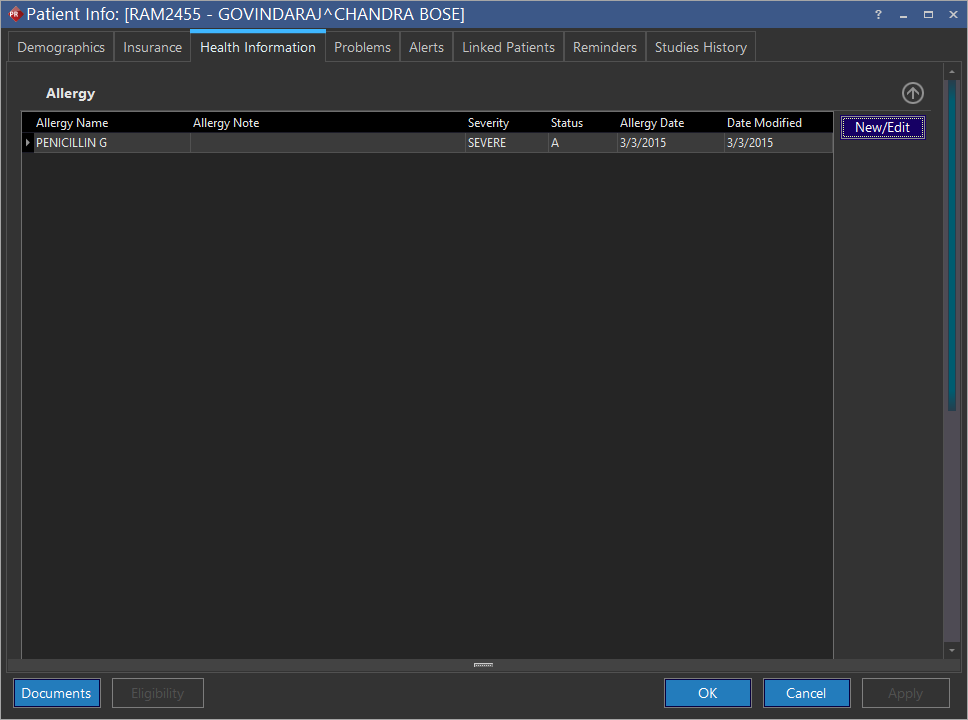
- Select the Severity level, the Onset date and click Save Allergy. The allergy details are updated in the application and will be displayed in the Patient Information form of PowerReader as shown below.
note
This Meaningful Use feature is available in RamSoft PowerServer only with Meaningful Use license.