Patient Reminder Templates
The Patient Reminder Templates section is used to create templates for Patient Reminders. These patient reminders are sent to patients through email.
How to create a new Patient Reminder Template
- Click RIS Settings > Patient Reminder Template.
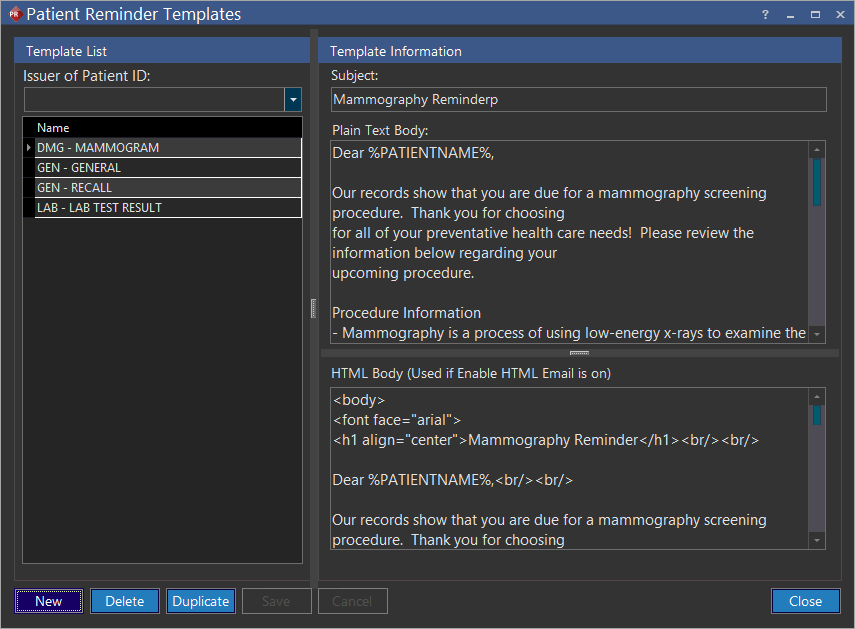
- Click the Issuer of Patient ID drop-down menu and select the patient IDs issuer. Only then, the newly created patient reminder template will be available. Templates created without any specific Issuer of Patient ID will be available for patients belonging to any facility.
- Click New. Upon click, a new row is added to the existing list.
There are six predefined specific categories and the templates have been divided according to them. These categories are denoted by the first three letters in the name of each template. The categories are listed below:
- General - GEN
- Medication - MED
- Problem - PRB
- Lab Test - LAB
- Medication Allergy - AGY
- Demographics - DMG
While these categories have been defined by the Meaningful Use Criteria, users can define their own categories. The content of the reminder should be entered in the "Plain Text Body" and the "HTML Body" section of the form.
- Type the name of a category (predefined/new) in the text field found below Name.
- Type a caption on the Subject text field. This field is mandatory.
- Type the content of the reminder in the Plain Text Body text field.
- Type the content of the reminder in the HTML Body text field if enable HTML Email is on.
- Click Save.
Duplicating an existing Patient Reminder Template
If your business demands to create a new template which is almost similar to an existing template, you can make use of this duplicate feature.
How to Duplicate
- Select the name of the template which is most similar in functionality from the list.
- Click Duplicate. Upon click, the application will create a copy of the chosen template.
- Do the necessary modifications in the required fields and click on the newly created (duplicated) template name available in the list.
- Rename it appropriately and click Save.
Deleting an existing Patient Reminder Template
If you do not require a patient reminder template anymore which doesn't suits your business requirement, you may delete it.
How to Delete
- Select the name of the template which is outdated or not required anymore.
- Click Delete Upon click, the application pops-up a confirmation screen.
- Click Yes.
- Click Save to complete.