What are Service Tasks & How Do I Manage Them?
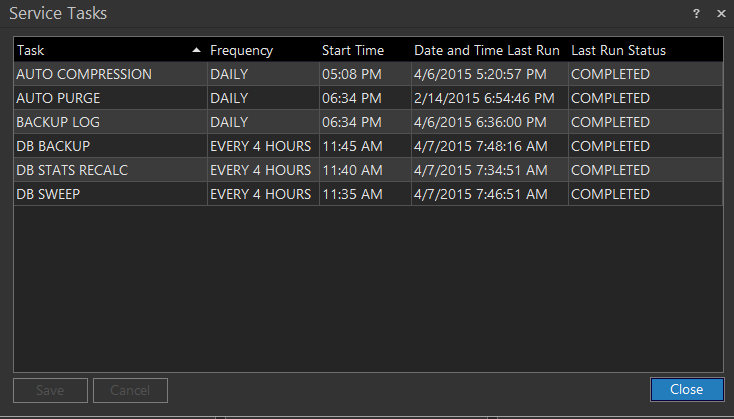
Service tasks are background tasks performed by the RamSoft Tasks Service. Although the user has the option to disable these tasks, allowing them to run during off hours is strongly recommended. These task organize the image data and provide optimal performance of the database. To access the service tasks menu, Click Settings > Server Settings > Service Tasks. Service Tasks screen appears as shown below.
The Frequency column in the service task menu has two possible values for each task. Each task can either be run Daily, or it can be switched Off. The Start Time column indicates the scheduled time for each task. The Date & Time Last Run column displays date and time of each task since its was last executed. The time of execution might differ from the the Start Time as the RamSoft Tasks Service runs only periodically. At its scheduled time, the Task service determines and executes any tasks which have not been completed within the past 12 hours. The execution interval of the RamSoft Tasks Service is defined by the DICOM Service Timer value in Maintenance.
This form is useful in scheduling any tasks and monitoring their successful completion. The Last Run Status column reveals the completion status of the last execution of each task. The possible values are "COMPLETED"/"HAS NOT RUN"/"FAILED". If the execution of any of the tasks has failed, the System Log should be consulted to find out more details about the problem.
Archive Task
When the Archive task is run, it first examines the database. All studies older than the Archive Studies Older Than value defined in Maintenance are added to the Archival List. After they have all been added, the Archive task archives all DICOM objects in the Archival List to offline CD or DVD-RAM media. The studies are archived not by their study date instead in the order of their addition to the archival list. If the system is not archiving to offline media, this task should be disabled.
Note that the Auto Purge task is not available for PowerServer Tele Lite.
Auto Delete Task
The Auto Delete task purges DICOM objects when the server's storage is full. The oldest studies are removed first. Auto Delete does not delete studies that are on the Archival List or Transmit List. This task will only run if the disk usage watermarks established in the Disk Management section of Maintenance are reached. The task may be disabled if the server is a primary archive device and contains sufficient capacity to store all DICOM objects.
DB Sweep Task
The DB Sweep task optimizes database indexes and removes references to deleted entries. It is somewhat similar to the Windows defragment task. Running it periodically will keep the database error free and at its optimized performance.
DB Backup Task
The DB Backup task creates a set of database backup files (.GBK files) which may be later copied to a network folder or to an external storage device. These files can be used to restore the database in case of a crash or corruption. This task should be run daily to maintain the best possible disaster recovery resources. The task creates one backup file on each day of the week, for a total of eight backup files named pacs0.gbk - pacs7.gbk. These files are stored in the Database Backup Folder, the location of which is defined in Maintenance.
DB STATS RECALC Task
The DB STATS RECALC task recalculates the database index usage statistics periodically. The frequency of calculation can be set from any of the following options:
- DAILY
- EVERY 7 DAYS
- EVERY 30 DAYS
- HOURLY
- EVERY 2 HOURS
- EVERY 4 HOURS
Backup Log Task
The Backup Log task extracts any entries in the System, Communication, HL7, Transmit and Request logs and exports them to CSV (comma separated values) files. Once exported, the entries are then deleted from the database. The backup log task uses a path and time set by the administrator, through the Maintenance program, to specify the location of stored CSV files and the time when the task will be run. The CSV files can be viewed and searched by opening them in a program which recognizes the CSV format, such as Microsoft Excel.
Purge HL7 RPTOUT Task
The Purge HL7 RPTOUT will remove items from the HL7 queue that are not being processed to prevent many HL7 messages being queued but not being processed.
Populate Report Task
The Populate Report task syncs the RamSoft Management Report database with the PACS database everyday. Running it periodically will keep the Management Reports up to date and error free.
Auto Compression Task
The Auto Compression task compresses image data at a specific lossy ratio in JPEG2000 based on user-defined rules. After establishing the rules in Maintenance, the user can expect object files of matching studies to be reduced in sizes.
Auto Purge Task
The Auto Purge task deletes study objects based on user-defined rules. After establishing the rules in Maintenance, the system will purge the studies matching the criteria.
Note: The Auto Delete task has been consolidated with Auto Purge.