User Options
User Options allows you configure a variety of settings that will customize your PowerReader experience.
Click Settings > User Options. User Options screen appears as shown below.
General Options
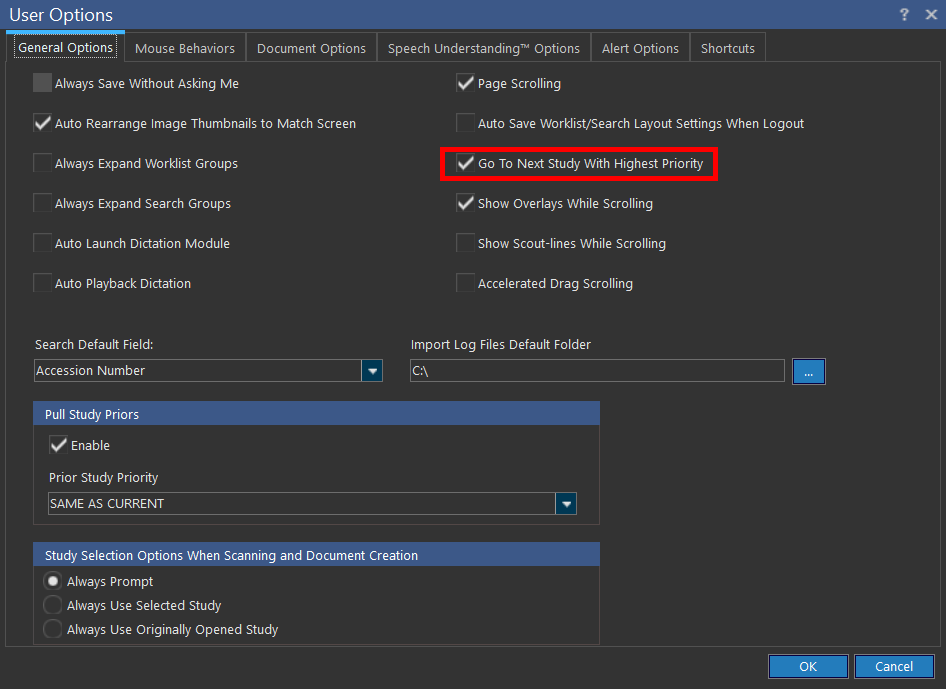
| Checkbox | Description |
|---|---|
| Always Save Without Asking Me | When you close a study or a window, the application should save automatically without prompting you to confirm |
| Auto Rearrange Image thumbnail to Match Screen | Upon selection, the application will rearrange the image thumbnails to match the screen |
| Always Expand Worklist Groups | Upon selection, the application will keep the Worklist groups always expanded |
| Always Expand Search Groups | While using the search screen, the groups remains expanded |
| Auto Launch Dictation Module | Automatically launches the dictation module when a study is opened |
| Auto Playback Dictation | While you open a study, the application should automatically playback the dictation |
| Page Scrolling | Upon selection, user can navigate to the next or previous Images page. |
| Display MG Views L to R | Automatically displays the anatomical view of the mammogram, i.e, flips the MG image view. |
| Auto Save Worklist/Search Layout Settings When Logout | When you logout, the application should save Worklist/search layout settings automatically without prompting you to confirm |
| Go To Next Study With Highest Priority | Customizing the application to move you to a highest priority study |
Search Default Field displays "Accession Number" by default. This can be changed to Last Name/First Name/Patient ID. Once you select a field and save your selection, The Search screen displays cursor in that field when you are on that screen.
Import Log Files Default Folder displays "**C:**" as the default folder/location to store the log files.
Pull Study Priors checkbox is checked by default. If this checkbox is checked, the previous studies of the patient can be pulled according to the priority you set below. By default, it is set as "SAME AS CURRENT". This can be changed to Low/Medium/High.
Study Selection Options When Scanning and Document Creation
| Options | Description |
|---|---|
| Always Prompt | If patient with two or more studies: if you select another study other than original opened study, the application will popup asking which study to be considered to create a report |
| Always Use Selected Study | If patient with two or more studies: the application will use the selected study to prepare report |
| Always Use Originally Opened Study | If patient with two or more studies: the application will use the originally opened study to prepare report |
| Note: | These options are not applicable when a document is being imported or attached to study through the Document Viewer. |
The following are used in conjunction with the options Auto Create Document From Exclusive Template and Auto Create Document From Best Matched Template under the Document Options tab.
For further information on these options please refer to the section How Do I Use the Dictation Tools?.
Document Options
The document viewer is highly customizable and can be used according to user preferences. These preferences can be chosen by selecting the Document Options tab from Settings > User Options > Document Options.

| Options | Description |
|---|---|
| Auto Create Document From Exclusive Template | Automatically creates a report if there is only one matching template. |
| Auto Create Document From Best Matched Template | Chooses the template that best matches the study and automatically creates the report from that template. This option is applicable only for "Diagnostic Report" and "Preliminary Diagnostic Report" report types. |
| Auto Enable and Disable Dragon Mic When Editing Reports For Single Study Desktop | Automatically enables or disables the Dragon software when reports are being edited in a single study desktop. |
| Capture Keyboard Input When Editing Documents | When this option is selected, the Capture Keyboard button remains always selected when you open a text report in the Document Viewer. For more information, please see the topic How Do I Create a New Text Report? |
| Display Prior Reports When Editing | If this option is checked, the application displays the latest previous (prior) report in the document viewer. If there are no prior reports and if the user has privilege to View Documents, the latest study documents are displayed and if these do not exist, the latest Patient Documents are displayed. |
| Automatically Edit Unsigned Reports | Allows the assigned Reading Physician to update a preliminary/diagnostic preliminary report without needing to press the Update button in the Document Viewer. When this option is checked, the latest unsigned reports would be automatically opened in the Editor. Users will be able to update the document with this option if the following conditions are met: 1) The study status should be less than 'Read' (i.e less than 180). 2) Users have View Diagnostic Reports/View Documents and Create Diagnostic Reports privileges. 3) The status of the diagnostic report should be 'Preliminary'. 4) The user updating the study must be the assigned reading physician of that study or has Sign Any Report privilege. 5) The study should have one or more unsigned reports |
| Auto Hide Report Navigator | The value of this option under User Options >> Document Options always synchronize with that is set under System Administration for the new users who never changed it under User Options >> Document Options. If User changes the value in Options >> Document Options then: 1) If the option is enabled, Report Navigator pan in Document Viewer gets collapsed when user tries to update report. 2) If the option is not enabled, Report Navigator pan in Document Viewer doesn't collapse when user tries to update report. Report Navigator pan in Document Viewer remains visible when the report is not being updated regardless of the value of 'Auto Hide Report Navigator' under User Options > Document Options. |
Auto Launch Options
| Options | Description |
|---|---|
| Auto Launch Documents Viewer If Documents Exist | Automatically launches the Document Viewer if any documents exists for the study |
| Auto Launch Documents Viewer If No Documents Exist | Automatically launches the Document Viewer even if there are no documents in the study |
Alert Options
PowerReader displays a popup message whenever studies with alerts are received. In the Alert Options tab, these popup messages can be controlled or disabled.

The Enable Desktop Alerts for new Alerts option is used to display desktop messages whenever studies with alerts are received. The popup Position as well the Display Duration can be determined here. The Interval to check for new Alerts (s) option is used by the system to display the popup at the time interval described.
Pop-ups
While viewing study images, certain situations that require a user decision will cause a popup to appear and force the user to make a choice. These pop-ups are important, However, if they regularly interrupt a user during their interaction with the study, they can become annoying. The software offers each user the option of auto picking a default choice every time the situation occurs, eliminating the need for the extra click.
These popup situations arise if the user has created a new object such as an SR Report, Key Object Document or an Audio Recording, but has not saved it before attempting to exit the study. This will cause the following popup to appear.

If for some reason, the default choice should no longer be selected, the bypassing of the pop-ups can be disabled from the User Options dialog which is accessible from the Settings menu.