How Do I Launch the Document Viewer within the Study Desktop?
Document Viewer can be launched from Study Desktop to create, edit, sign, attach and scan reports or documents. For more information on Document Viewer, please refer to the Document Viewer section in the topic How Do I Create and View Reports?
Any report or document in the Document Viewer becomes an SR object in a study.
Document Viewer can be launched by clicking the View/Create Documents icon  on the toolbar menu.
When you open a report or a document in the Document Navigator, you can right-click on the Reports tab to access the following sub-menu:
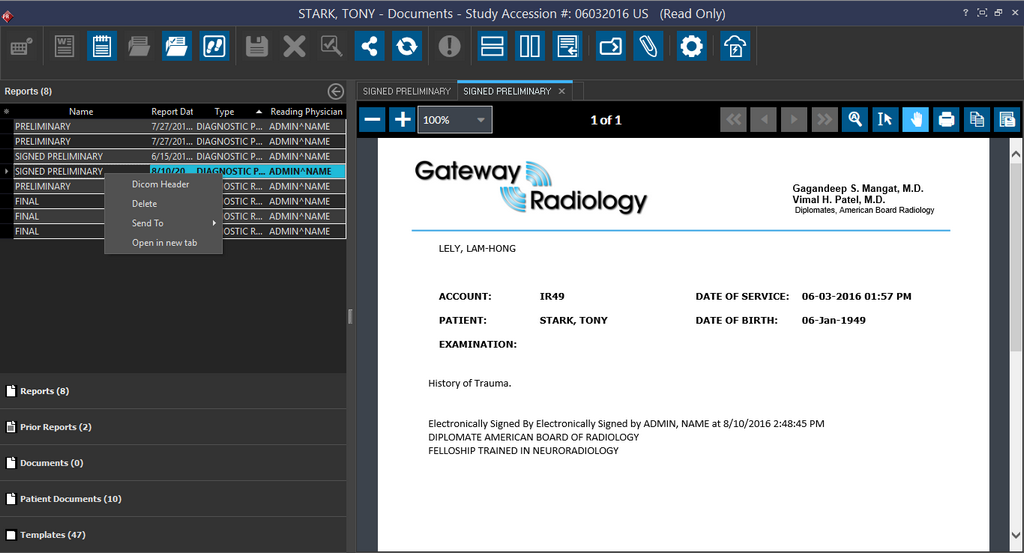
| Option | Description |
|---|---|
| DICOM Header | This option displays the DICOM header of the selected report or document |
| Delete | Select this option if you want to delete the selected report |
| Send To | Select the desired option to send the selected report* either by Fax, email or for redistributing it to a user. |
| Open in new tab | Click this option to open the report in a New tab |
You can amend a signed report before the report's status changes to Final. To Amend a report, click the Amend Report  icon on the toolbar menu. For more information on amending
a report, please refer to the topic How Do I Add an Addendum to a Report?
icon on the toolbar menu. For more information on amending
a report, please refer to the topic How Do I Add an Addendum to a Report?
You can also create a test report in the Document Viewer by clicking the Create Text Report icon  . For more information on creating a text report, please refer to the topic How Do I Create a New Text Report?
You can scan documents in Document Viewer. For more information on scanning documents, please refer to the topic How to Scan Documents?