How Do I Add Images into a Microsoft Word Report?
You can copy images from a study directly into a Microsoft Word Report if the report template has bookmarks that allow images to be added into it.
To copy images into a Microsoft Word Report:
-
If you want to add one or all the images on a screen to a report, create the report from the template that has Image bookmarks in it. For more information on image bookmarks, please refer to the topic, Creating Bookmarks. If the New Word Report From Template is selected, it will create a report in document viewer from the template.
-
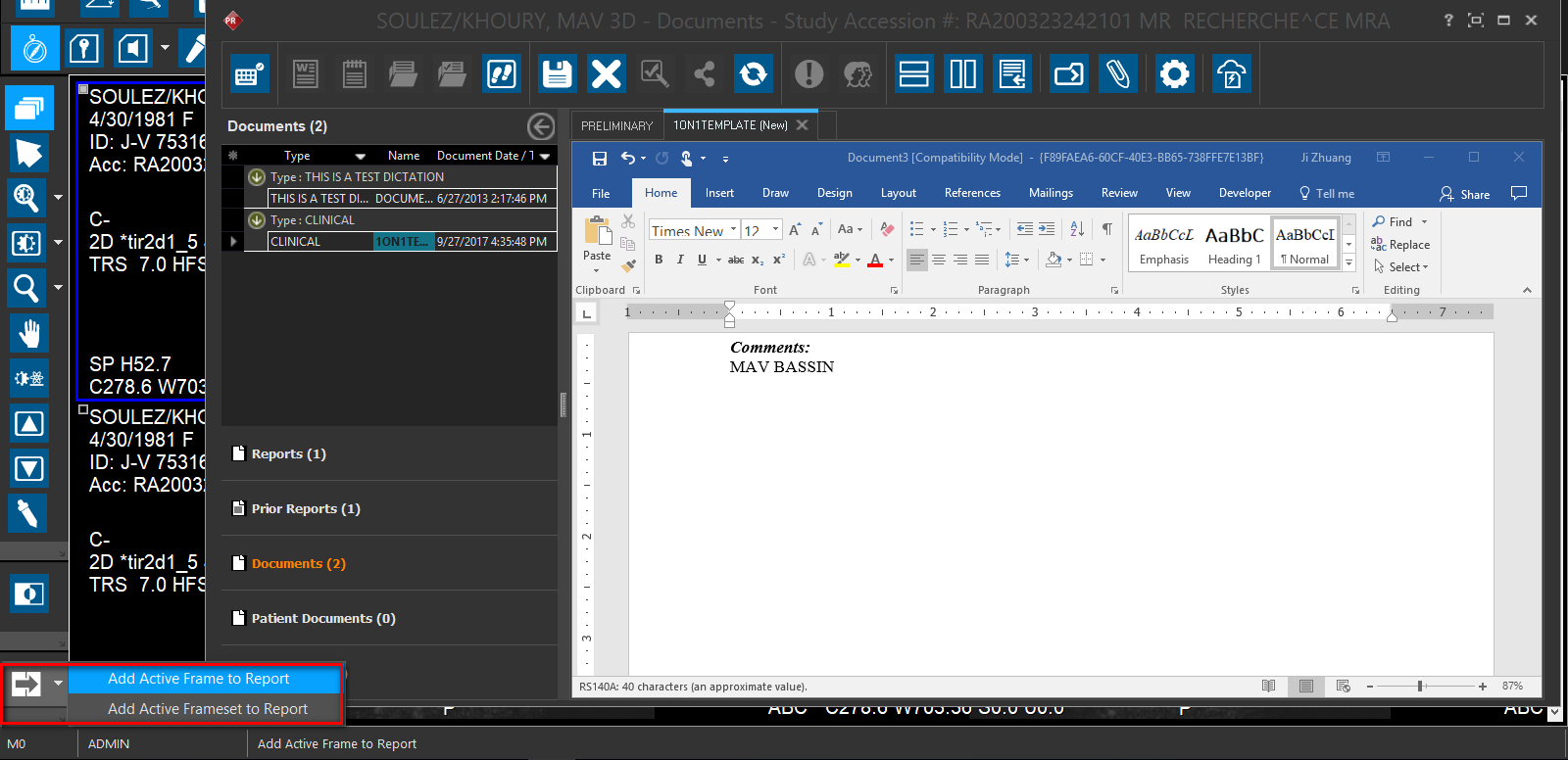
Once a report is opened, the Add Active Frame to Report option
 is displayed on the Study Desktop toolbar if the template has existing Image bookmarks. Clicking on it displays two options:
Option 1: Add Active Frame to Report will only copy the currently selected image to the report.
Option 2: Add Active Framesets to Report will copy all images in the current study to the report. The template should have sufficient bookmarks to paste the images.
-
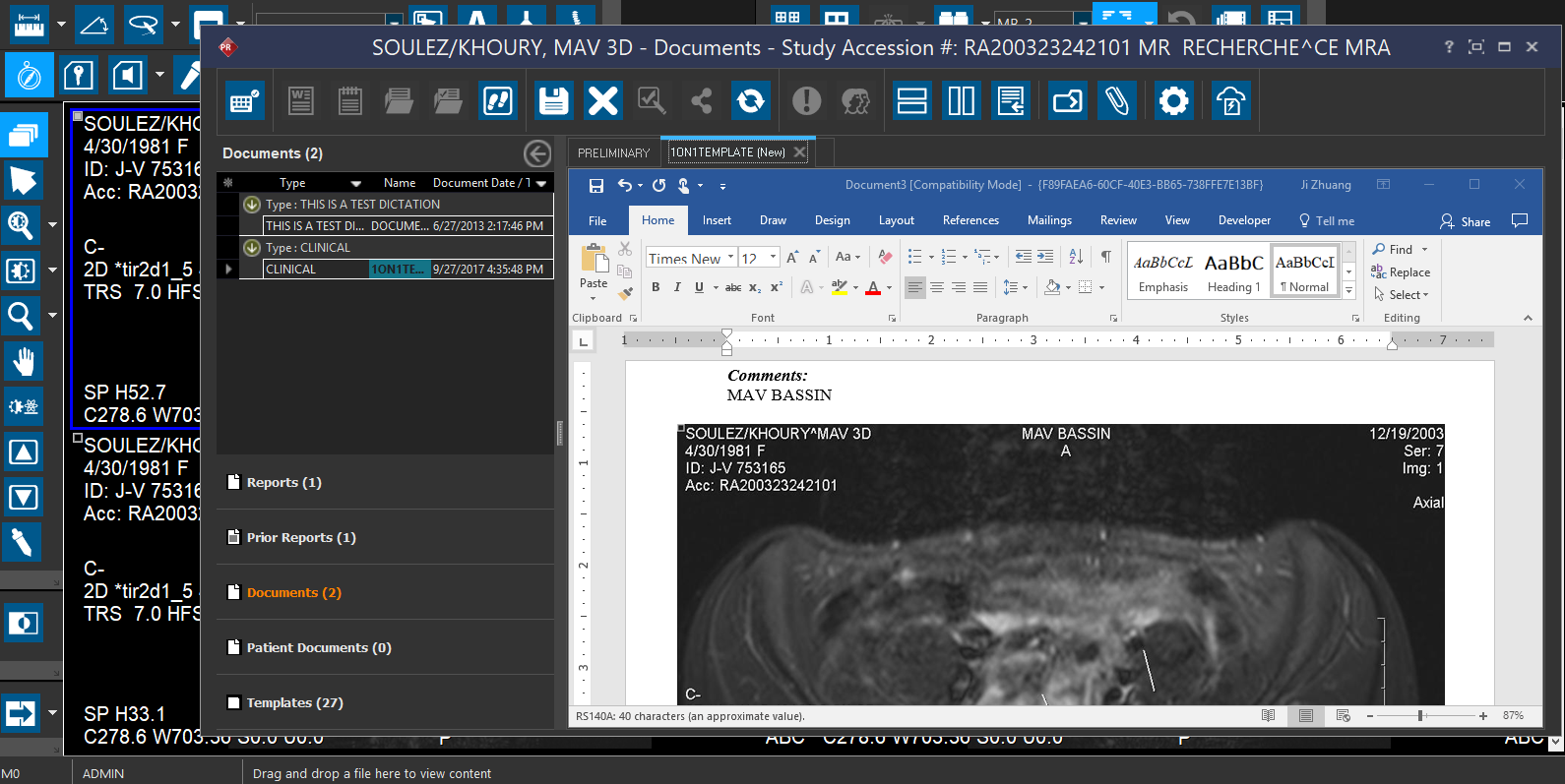
Select the desired option. Images are placed in the Microsoft Word Report based on the format of the selected template. Note: the error message "Image Frameset contains too many frames (>10) to copy to report" is displayed if there are more than 10 framesets in the frameset.
The System Configuration keyword "Use Old Image Clipboard Copy" is used to configure the dimensions in which images are inserted. When the configuration value is False (default value), images are inserted as per what is seen in the Viewbox. If set to True, images are inserted based on their original dimensions.
-
Save the report. The maximum length allowed for a file name is sixty four characters (refer to How Do I create a Microsoft Word Report from a Template?).