How Do I Create and View Reports?
Open the Document Viewer either by clicking on the View/Create Documents icon  after opening the study or by clicking on the Document icon in the Worklist or the Documents button in Study Info.
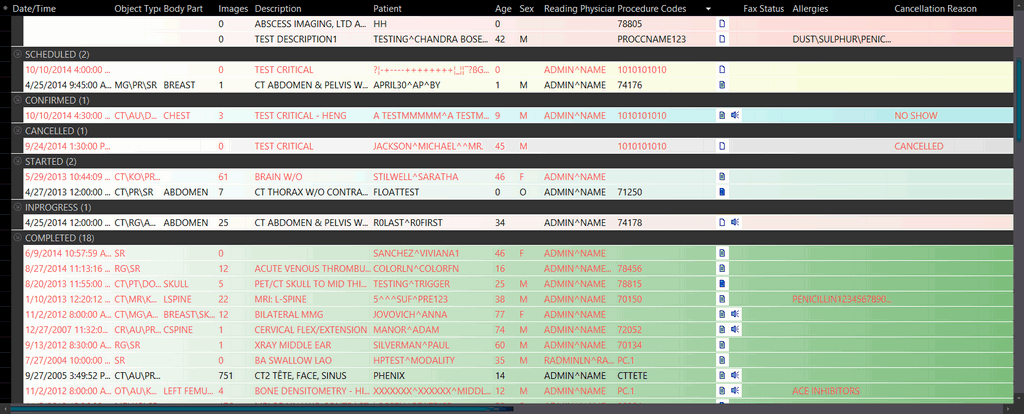
Non-diagnostic reports will be visible with a dark blue icon while diagnostic reports will be represented by a light green icon. A white icon represents the absence of any diagnostic reports.
Launching Document Viewer can also be controlled by Auto launch options set up in User Options > Document Options. For more information, please refer to the topic on User Options
Note: You can also access Document options by clicking the Configure Document Options  icon on the toolbar.
Creating a New Report
On the Document Viewer, you can create a new report by either clicking the Create new word report from template icon  or by right-clicking on the desired template and selecting the New Word Report option.