How to Customize Reports Based on the Imaging Facility?
In a situation where reports for different imaging facilities should be created, you may need to have different report templates for each facility to show the facility-specific logo or information. Usually, the diagnostic findings part of the report (Body part) use the same structure for all these facilities. From PRU10 you can define facility template separately and insert the body part into the facility template*. The benefit of this approach is that you can have any number of facility templates and use them for the header, footer, logo, background, etc. parts of the report. However, for the main part of the report, you can reuse templates that you already defined in your template manager. These templates would be inserted into the body bookmark of the facility template. The result would be a seamless single diagnostic report.
For example, if you report for three MRI facilities, and you use five MRI report templates based on the body part, instead of creating fifteen templates to make your five MRI templates available to each one of these facilities, you can create three facility templates and generate the final report by inserting the selected MRI report temple into the facility template.
Requirements
1 – Enable global setting
To utilize the approach outlined above you need to go to Settings > System Configuration and enable the "Word Reports Use Imaging Facility Template" variable.
2 – Template Preparation
You can continue using your existing templates even if the global setting mentioned above is enabled. However, to benefit from this approach we recommend that you review your report templates and prepare & update them using the structure outline in this diagram:
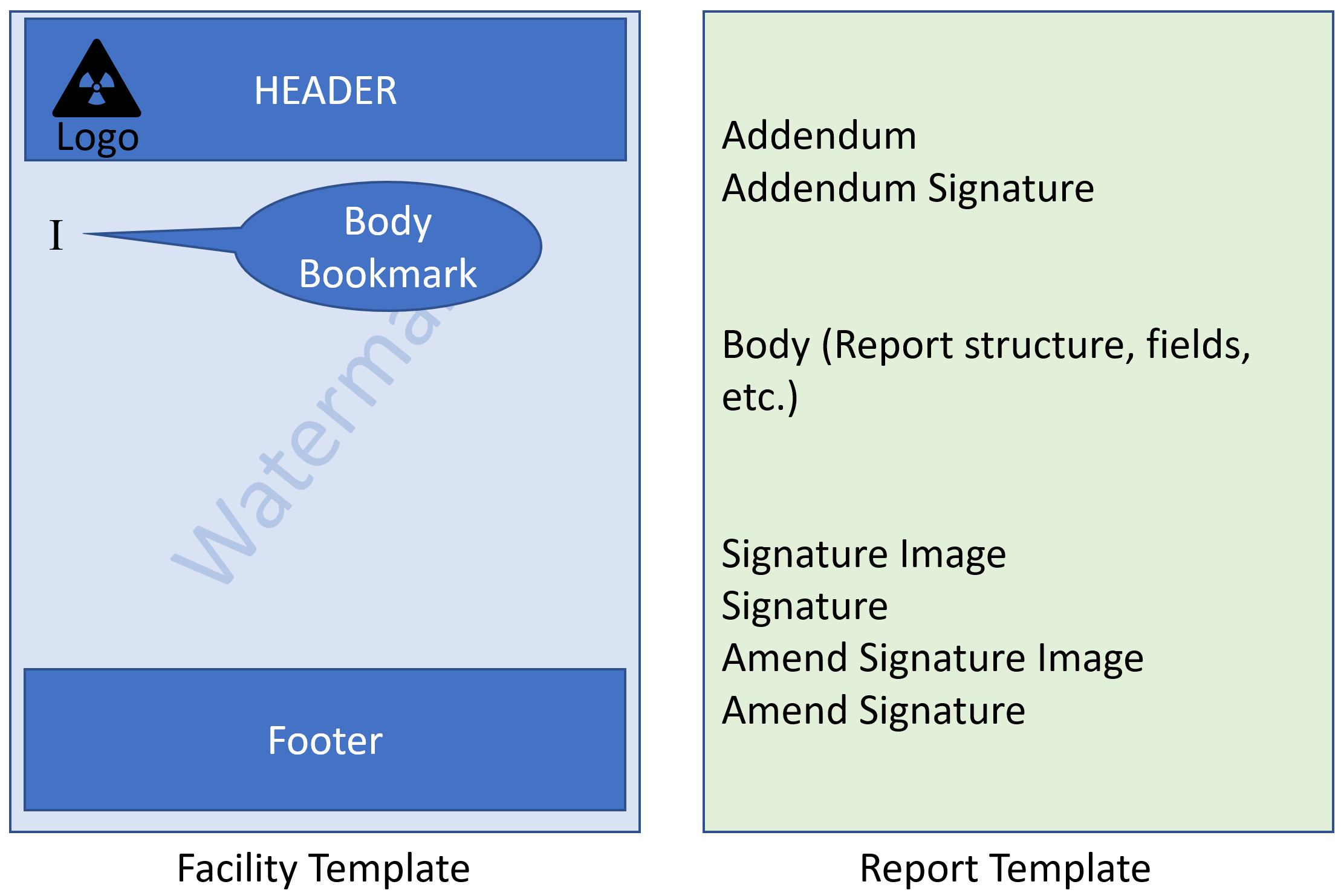
Facility Template: facility templates can have a complex structure including header, footer, and watermark. The report template would be inserted into the Body bookmark so make sure that your facility template includes the BODY bookmark, otherwise the facility template would not be used to create the report. For best results, do not apply any formatting to this bookmark, and make sure it is not inside a table or part of the header or footer part of the template.
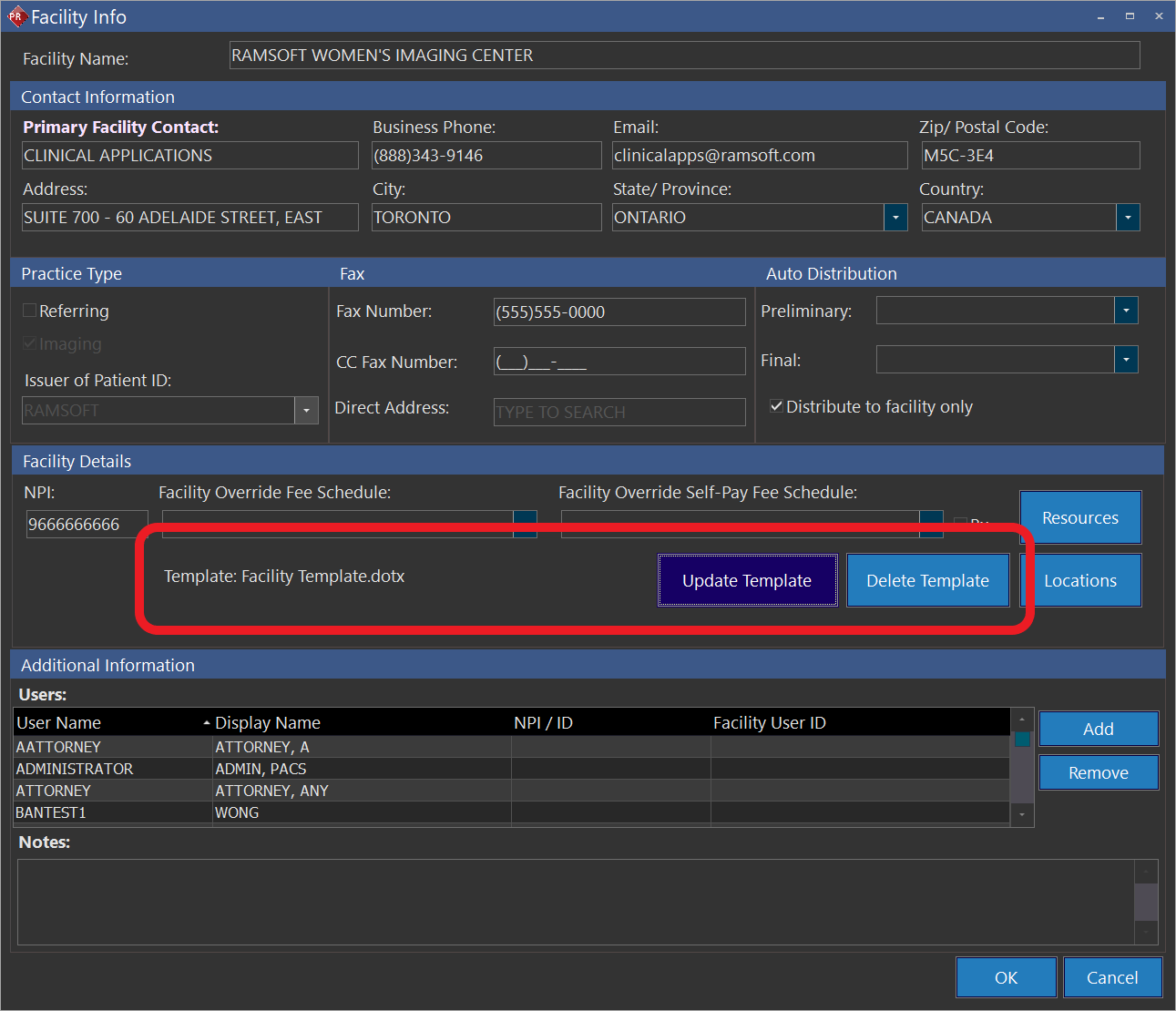
You should upload the facility template to settings > users and facilities > Imaging facility tab
Report Template: We recommend that the report template includes these bookmarks:
- Addendum
- Addendum Signature
- Body (Report structure, fields, etc.)
- Signature Image
- Signature
- Amend Signature Image
- Amend Signature
For best results, do not add header, footer or watermark sections to this template. For configuration of the template, go to this page.
3 – Imaging Facility
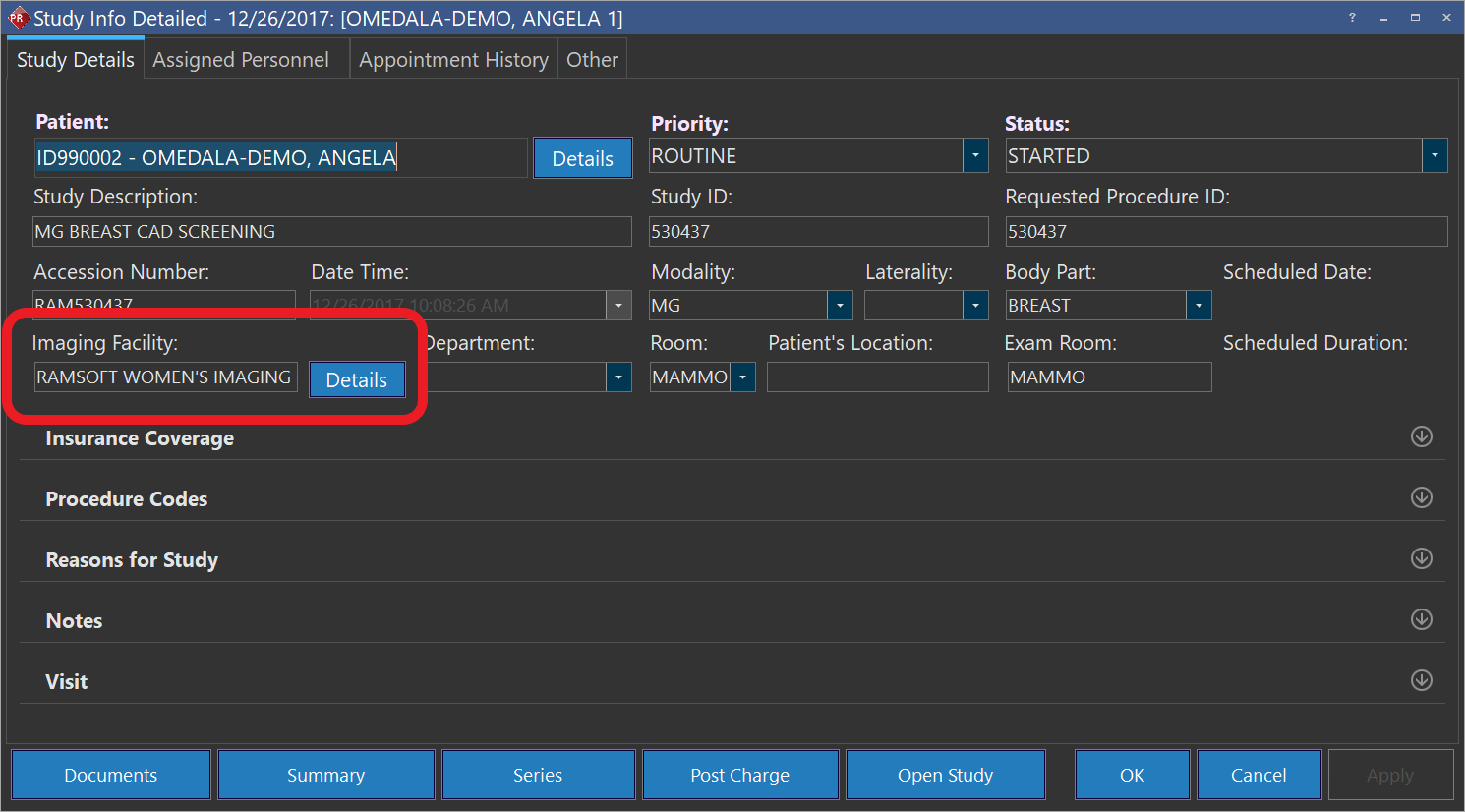
Make sure your studies have an imaging facility assigned to them before a report is created:
Also, make sure that the assigned imaging facility has a facility template uploaded to them (for more information look at creating an imaging facility).
RELATED TOPICS:
*Note: This feature is not available on PACS Lite & Gateway licenses.