Requesting an Appointment
This feature allows the referring physician to submit an appointment request on the patients behalf to any of the associated facilities and modalities. The schedulers of the facility will receive an alert, notifying the status of the appointment requested and can start processing the referring physician's request according to the defined workflow of the site. The Request an Appointment tab appears as shown below.
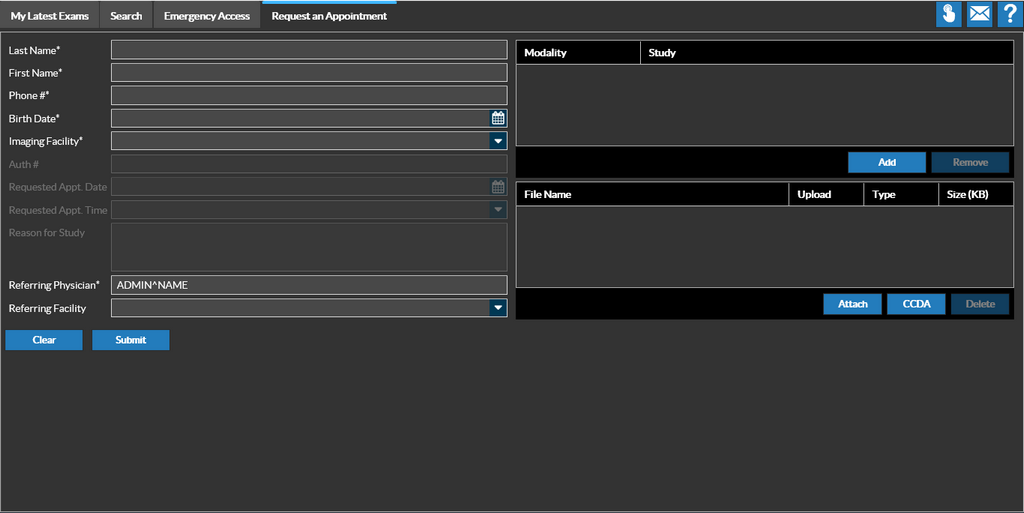
Note that when you click the Request an Appointment tab first time, it appears with all blank fields. However, if you try to access it while a study is opened, the relevant fields are auto-populated.
-
Type in patient's demographic information such as Last Name, First Name, and Phone #. These are mandatory fields.
-
Select the birth date of the patient from the date picker. This is a mandatory field.
-
Click the dropdown found in the Imaging Facility field. Upon clicking, the application will display a list of facilities that are associated. This is a mandatory field.
-
Select the name of the facility to which the patient need to be referred.
-
Click Add to add modality and procedure code.
-
Click the drop-down on the Modality field. When you click on the drop-down, the application will display a list of exams available in that facility.
-
Select the name of the exam that the referring physician has requested.
-
Type in the unique identification code assigned for the exam in the field beside Study.
-
Enter the authorization number in the Auth # text field. It is a unique authorization number generated by the insurance company authorizing the patient to undergo exam/procedure.
-
Click
 on the Requested Appt. Date field and select the date.
 -
Click the drop-down found in the Requested Appt. Time field and select the time that is convenient to the patient.
-
Enter the reason for this study in the Reason for Study text field. This is a mandatory field.
-
Enter the name of the physician who refers the patient in the Referring Physician text field. This is a mandatory field.
-
Enter the name of the facility in the Referring Facility text field.
-
Click on the Attach button to attach a file to the electronic appointment request. The following file formats are supported - CCDA,CCD,CCR,PDF,JPEG,BMP,PNG,GIF,TXT,TIF and HTML. These attachments can be viewed in Messaging Inbox in PowerReader. Once a request is converted into an order, all attachments will be added as study level documents.
-
Click Submit. The application displays that the appointment request has been placed.