Searching for a Study
This feature allows you to search a study. You can conduct a search using any or all of the following criteria like patient/study/facility details. The search screen appears as shown below.
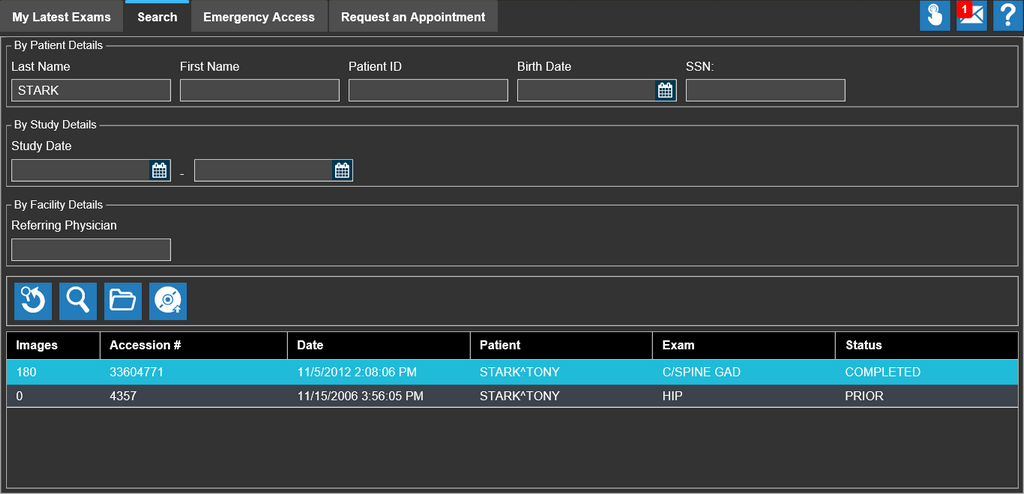
You can search a study by using anyone of the following search criteria:
By Patient Details:
- Last Name
- First Name
- Patient ID
- Birth Date
- SSN#
By Study Details:
- Study Date (Range)
By Facility Details:
- Referring Physician
By Patients Details
You can search a study by entering the appropriate data in the search field mentioned above and press Enter or click  . Whereas, if you use Birth Date, use the date picker to search a study.
Search using Date Picker
You could search a study by entering the appropriate date range using the date picker in the search field mentioned above and press Enter or click Search tool.
- Click
 to view the calendar and select the birth date of the patient.
 - Click Search . Upon click, the application will search for patients having born on the said date.
By Study Details
You could search a study by entering the study date ranging between two dates and press Enter or click Search tool.
Search using Date Picker
- Click to view the calendar and select the start date and end date (range).
- Click Search . Upon click, the application will search for patients having the study start date and study end date as mentioned in the date fields.
By Facility Details
Type in the name of the physician who has referred the patient in the Referring Physician text field and press Enter or click Search .
User Privileges
To access the Search feature in Rapid Results, users need to have the following privilege:
- Access Quick Search
You can clear the Search text by clicking on the Clear tool  icon.
icon.
To open selected studies, click on the Open Study  tool to open the studies on different tabs in the browser window.
You can select studies on the Search screen and burn these studies to a CD/DVD using the Burn Study  tool.
tool.