Viewing Latest Studies
Upon successful login, the application displays the My Latest Exams page as shown below.
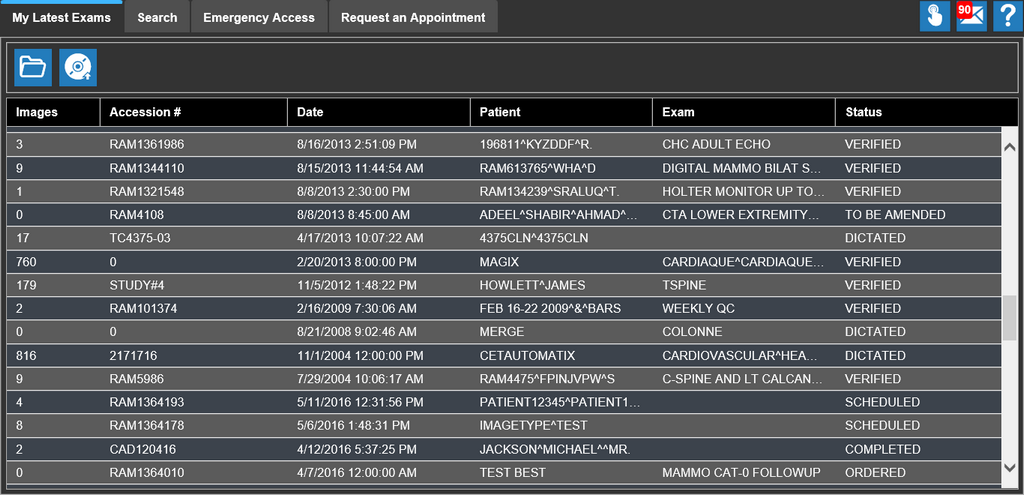
My Latest Exams page displays the list of latest studies that are assigned to the current user. By default, the list of latest studies is being sorted by date (most recent date on top). Future studies are not displayed in Latest Exams.
The maximum number of records (studies) that can be displayed is determined by the system configuration "Maximum Query Records" value that can be set in PowerReader.
You can sort the study by Date, Patient, Exam, and Status just by clicking on the column header. You can also exclude/remove one or more column headers from the My Latest Exams page as shown below.
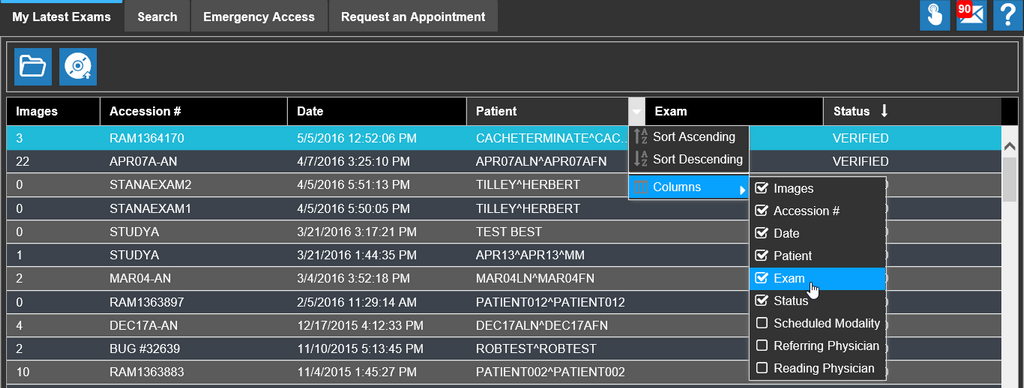
Double-click on the study or select a study from the list available in the My Latest Exams page and click the Open Study icon to open the study.
The selected study appears in the RapidResults Image viewer. A sample study is displayed below:
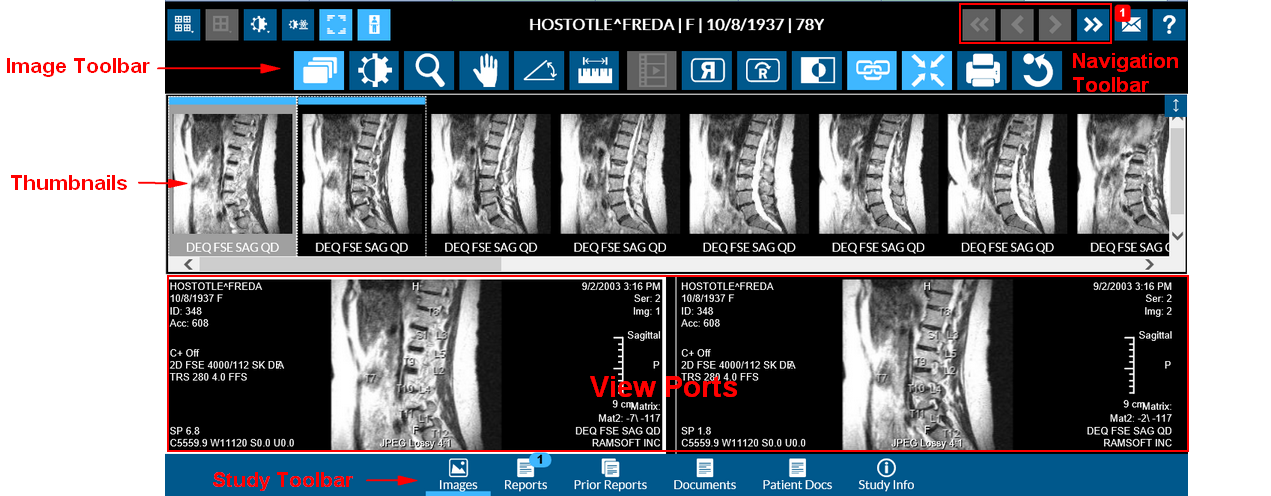
Typically, whenever a study is opened, it displays five distinctive sections. They are:
- View Ports - This occupies the major portion of the screen. The number of image appear depends on your selection. Each viewport displays various images of the study.
- Left Pane - This section occupies the left most portion of the screen. It contains thumbnails.
- Image Toolbar - Each icon in the toolbar is unique. The user can select/make use of only one tool at a time.
- Study Toolbar - This section is below the image viewer. It displays four icons which pertains only the opened study.
- Navigation Toolbar - This section facilitates you navigate to previous/next series.
User Privileges
To view the latest studies in Rapid Results, users need to have the following privilege:
- Access Worklist