How Do I Set Up The Database?
To set up the Database, click File>Database>Setup.
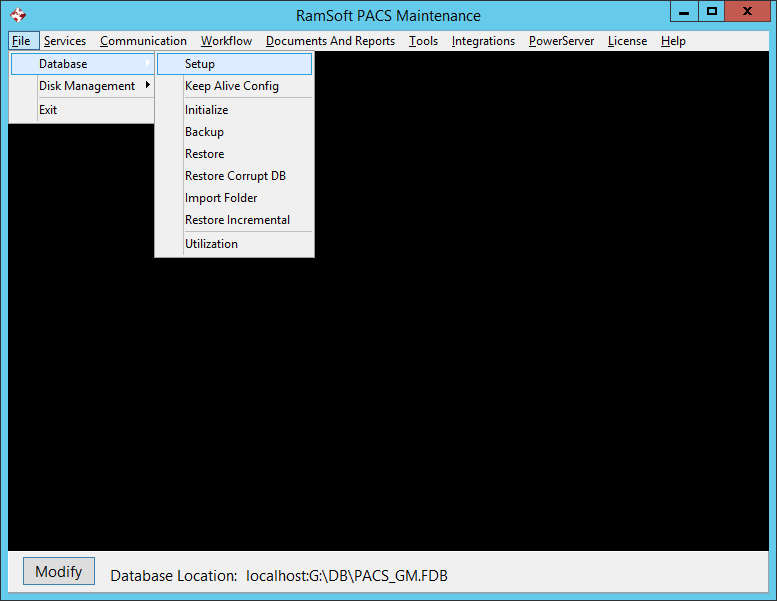
This will open the Database Setup window. This window is separated into three sections accessible by the tabs Folders, Facility and Error Log.
Folders tab

The Folders tab is used to control the Database Setup folders and display color for the Required Fields.
The first field in the Folders tab is the Daily Backup PACS field. To set up a Database Backup Path enter the desired path in the Daily Backup PACS field. This field refers to the folder into which RamSoft Tasks will place the daily backups of the database file. You can also use the Browse button to locate the desired folder.
This folder needs to have access to a large amount of storage space as it will contain up to seven backups of the database file. It is recommended that this folder should be placed on a disk, separate from the one where the database file is located.
The Incremental Backup option is another backup method which can be turned on in the Database Setup folder.

The option enables two options related to the incremental backup. For more information, please refer to the section How Do I Set Up the Incremental Backup?
The second field in the Folders tab is the Form Config Path field. This sets the location of the Form Config folder which by default should be located in C:\Program Files\ RamSoft\Gateway4\FormConfig or C:\Program Files\RamSoft\PowerServer4\FormConfig. The folder contains XML files which control the mandatory or optional status of various fields in a form (e.g mandatory or optional fields in the Patient Info form).
To edit the mandatory fields, open the xml files in a text editor.
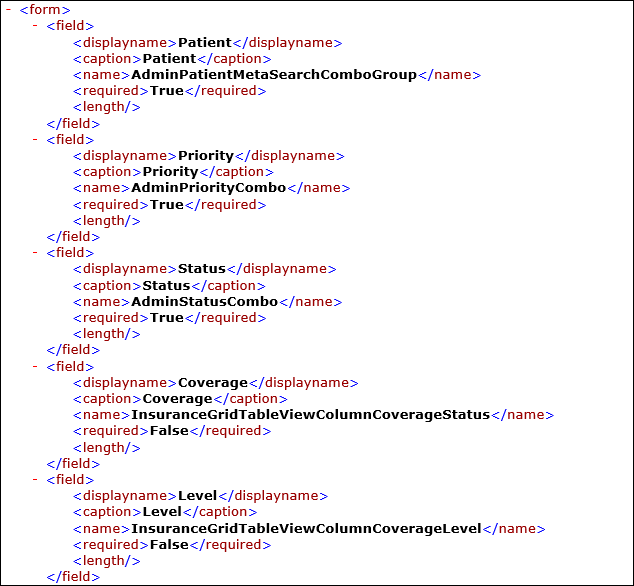
There is a tag for each field labeled <required>. To make a field mandatory, the value between the <required> tags needs to be set to True. Set the value to False if the field is optional.
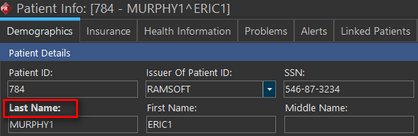
The third field, Required Field contains a Display Bold Text field.
The Display Bold Text option will display the captions for the mandatory fields in bold text.
Facility tab
Under the Facility tab, there are two fields: the Facility field and the Default Issuer of Patient ID field.

The Facility field contains the name of the institution.
To set up the facility name:
a) Select the name of the institution from the Facility drop-down menu. By default this value is set to RAMSOFT.
b) After changing the facility name, a message will appear prompting the user to restart services in order for changes to take effect.
It is mandatory that this name is in upper case and it should match one of the facilities name. When entering a new institution name, ensure that a facility with a matching name is created under Users & Facilities tab in PowerReader.
In order for PowerReader to install without any issues, it is recommended that the facility name you provide not contain a "/" or "\" symbol.
The Default Issuer of Patient ID field refers to the name of the facility that issued the Patient ID.
To set up the Default Issuer of Patient ID:
a) Enter the name of the issuer in the Default Issuer of Patient ID field. This field plays an important role in resolving the Patient ID conflicts. If two different patients with the same Patient ID have been sent to the system, the system will check the Issuer of Patient ID DICOM tag. If the two patients have come from different facilities, they will contain different tags and will be treated as two separate individuals. However, if their Patient IDs were issued at the same location, a conflict will arise.
b) To prevent users from modifying the Issuer of Patient ID DICOM tag, select the Lock Issuer checkbox. The Default Issuer of Patient ID location will appear in the Patient Info dialog, but it will be grayed out, preventing modifications.
The Default Country field indicates where the facility is located.
Error Log tab
The Error Log tab controls the location of the Error Log in the Backup File Path. You can type the file path for the Backup file.

You can also use the Browse button to locate the desired folder.

The users can select the time period for the backup and purging of those logs. Time period is defined in the number of days.
